

Why you’re here
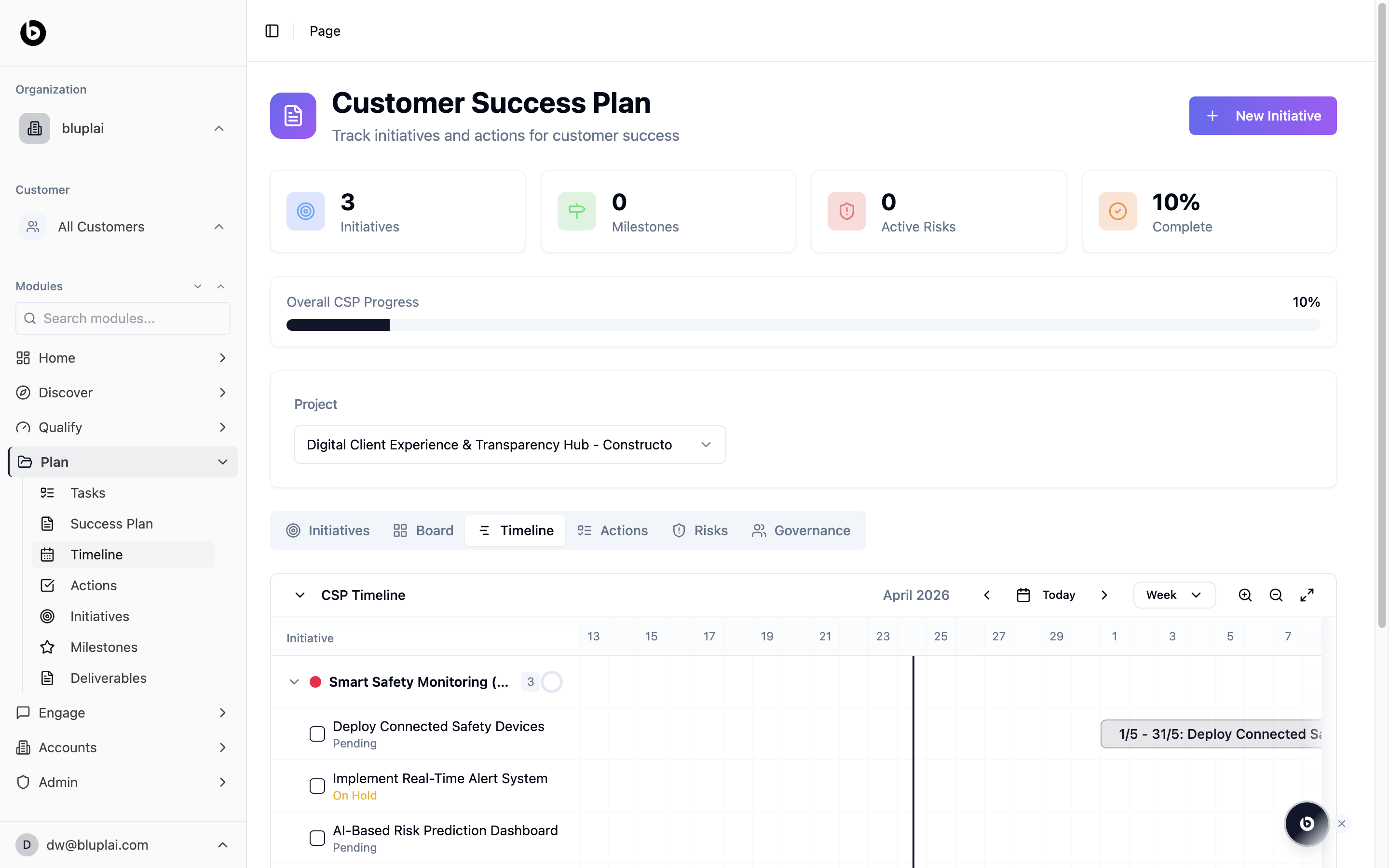
The schedule view of the Customer Success Plan. Gantt-style with initiatives on the y-axis and dates across the top. Use it for status calls and QBRs when visualizing sequencing, overlaps, and dependencies matters more than a flat list.What it is
Timeline is the schedule view of the Customer Success Plan. It’s a tab inside the CSP page at/csp?tab=timeline, sharing the same project selector and summary counters as the Success Plan. Initiatives appear as expandable parent rows; each action inside an initiative renders as a bar on the calendar grid so you can see sequencing and overlaps at a glance.
When to use it
- Sanity-check dates before committing to a delivery plan.
- Spot conflicts when two actions run in the same week.
- Share a date-aligned view with the customer on a status call.
- Zoom from a week view into a specific date range.
What you’ll see
- The standard CSP header: summary counters, Overall CSP Progress bar, and Project selector.
- The CSP Timeline panel with a current-month label (for example, April 2026), navigation arrows, a Today button, and a Week view selector.
- Zoom controls and a full-screen toggle on the right.
- A left column listing each Initiative with a color dot and status; expanding an initiative reveals its actions with per-action status labels (for example, Pending, On Hold).
- A right-side calendar grid with date bars showing each action’s start/end range and title.
Next
Actions
Jump into the list of every action across initiatives.
Initiatives
Group the schedule back into workstreams.