

Why you’re here
Where the things you produce for the customer live — PDFs, exports, shareable outputs. Generated from the workspace so context travels forward instead of restarting in a new file each time. Templates turn a one-off deliverable into a starting point for the next project.What it is
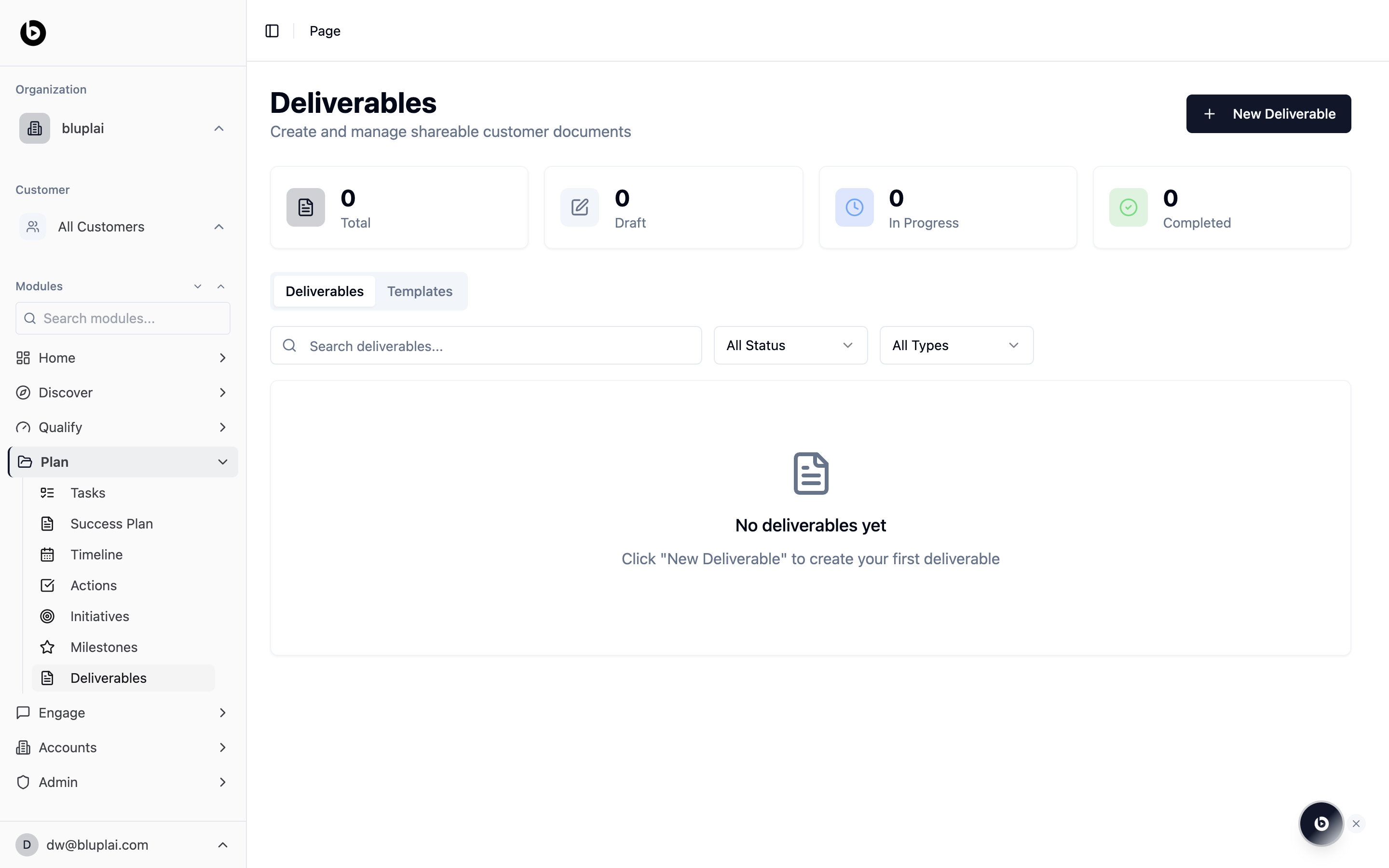
Deliverables is a top-level page for creating and managing shareable account documents. It has two tabs — Deliverables and Templates — so you can either work on a live document for a customer or build reusable starting points. Until you add your first deliverable, the page shows an empty state with a prompt to create one.When to use it
- Draft a document to share with a customer (readouts, plans, summaries).
- Save a common document shape as a Template to reuse across projects.
- Filter a long list down by status or type.
- Track how many deliverables are draft, in progress, or completed at a glance.
What you’ll see
- Four counters at the top: Total, Draft, In Progress, and Completed.
- Deliverables and Templates tabs.
- A search box, All Status filter, and All Types filter.
- An empty state (“No deliverables yet”) with guidance to click New Deliverable to create the first one.
- A New Deliverable button in the top right.
Creating a deliverable
Why you’d create one
A deliverable is the output you produce for the customer — an executive summary PDF, a QBR deck, an architecture doc. Creating it in Plan means it inherits the project’s context and stays linked to the work that produced it, so you’re not starting from a blank file every time. It’s the shareable artifact the rest of the plan feeds into.How to create one
1
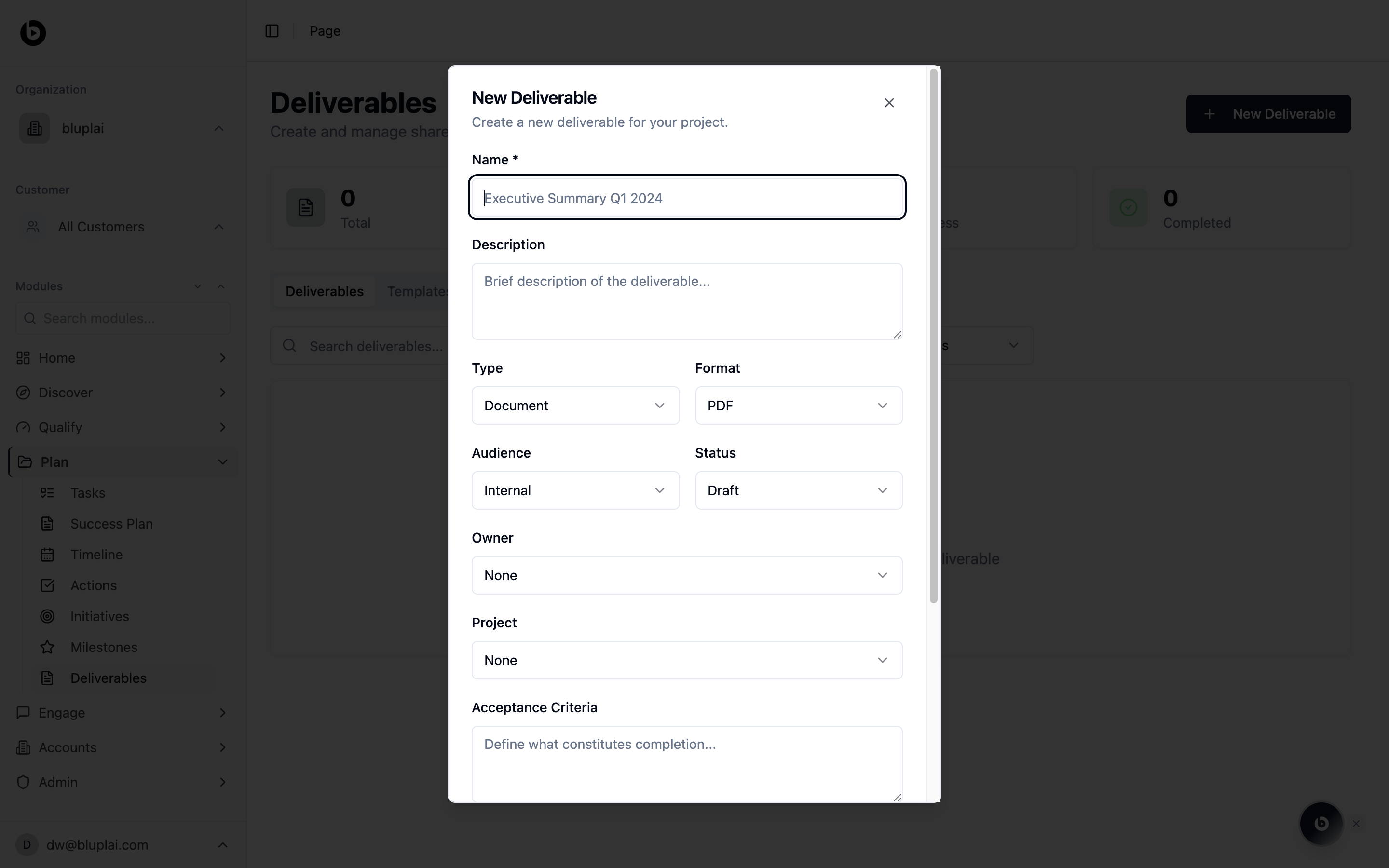
Open the dialog
From
/deliverables, click + New Deliverable in the top right.2
Fill in the details
- Name (required) — the deliverable title (for example, “Executive Summary Q1 2024”).
- Description — short summary of what the deliverable covers.
- Type — the kind of artifact (Document, etc.). Defaults to Document.
- Format — output format (PDF, etc.). Defaults to PDF.
- Audience — who it’s for. Defaults to Internal.
- Status — Draft, In Progress, Completed. Defaults to Draft.
- Owner — person accountable for producing it. Defaults to None.
- Project — the project this deliverable belongs to.
- Acceptance Criteria — what has to be true to consider it complete.
3
Save
Click Create Deliverable. The new deliverable appears in the Deliverables list.
What happens after
The deliverable shows up in the Deliverables tab, counts into the Total, Draft, In Progress, and Completed counters, and becomes linkable from tasks and milestones that contribute to it.Next
Milestones
Link deliverables to the checkpoints they complete.
Tasks
Track the work it takes to finish a deliverable.