

Why you’re here
Home is the operational view of the relationship — not a sales dashboard. It’s where you see overall relationship status, key activities across modules, recent interactions, and your own tasks before a customer call or team stand-up. A sales lead opens Home before a customer call and sees open commitments and recent activity without digging through notes, docs, or CRM. That alone saves 10–15 minutes per call and cuts the duplication between tools. You start the day knowing what’s moved since yesterday — you don’t search for it.What you’ll see
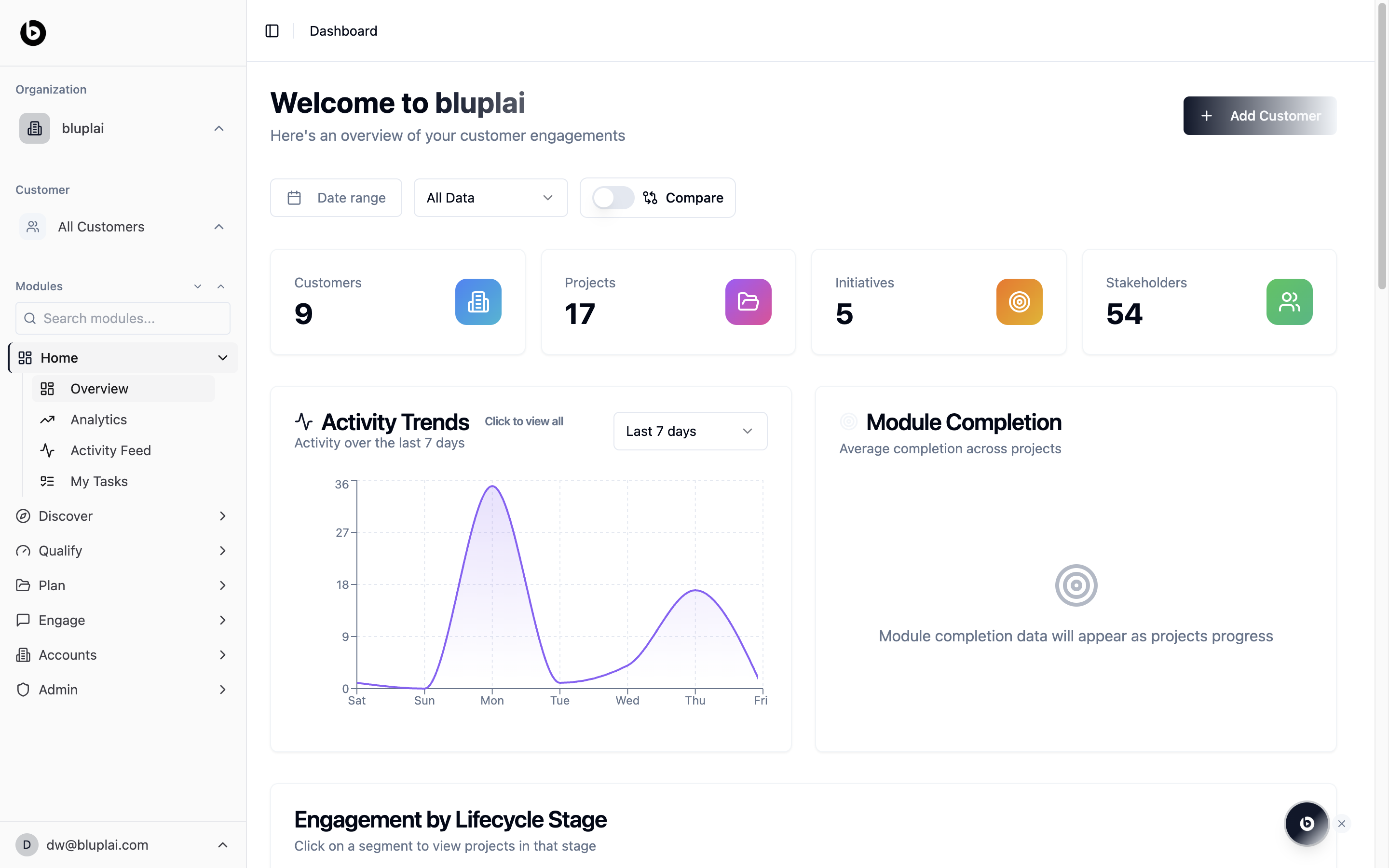
- A welcome header with a New account button in the top right.
- A Date range filter, an All Data selector, and a Compare toggle to benchmark two periods.
- Four portfolio counters: Accounts, Projects, Initiatives, and Stakeholders, each with a live count.
- An Activity Trends card plotting activity over a selectable window (default Last 7 days) — click the chart to open the full activity feed.
- A Module Completion card showing average completion across projects. If there’s no project data yet, it stays in an empty state that reads “Module completion data will appear as projects progress.”
- An Engagement by Lifecycle Stage section lower down, where each segment maps to Discover, Qualify, Plan, Engage, or Deliver — click a segment to drill into the projects sitting in that stage.
How it’s calculated
Module Completion is a strict count of finished actions across projects — not a subjective health estimate.When to use it
- Start the day with a read on whether activity is up or down versus last week.
- Spot the lifecycle stage that’s getting congested (for example, too many projects stuck in Qualify).
- Pull totals for a weekly internal update without leaving the dashboard.
- Click into Activity Trends when a spike or flat line doesn’t match your expectations.
Next
Analytics
Go deeper on portfolio health, risk, and top performers.
Activity feed
See the individual changes behind the trend chart.