
Why you’re here

Engage is where the relationship is actively managed with the customer, and Digital Assessment is the diagnostic that anchors it. It’s scoped to a single project and pulls goals, challenges, workflows, tech stack, solutions, scoring, and team capability into one view you build with the customer — and with multiple customer teams directly. When you prep a QBR, you pull initiatives, outcomes, and progress from existing Bluplai data instead of starting from scratch, so QBR prep drops from ~6 hours to 2–3 hours. Partners who join the workspace see the same baseline you do — no re-doing discovery every time a new person lands. You work with the customer — not around them.
Digital Assessment fills in from within each tab — open Goals & Challenges, Workflows, Tech Stack, Solutions, or the scoring tabs to add items. The assessment score updates as you fill it in.
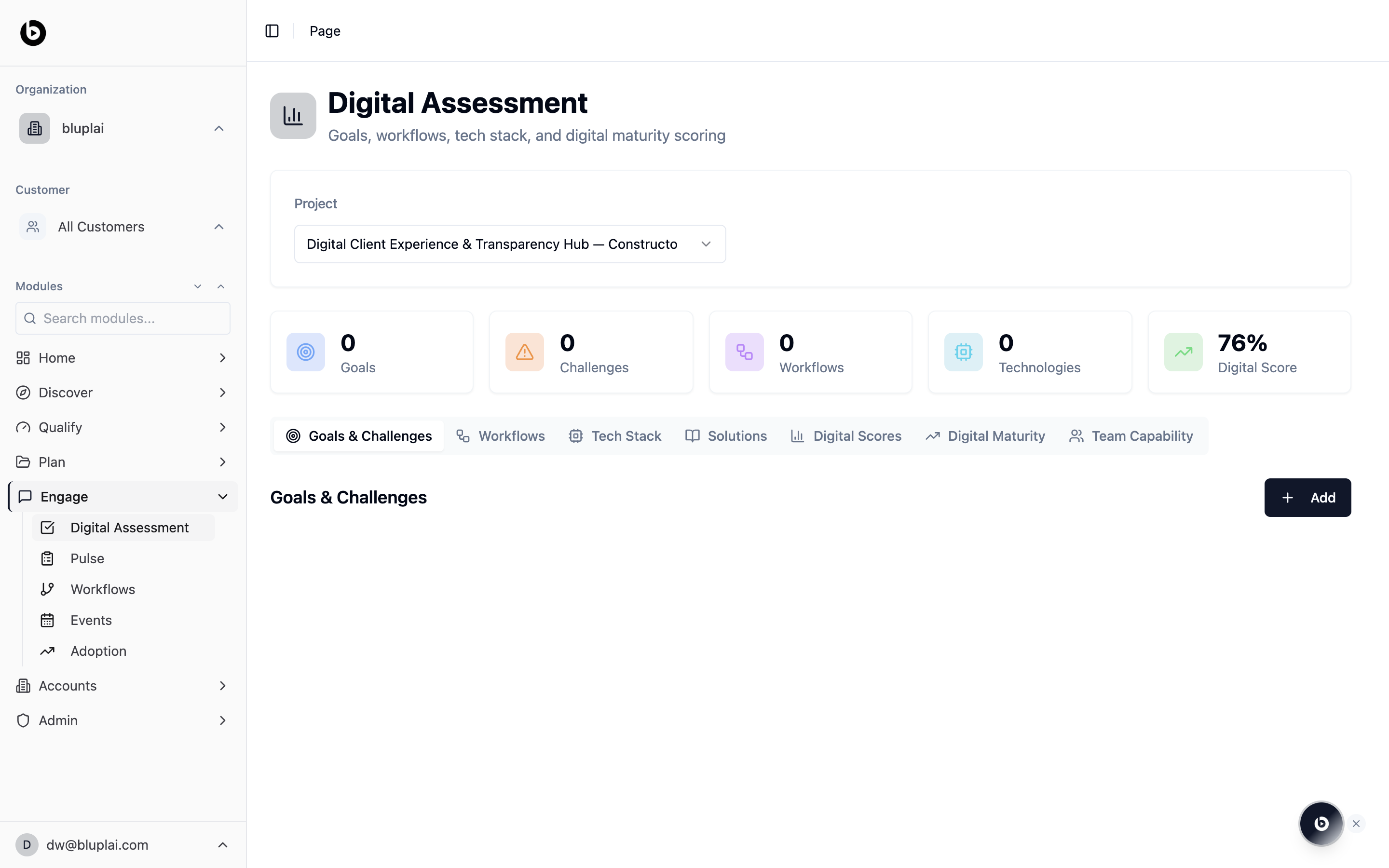
Digital Assessment page scoped to a selected project, showing counters for Goals, Challenges, Workflows, Technologies, and a Digital Score, with tabs for Goals and Challenges, Workflows, Tech Stack, Solutions, Digital Scores, Digital Maturity, and Team Capability.

What you’ll see

The page is driven by the Project selector at the top — every counter and tab swaps when you change projects. A header strip rolls up Goals, Challenges, Workflows, Technologies, and the overall Digital Score percentage (76% in the screenshot). Seven tabs sit below the strip, each covering a different lens on the project’s maturity.

Tabs

Goals and Challenges

Goals and Challenges tab active with an Add button on the right, scoped to the selected project.
The default tab. Capture what the project is trying to achieve and the specific blockers in the way. The counters at the top of the page track how many of each have been logged; use Add to record a new one. In the screenshot both counters read 0 — nothing has been captured yet for this project.

Workflows

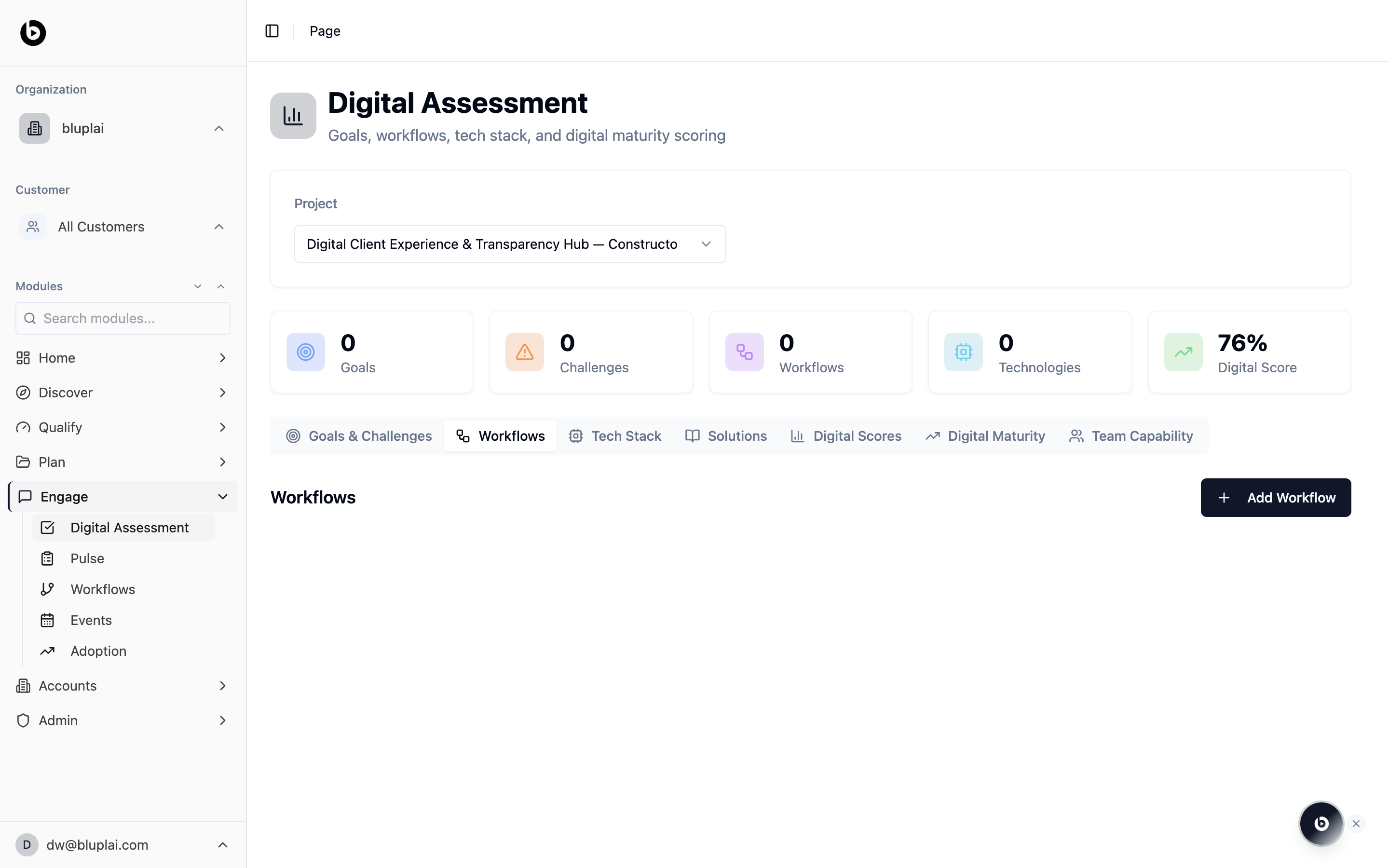
Workflows tab showing a Workflows heading, an Add Workflow button, and an empty body.
Workflows is where you list the business processes in scope for the assessment. The body is empty here because none have been added yet — use Add Workflow to register one, and use the dedicated Workflows module to map its steps in detail.

Tech Stack

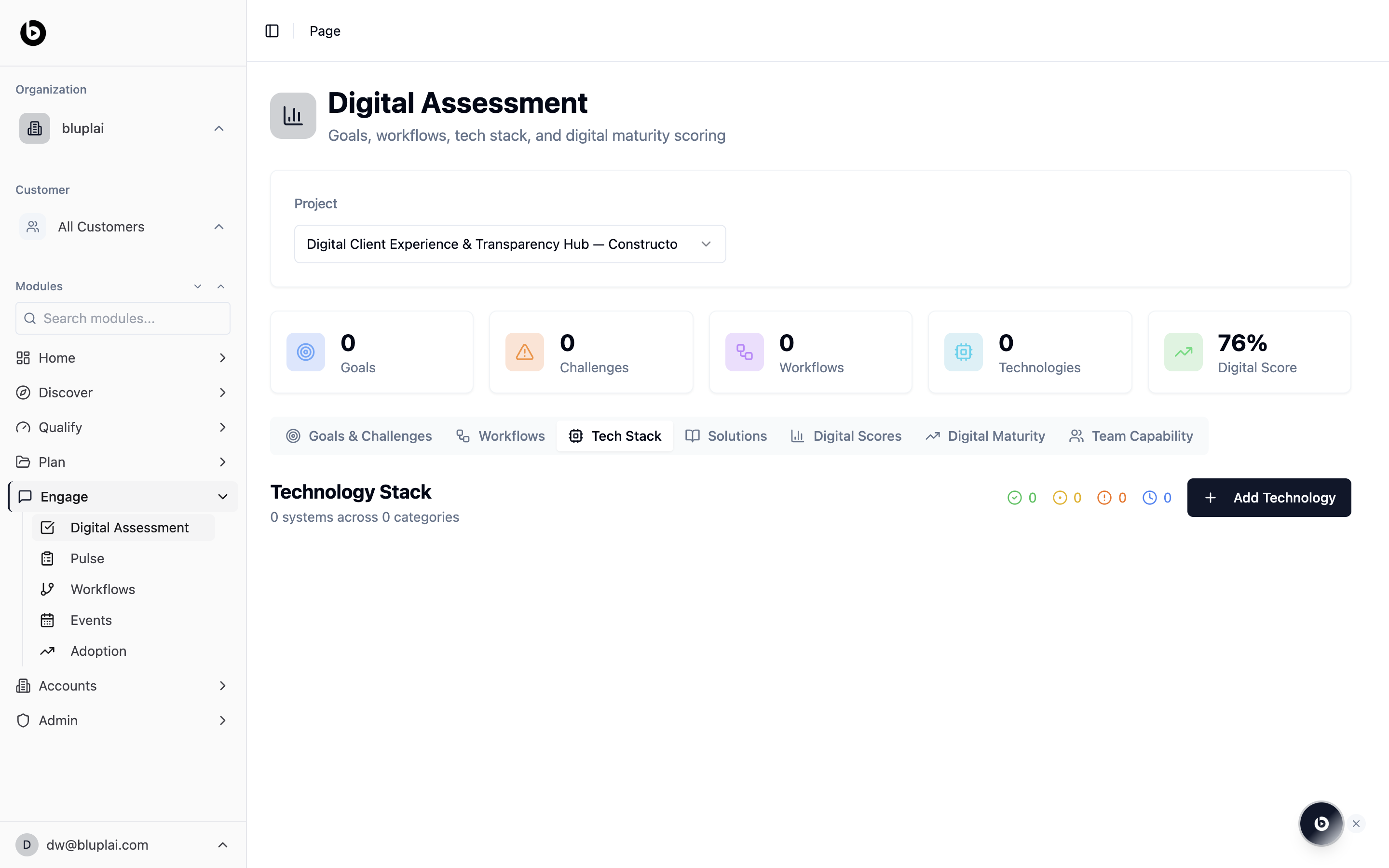
Tech Stack tab showing a Technology Stack heading reading 0 systems across 0 categories, traffic-light counters at zero, and an Add Technology button.
Tech Stack captures the systems in play for this project, grouped by category. The subheader reads “0 systems across 0 categories” and the red, amber, green counters are all at 0, so nothing is recorded yet. Add Technology is how you start logging what’s in use and how healthy it is.

Solutions

Solutions tab showing a Solutions heading, an Add Solution button, and an empty body.
Solutions is where you track the proposed or in-flight fixes tied to the goals and challenges above. The body is empty in the screenshot; Add Solution lets you record a new one so the customer can see what’s being proposed and why.

Digital Scores

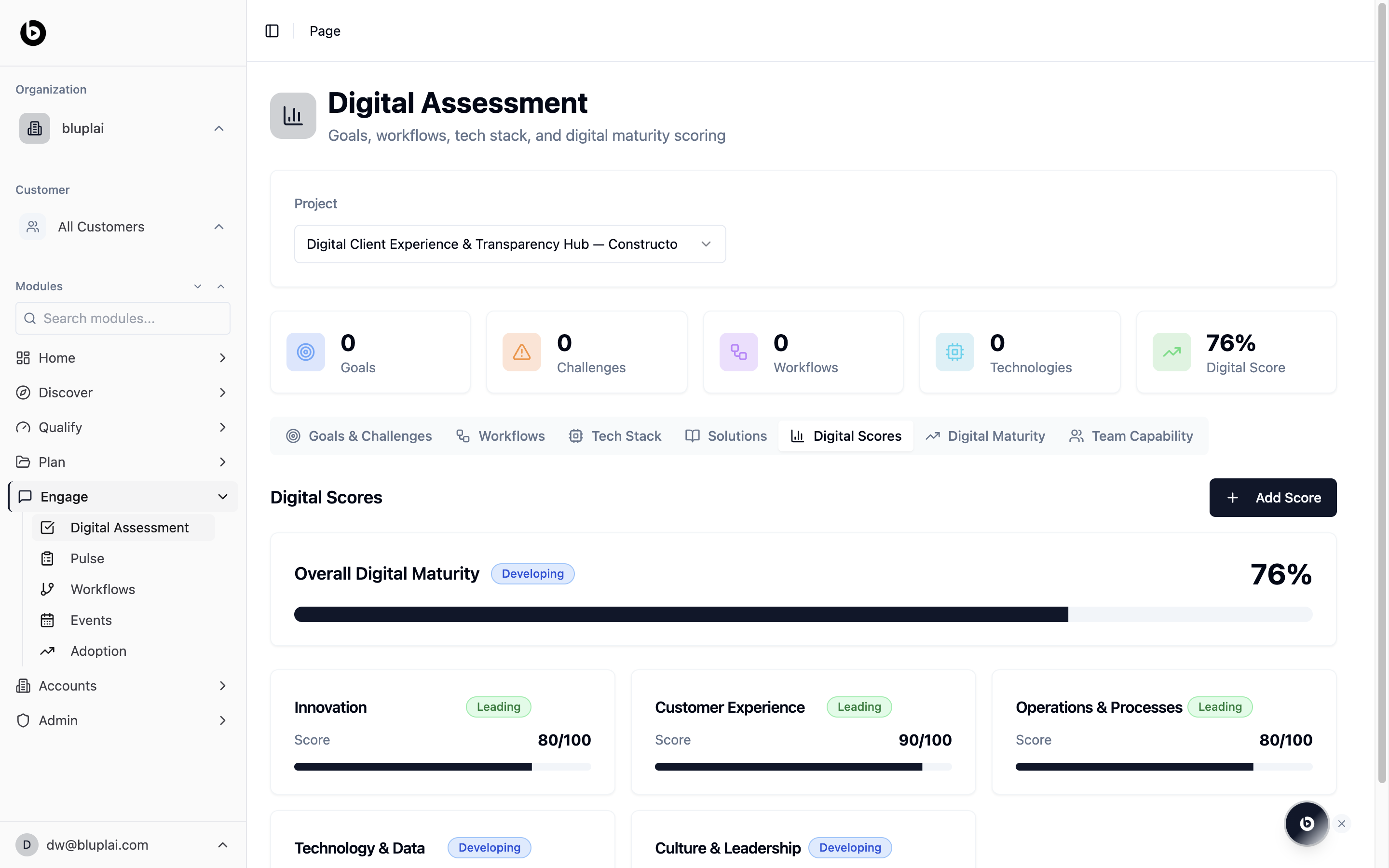
Digital Scores tab showing an Overall Digital Maturity bar at 76 percent tagged Developing, and sub-scores for Innovation, Customer Experience, Operations and Processes, and Technology and Data.
Digital Scores breaks the overall number down. Overall Digital Maturity sits at 76% and is tagged Developing; Innovation scores 80/100 (Leading), Customer Experience 90/100 (Leading), Operations and Processes 80/100 (Leading), with Technology and Data and Culture and Leadership below in Developing. Add Score lets you record or update a dimension.

Digital Maturity

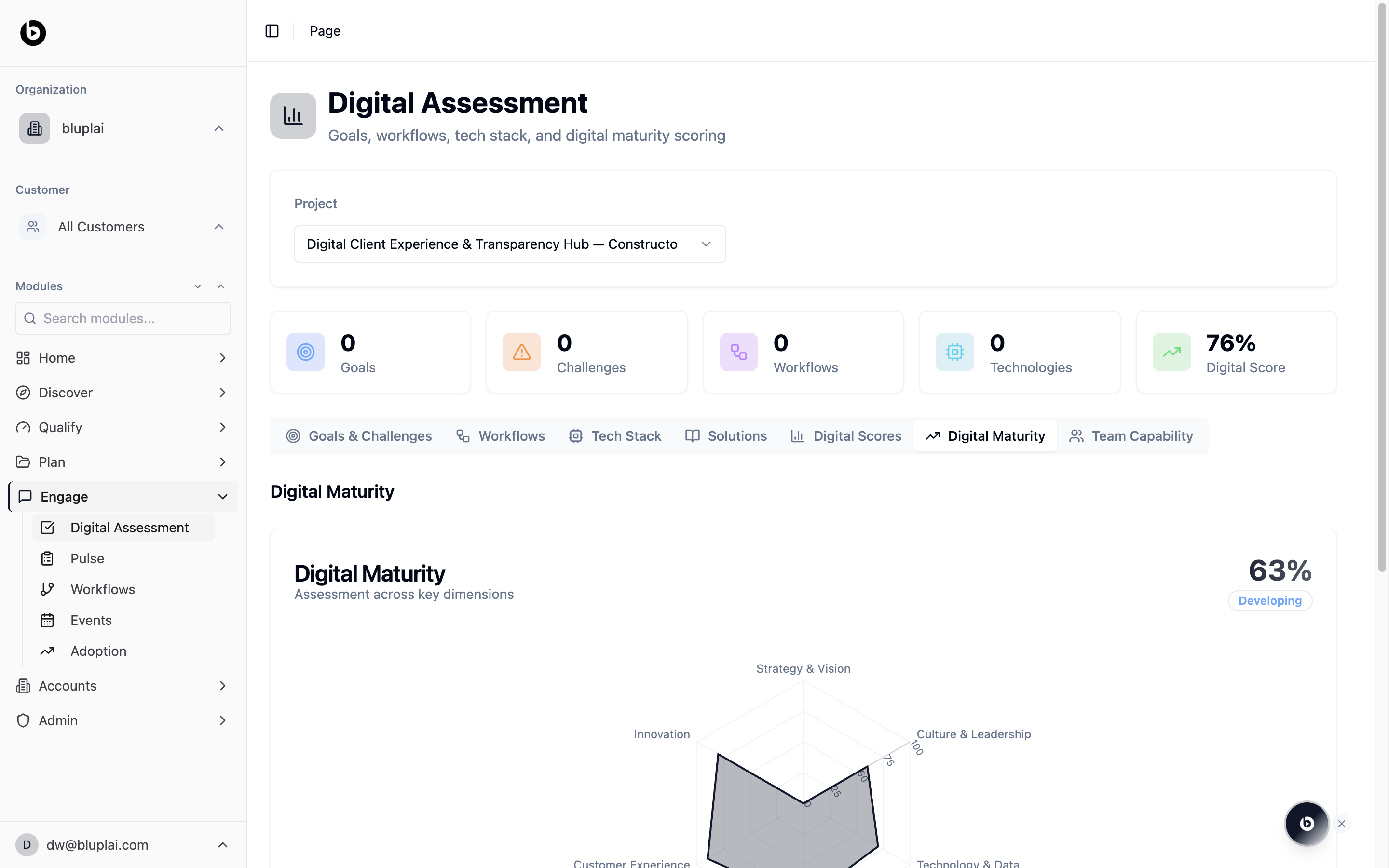
Digital Maturity tab showing a 63 percent Developing score and a radar chart across Strategy and Vision, Culture and Leadership, Technology and Data, Customer Experience, and Innovation.
Digital Maturity is the visual companion to Scores — a radar chart across key dimensions including Strategy and Vision, Innovation, Culture and Leadership, Customer Experience, and Technology and Data. The headline reads 63% Developing. Use this tab to show the shape of the project at a glance in a review.

How it’s calculated

The radar is driven directly by the diagnostic scores you enter on this tab — there’s no separate aggregation step. Each slider supports either a 1–10 scale or a percentage toggle, and both feed the same axis on the radar. Assessment categories are editable per customer, so the axes reflect what matters for that specific engagement rather than a fixed template.

Team Capability

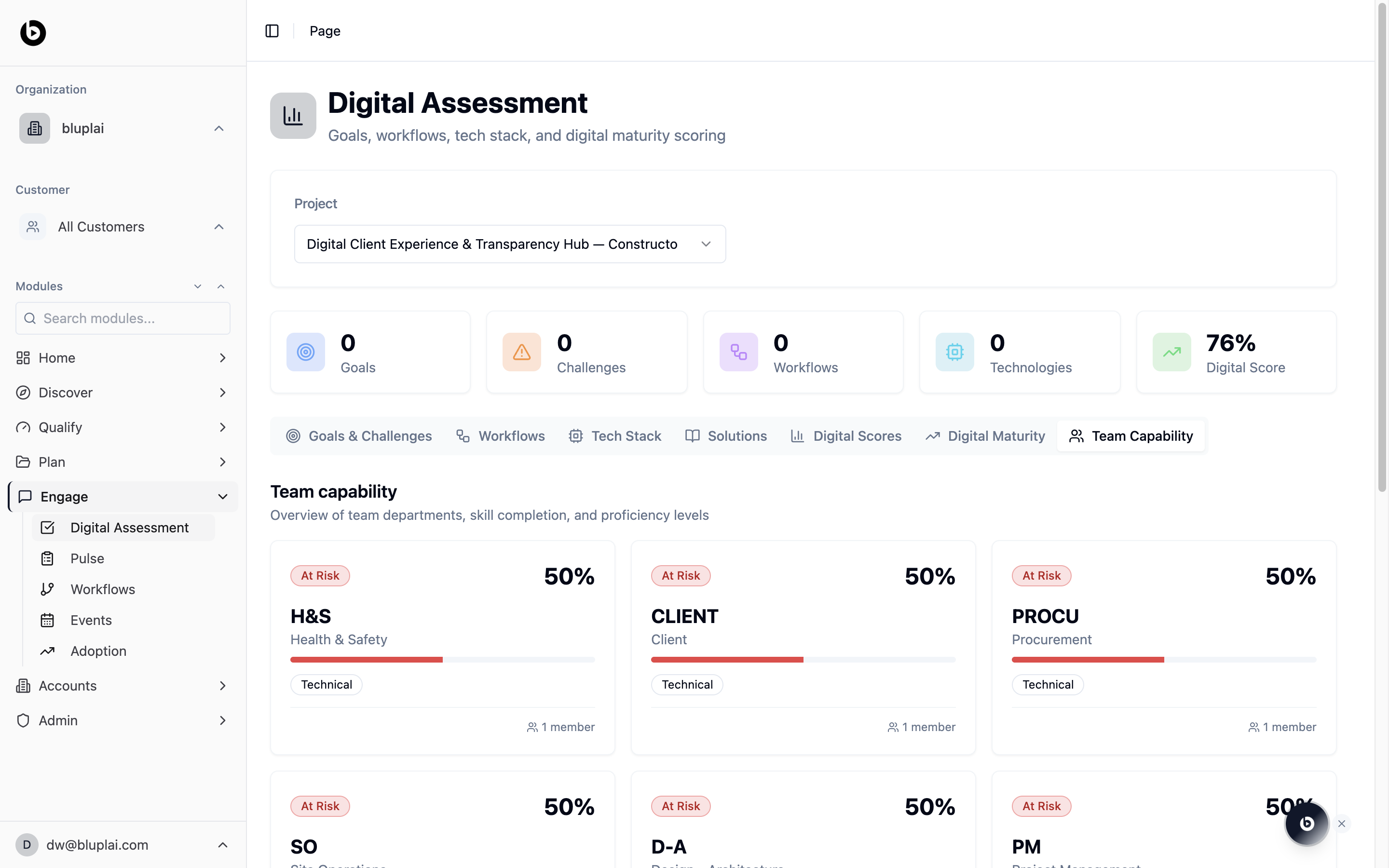
Team Capability tab showing a grid of department cards — H&S, CLIENT, PROCU, SO, D-A, PM — each at 50 percent tagged At Risk with 1 member and a Technical skill label.
Team Capability shows a card per department with a proficiency percentage, a status chip, member count, and a skill label. In the screenshot every department — H&S, CLIENT, PROCU, SO, D-A, PM — sits at 50% and is tagged At Risk with 1 member each. Use this view to see where skill gaps are likely to block delivery before they do.
The Digital Score is a roll-up across the tabs — fill in Goals, Workflows, Tech Stack, and Solutions before relying on it for executive reporting.

When to use it

  • Kicking off a new transformation project and capturing the baseline with the customer in the room
  • Preparing for a discovery workshop where you need structured notes against each capability area
  • Updating scores after a follow-up session so the Digital Score reflects the latest view
  • Reviewing a project’s readiness before a steering committee or QBR
  • Handing a partner the diagnostic without a 90-minute walkthrough call

Next

Workflows

Map the customer processes that feed into the assessment.

Pulse

Run interviews and surveys to validate what the assessment surfaces.