
Why you’re here
Your personal action list. Filter across every project or zoom into one. Open this when you start your day, wrap up your day, or prep for a 1:1 — it’s the fastest answer to “what do I owe, and by when?”What it is
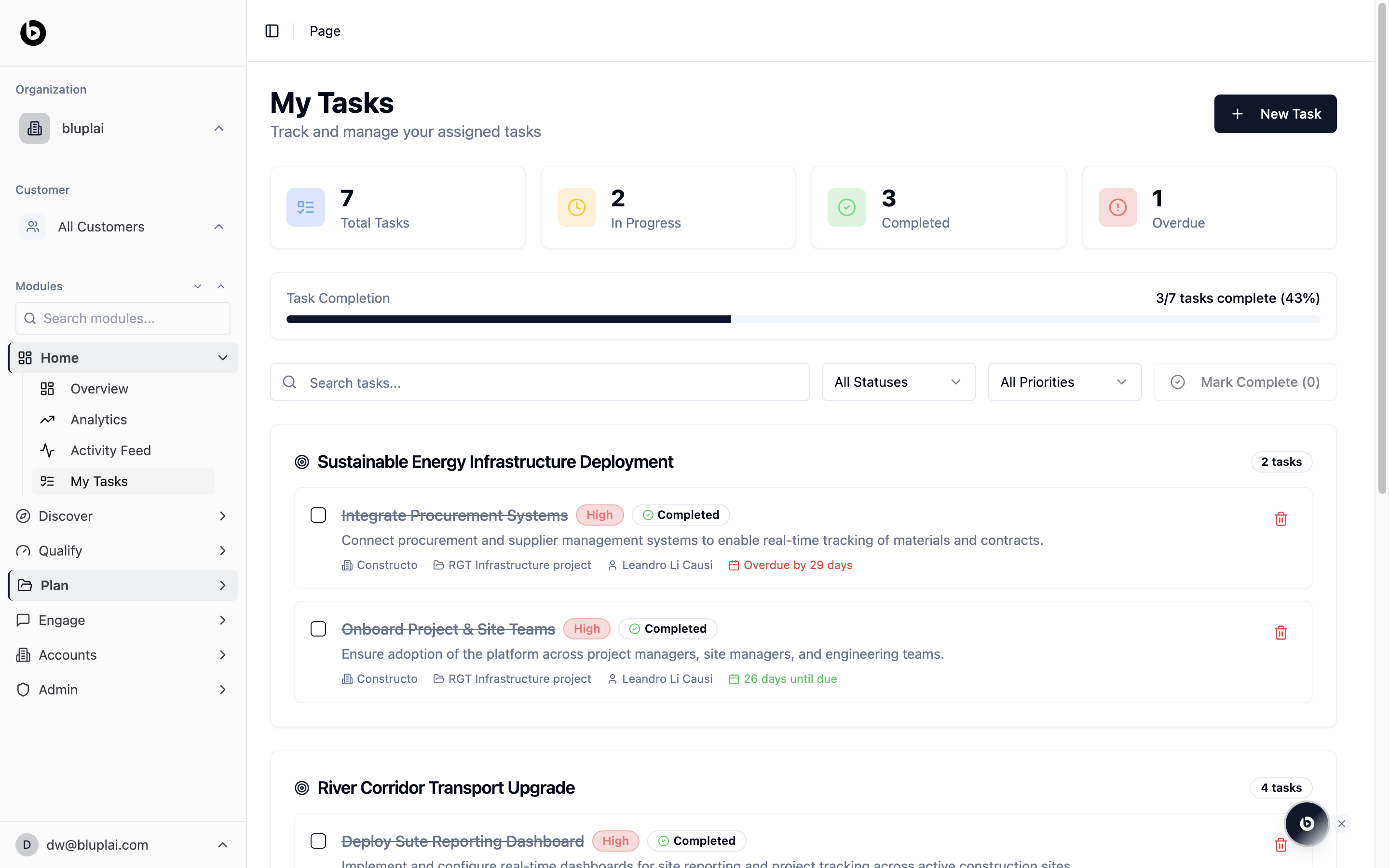
My Tasks is a personal, cross-project view of every task assigned to you. Tasks are grouped by project and show the account, source project, assignee, priority, status, and due date. A top banner tracks total tasks, in progress, completed, and overdue, with a completion progress bar.When to use it
- Start the day with a focused list of what you owe across every account.
- Catch overdue work before a status call.
- Mark items complete in bulk after a working session.
- Confirm which project a task belongs to before jumping into the customer success plan.
What you’ll see
- Four counters at the top: Total Tasks, In Progress, Completed, and Overdue.
- A Task Completion bar showing how many tasks are complete out of the total, with a percentage.
- A search box, All Statuses and All Priorities filters, and a Mark Complete action that counts selected items.
- Tasks grouped under each project heading with a per-project task count on the right.
- Each task row shows a checkbox, title, priority pill, status pill, description, account, source project, assignee, and a due-date indicator (including overdue counts in red).
- A New Task button in the top right opens task creation.
Creating a task
Why you’d create one
Tasks are the smallest unit of work in the Plan flow — the things you actually check off. They can be personal (untethered to an initiative) or attached to an initiative so progress rolls up into the Customer Success Plan. Because everything lives in one place, context travels forward instead of getting lost in side lists.How to create one
1
Open the dialog
From
/tasks, click + New Task in the top right.2
Fill in the details
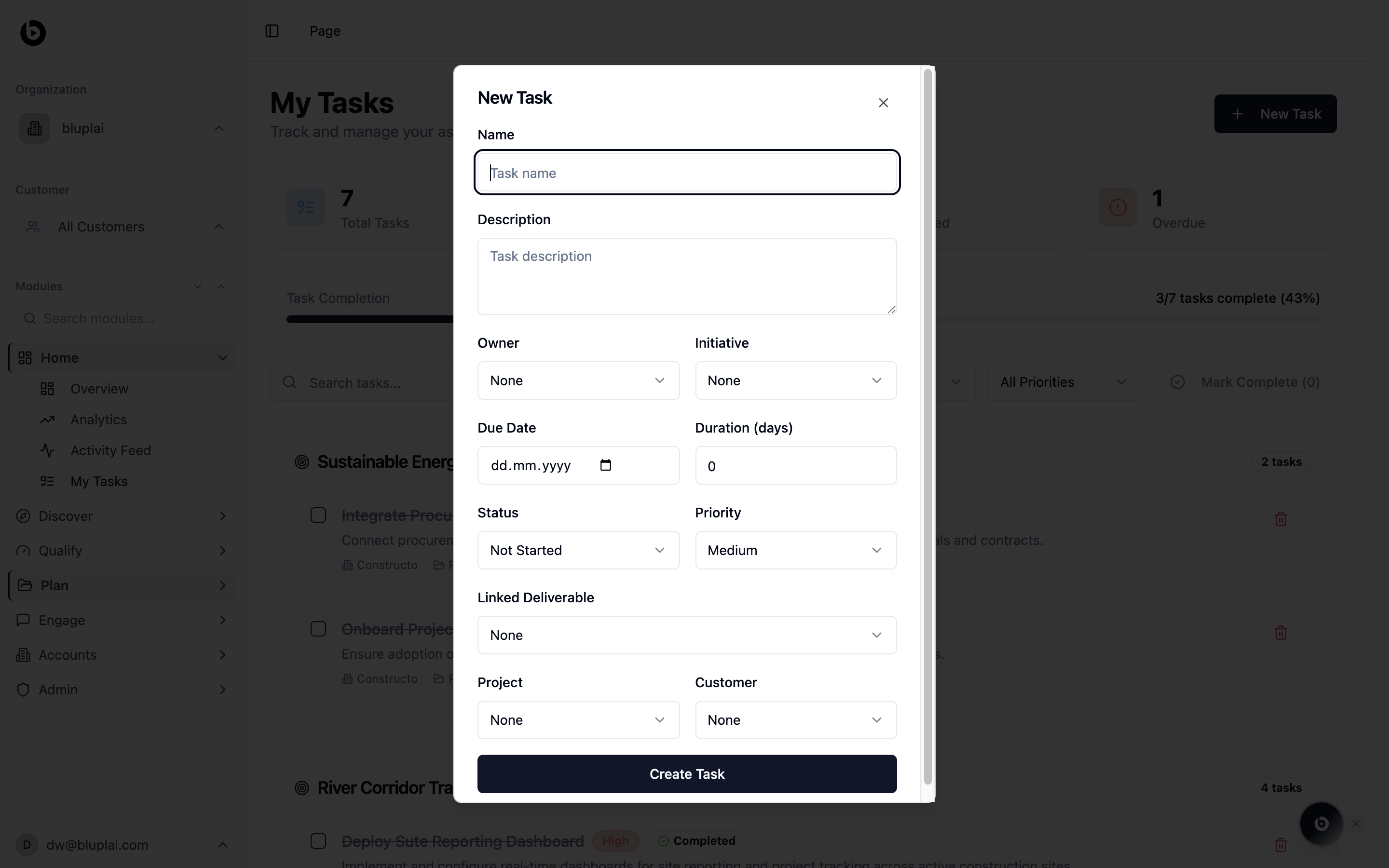
- Name (required) — short title for the task.
- Description — more context on what needs to be done.
- Owner — person accountable. Defaults to None.
- Initiative — link the task to an initiative so it rolls up into a CSP. Leave as None for a personal task.
- Due Date — date the task is expected to be done.
- Duration (days) — estimated effort in days. Defaults to 0.
- Status — Not Started, In Progress, Completed, and so on. Defaults to Not Started.
- Priority — Low, Medium, or High. Defaults to Medium.
- Linked Deliverable — optional link to a deliverable the task contributes to.
- Project — scope the task to a project.
- Account — scope the task to an account.
3
Save
Click Create Task. The new task appears under its project heading in the My Tasks list.
What happens after
The task shows up in your My Tasks list, contributes to the counters and completion bar at the top, and — if linked to an initiative — feeds progress into the parent initiative on the CSP.Next
Success Plan
See how tasks roll up into project-level initiatives and actions.
Milestones
Track the checkpoints these tasks contribute toward.