

Why you’re here
The Planning Board section sits further down the Discover page and gives you a shared whiteboard for the messy stuff — raw notes from a call, brainstormed ideas, sticky-note-style observations, and anything that isn’t yet structured enough to live as a goal, challenge, or snapshot item. The whole point is to capture context in the moment so nothing is lost between emails, Slack, and call recordings. Later, you promote the keepers into structured records.What you’ll see
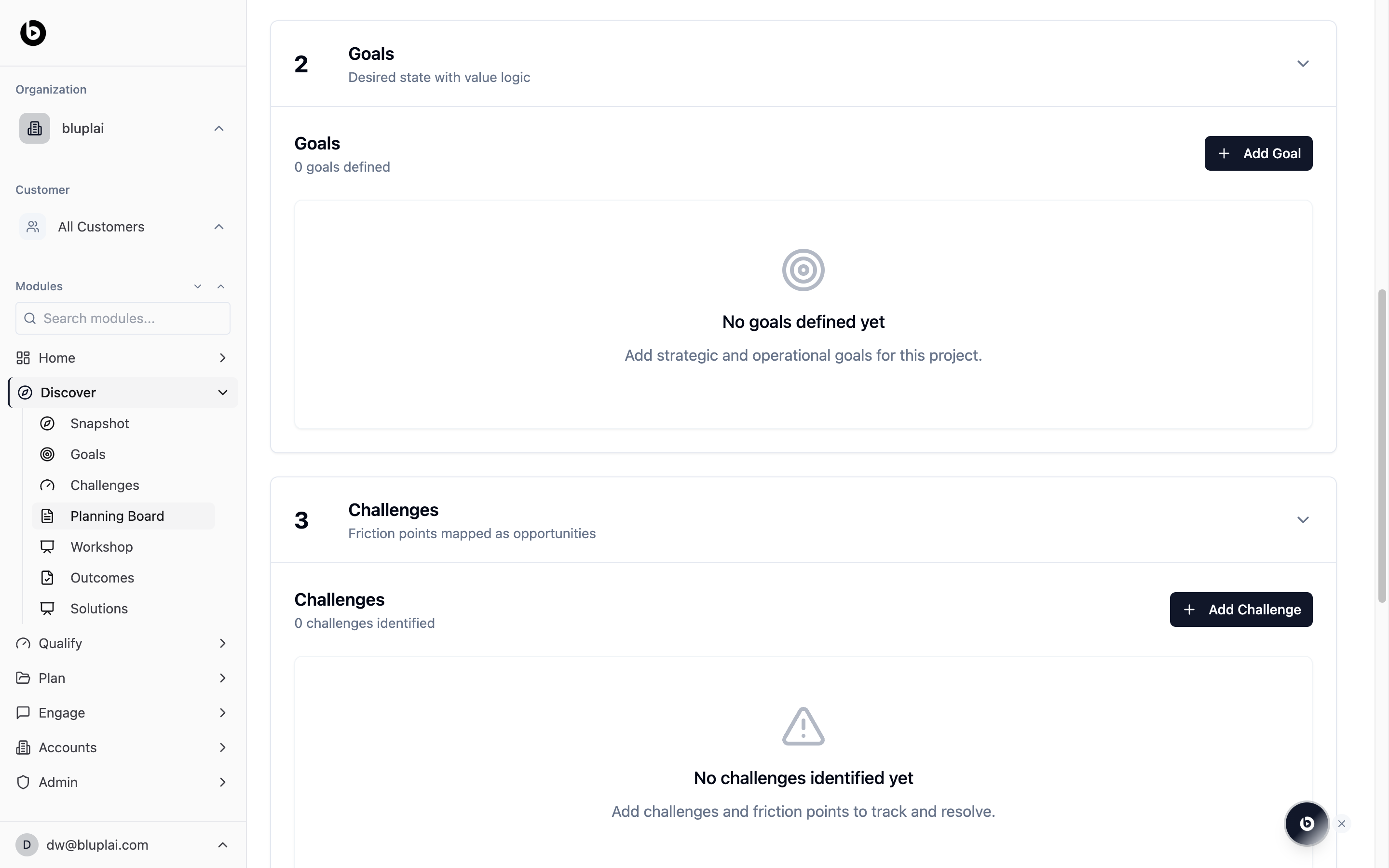
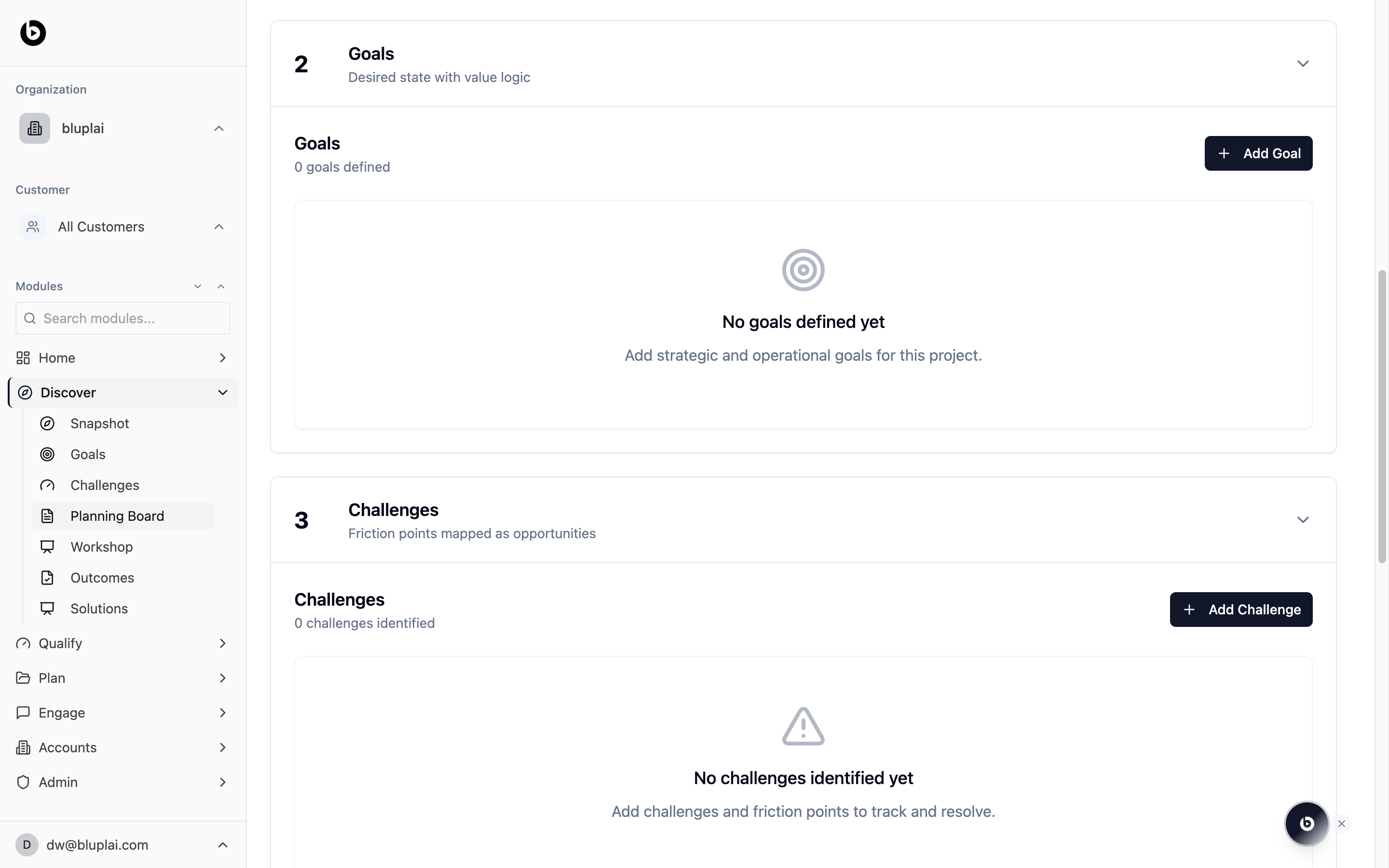
The Planning Board appears as its own numbered section inside the Discover page, accessible via the Planning Board link in the Discover sidebar or by scrolling down past Goals and Challenges. Like the other sections, it starts empty for a new account — use it as a freeform surface rather than a structured form. This is the “capture first, organise later” layer of Discover. When a call or meeting produces ten half-ideas, drop them here instead of trying to classify each one on the spot.Adding a card
Why you’d add one
A planning-board card is a freeform note — a raw quote, a half-formed idea, a follow-up question, or a sticky-style observation you don’t yet want to structure as a goal, challenge, or snapshot item. Capture cards here first so nothing is lost from the conversation, then promote the ones worth keeping into the structured sections that feed Qualify, Plan, and Engage.How to add one
1
Open the Planning Board
From
/discovery?section=planning-board, scroll to the Planning Board section or click Planning Board in the Discover sidebar.2
Add a card
Click the empty area on the board (or the add-card control) and type the note. Cards are freeform — one thought per card works best so each idea can be moved or promoted on its own.
3
Save
The card is saved to the board as soon as you finish typing. Drag it to group related cards together as the board fills up.
What happens after
Cards live on the board as raw context. When one is worth keeping, promote it into the matching structured record — a Snapshot item, Goal, or Challenge — so it travels forward into Qualify and Plan. Cards left on the board stay as reference notes for the team.When to use it
- Taking live notes during a discovery call without breaking flow to decide “is this a goal or a challenge?”
- Brainstorming with a customer stakeholder during a working session.
- Parking follow-up questions you want to raise on the next call.
- Collecting raw quotes and observations you’ll later distill into goals, challenges, or outcomes.
Next
Workshop
Run a structured working session with the customer.
Snapshot
Promote raw notes into the structured account profile.