

Why you’re here
Solution Fit is the honesty check. A strong ROI only matters if the solution matches the customer’s reality — capabilities they need, pillars they care about, risks they can absorb, and their readiness to adopt. This tab structures that judgement so it’s shared with the customer, not a private note on your side.What you’ll see
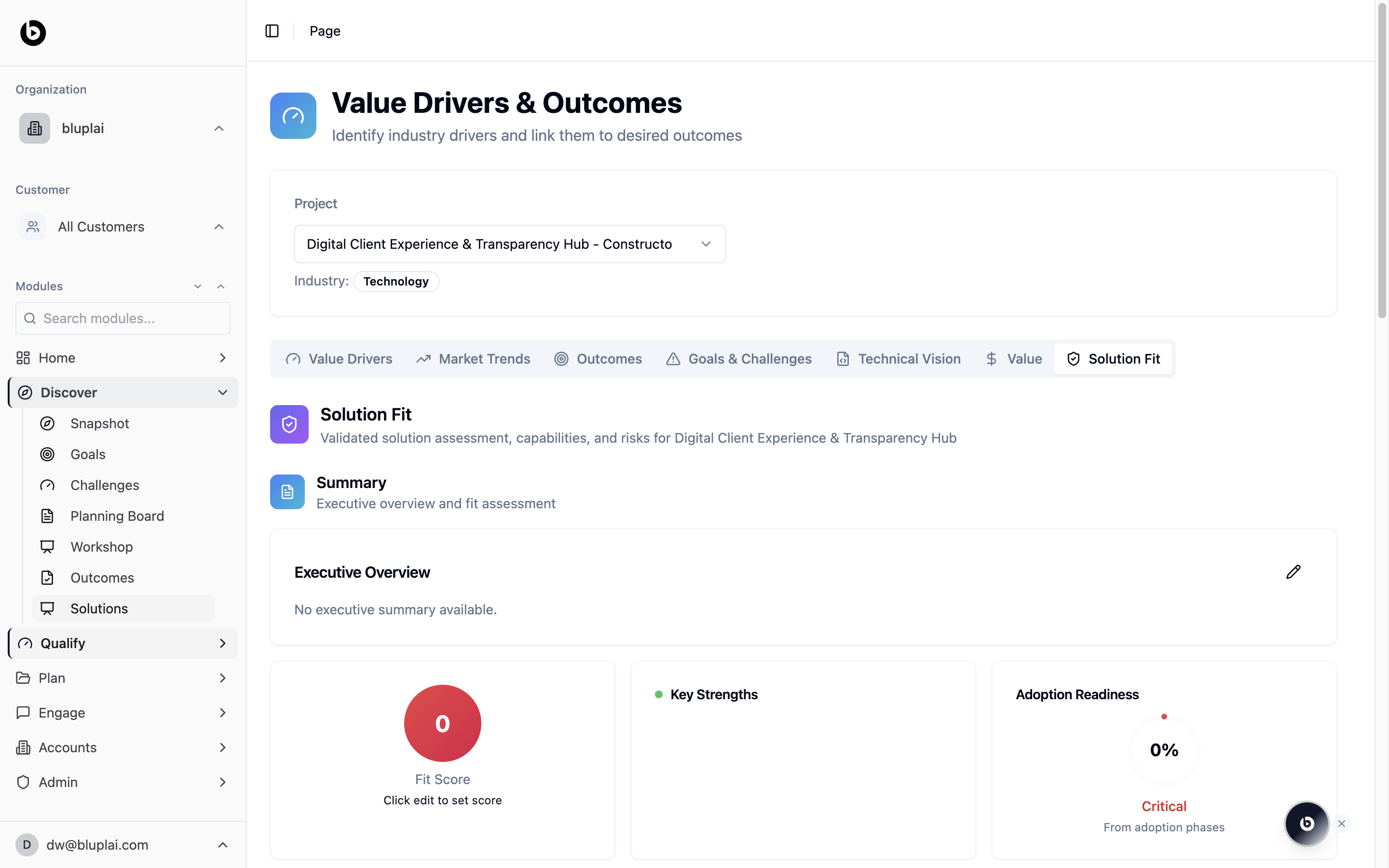
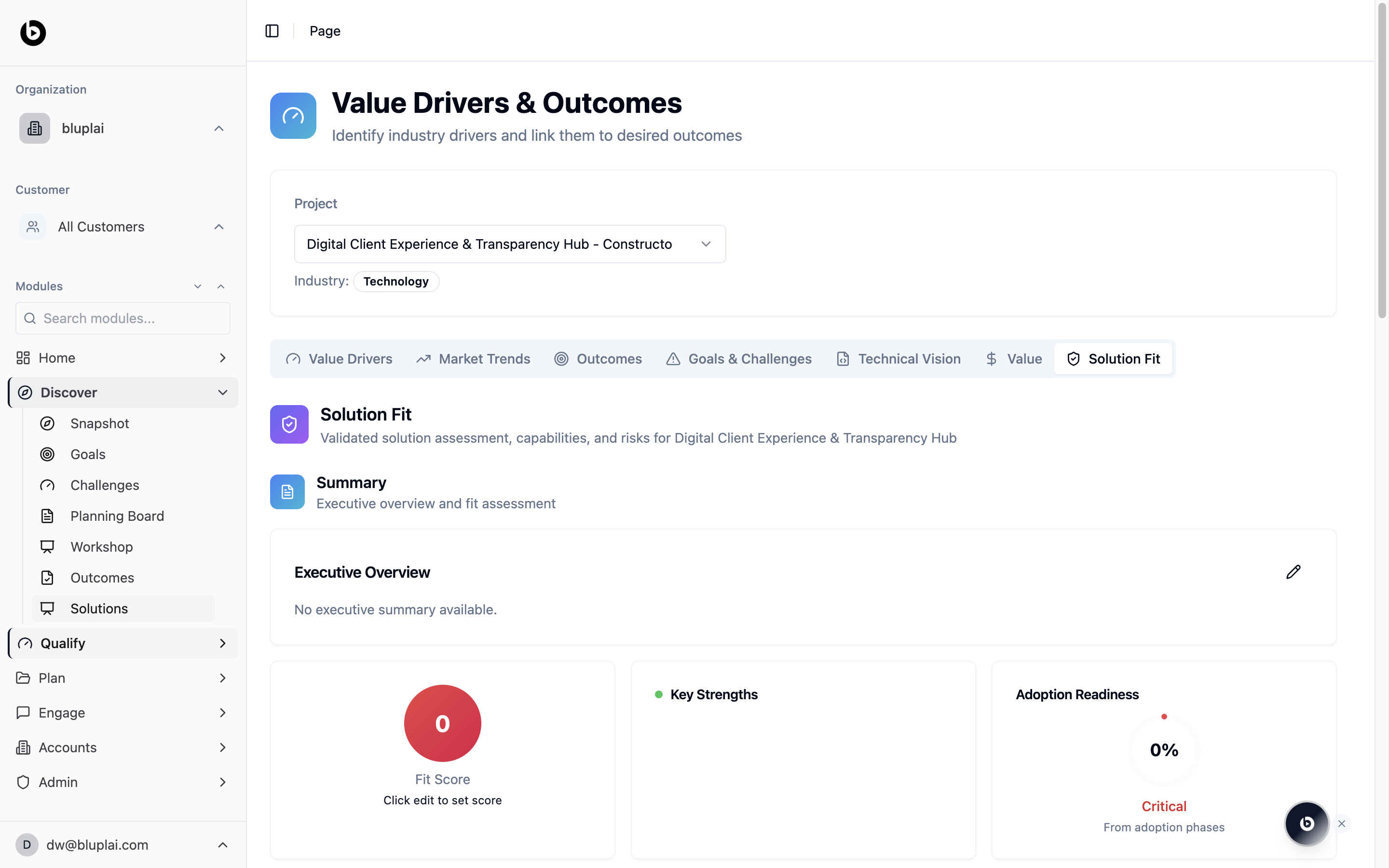
The Solution Fit tab opens with a short description — “Validated solution assessment, capabilities, and risks for the current project” — and a Summary block titled Executive Overview. On a new project this shows “No executive summary available.” with an edit icon to add one. Underneath, three summary cards surface the headline signals:- Fit Score — a 0–100 score with a “Click edit to set score” prompt; starts at
0 - Key Strengths — the standout reasons this is a fit, populated as you add them
- Adoption Readiness — a percentage (starts at
0%) with a status label (for example, Critical) sourced From adoption phases
Adding a solution
Why you’d create one
The Solution Fit view is where you document the solution you’re proposing and hold it to an honest fit test. Writing down the executive overview, fit score, strengths, and adoption readiness forces the judgement out of the deal team’s head and into something SEs, CSMs, and the customer’s sponsor can all see. Without it, fit stays an opinion.How to create one
1
Open the editor
From
/drivers?tab=solution-fit, click the edit icon on the Executive Overview card to start populating the summary.2
Fill in the details
- Executive Overview — write a short summary of the solution you’re proposing and why it fits. This is what a sponsor reads first.
- Fit Score — click into the Fit Score card (it shows “Click edit to set score”) and set a 0–100 score that reflects how well the solution matches the customer’s reality.
- Key Strengths — add the standout reasons this is a fit, so the positives are explicit rather than implied.
- Adoption Readiness — this card reads From adoption phases and reflects a percentage with a status label (for example, Critical at low readiness). It’s driven by the adoption phases you complete further down the tab, so update those to move the number.
3
Save
Save each section as you edit it. The summary cards at the top refresh to reflect the new overview, score, strengths, and readiness status.
What happens after
Solution Fit becomes the go/no-go view for the opportunity and the reference for the solution section of the Customer Success Plan in Plan. In Engage, Adoption Readiness rolls into the adoption tracking Customer Success owns, so the risks you flag here show up as the risks they manage later.How it’s calculated
Adoption Readiness is auto-computed by default as the average of every capability’sadoption_percentage:
You can manually override the auto value if the capability breakdown doesn’t reflect the reality you’re seeing with the customer.
When to use it
- Qualifying whether an opportunity is worth pursuing, honestly
- Flagging adoption risk before it becomes a delivery problem
- Sharing a single fit view with SEs, CSMs, and the customer’s sponsor
- Pre-reading for a go/no-go or deal review
Next
Technical vision
Align the architecture behind the fit.
Value
Tie fit back into the ROI and benefits case.