
Why you’re here
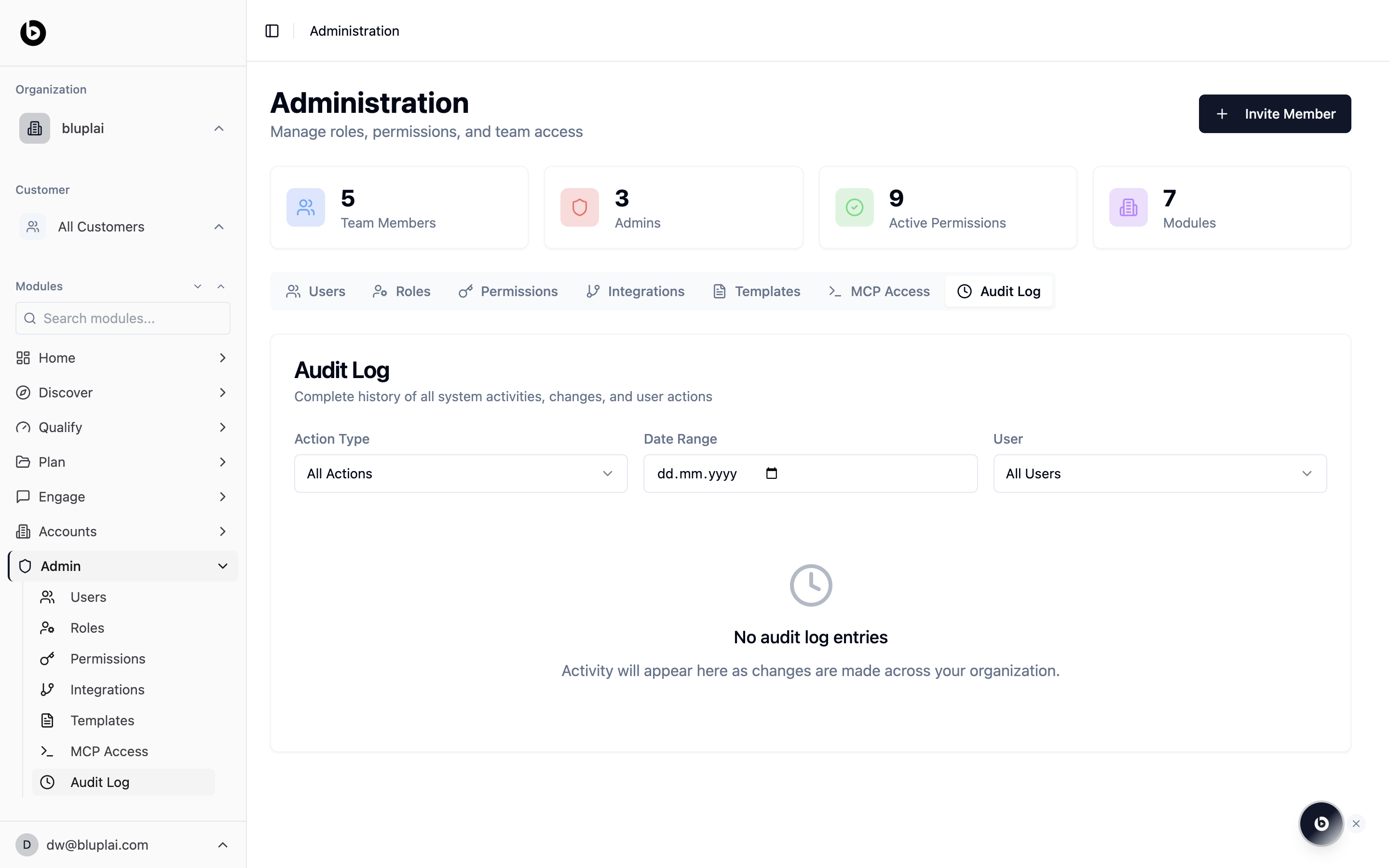
A shared workspace only works if you can answer “who changed this, and when?” The audit log is that answer. Every action taken in the UI and over MCP lands here so you can reconstruct what happened without guessing.What you’ll see
Three filters sit at the top:- Action Type — narrow by the kind of activity (role changes, permission updates, template edits, and more)
- Date Range — pick the window you care about
- User — filter to a single member
When to use it
- A permission changed and you need to find out who changed it
- You’re preparing for a security review and need an activity export
- A template or role was deleted and you want to confirm who did it
- You’re investigating unusual activity tied to an MCP token
Creating an entry
There’s nothing to create here — the audit log is view-only. Entries are written automatically whenever a user, role, permission, template, integration, or MCP action changes the workspace, both from the UI and over MCP.Next
Users
Cross-reference audit entries with the current team roster.
MCP access
Review who has active tokens and what they can do.