

Why you’re here
Adoption is where you see whether the modules the customer bought are actually being used by their own team. It compares real usage against license counts and target percentages, per module, over time. This is the proof that the value you qualified in Qualify is landing — or the early warning that it isn’t. The customer sees the same numbers you do, so renewals and expansion conversations start from shared evidence instead of a sales deck.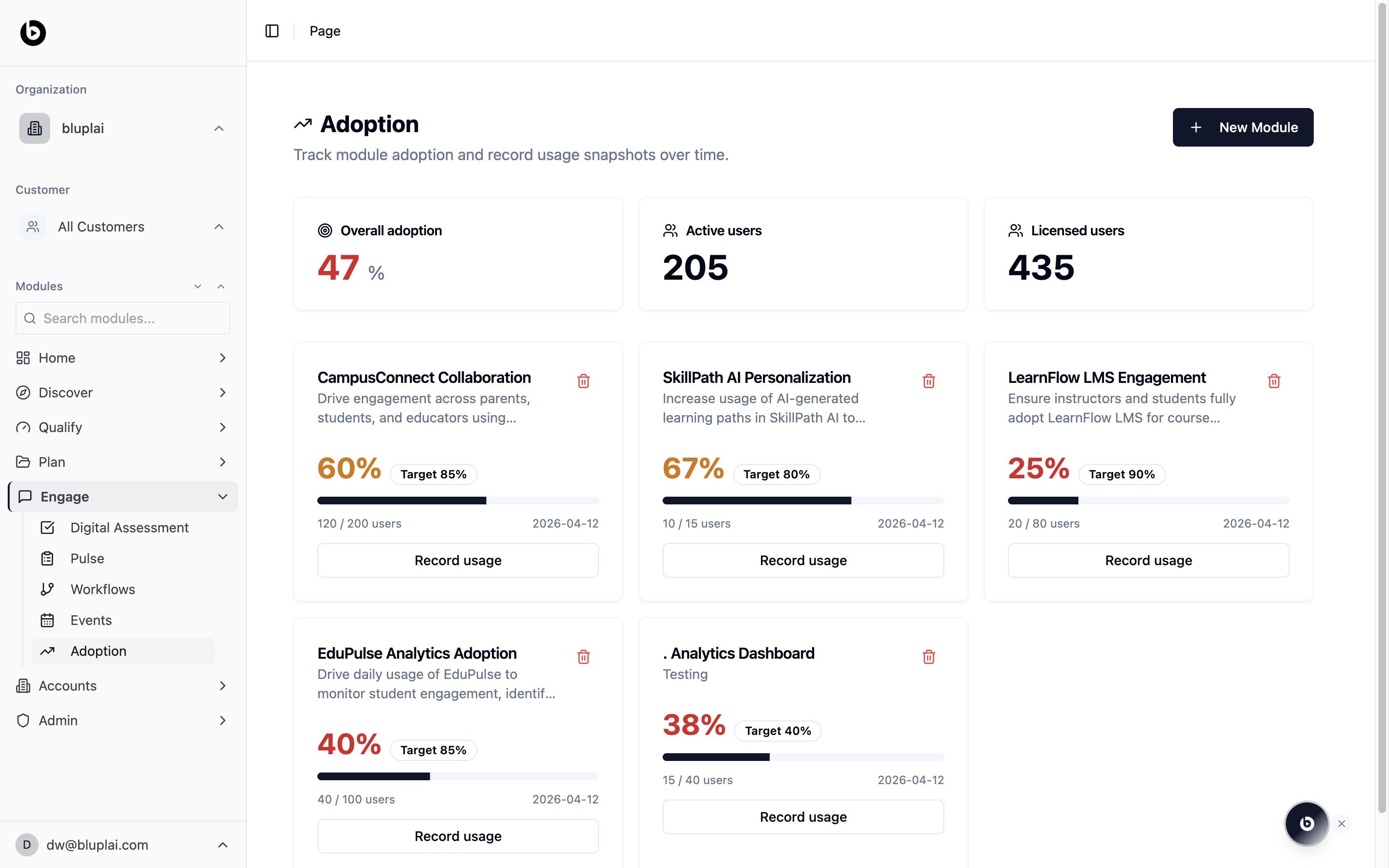
What it is
Adoption tracks how the modules you have rolled out are actually being used. The page tagline reads: “Track module adoption and record usage snapshots over time.” You get a portfolio-level summary at the top and a card per module underneath, so you can see where adoption is healthy and where it is off target.When to use it
- Recording a monthly or quarterly usage snapshot for each module the customer has licensed
- Spotting modules that are underperforming against their target percentage
- Reporting overall adoption and licensed-vs-active user counts to an executive sponsor
- Prioritizing enablement effort on the modules with the biggest gap to target
What you’ll see
Three summary tiles sit at the top of the page: Overall adoption (47%), Active users (205), and Licensed users (435). The New Module button in the top right adds another module to track. Below that, each module has its own card with:- Module name and a short description
- Current adoption percentage and the target (for example, 60% against a target of 85%)
- Active-over-licensed user counts (for example, 120 / 200 users)
- The date of the most recent snapshot
- A Record usage button to log the next snapshot
Creating an adoption module
Why you’d create one
An adoption module defines a capability or feature the customer has to roll out and use — and sets the bar for what “adopted” looks like. Creating one lets you set a target adoption percentage and start recording usage snapshots, so you can show exactly where each module sits against its goal. This is what you point at in a QBR when the conversation turns to renewal or expansion.How to create one
1
Open the dialog
From
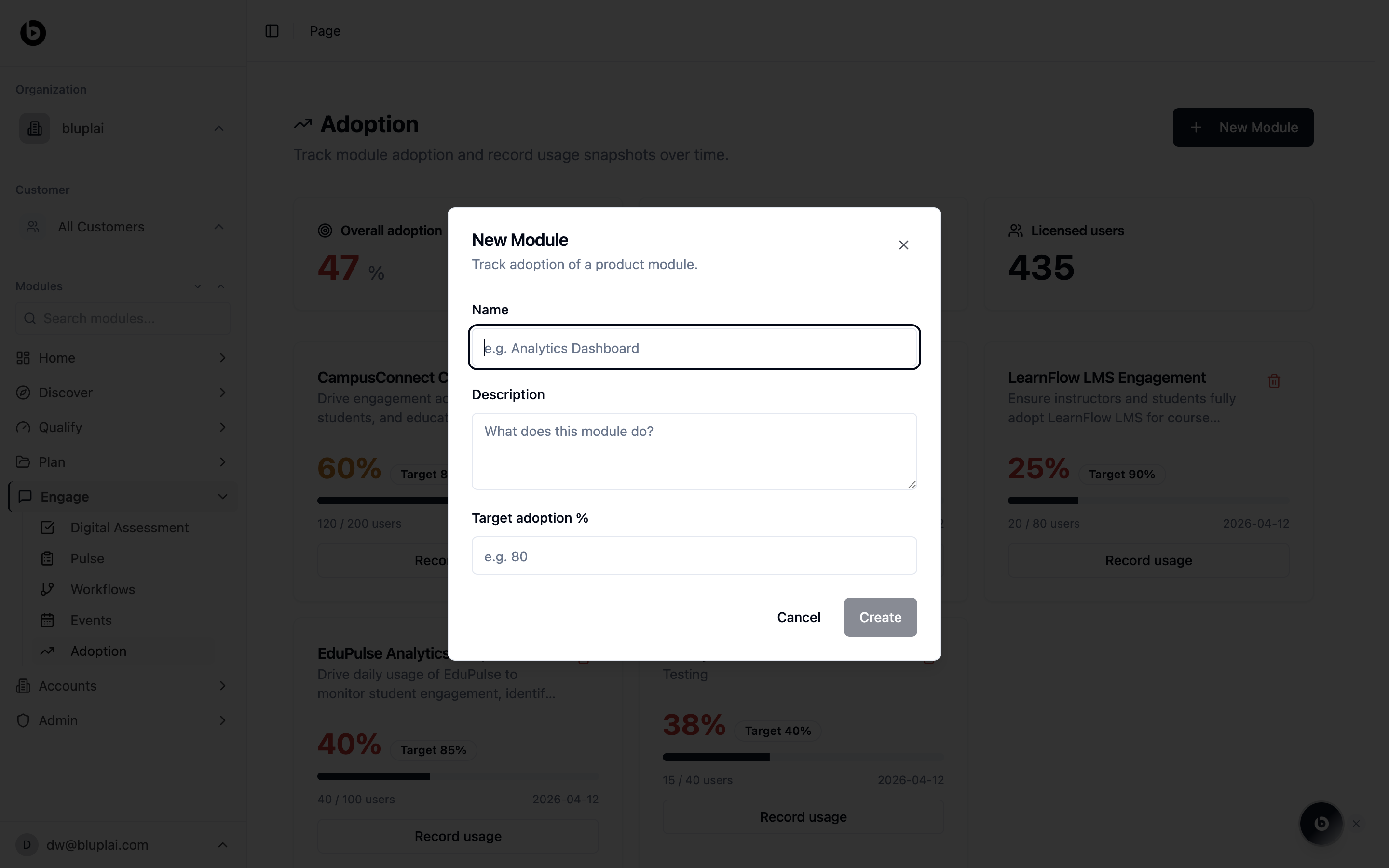
/engage/adoption, click New Module in the top right. The dialog titled “New Module” opens with the sub-line “Track adoption of a product module.”2
Fill in the details
- Name — what the module is called (for example, Analytics Dashboard).
- Description — a short line on what the module does.
- Target adoption % — the percentage of licensed users you want active (for example, 80).
3
Save
Click Create. The module card appears in the grid, ready for the first usage snapshot.
What happens after
The module becomes a card on the Adoption page with a Record usage button. Each snapshot you log updates current adoption, the active-over-licensed ratio, and the overall adoption tile at the top.How it’s calculated
Each module’s current adoption isactive users / licensed users at the most recent snapshot. The Overall adoption tile at the top of the page is the average of every module’s current adoption percentage.
Status on a module card is driven by current adoption against thresholds:
The target percentage on each module is the bar you set when you created it — it’s the goal, not the threshold that colours the status.
Next
Events
Run the training sessions that drive adoption up.
Pulse
Ask users why adoption is low with a targeted survey or interview.