

Why you’re here
Accounts is the structured view of each relationship — every account, their lifecycle stage, their health, in one grid. Before a key meeting you review stakeholders, roles, influence, current initiatives, and overall relationship status in one place instead of navigating between CRM and docs. That saves 1–2 hours per account prep, improves team coordination on a shared view, and surfaces renewal and expansion opportunities based on engagement signals. Open this when you need to answer “how’s the book doing?”, find a specific account fast, or scan which accounts are still in Discover versus already in Growth. You don’t search for account information — you understand the relationship right away.What it is
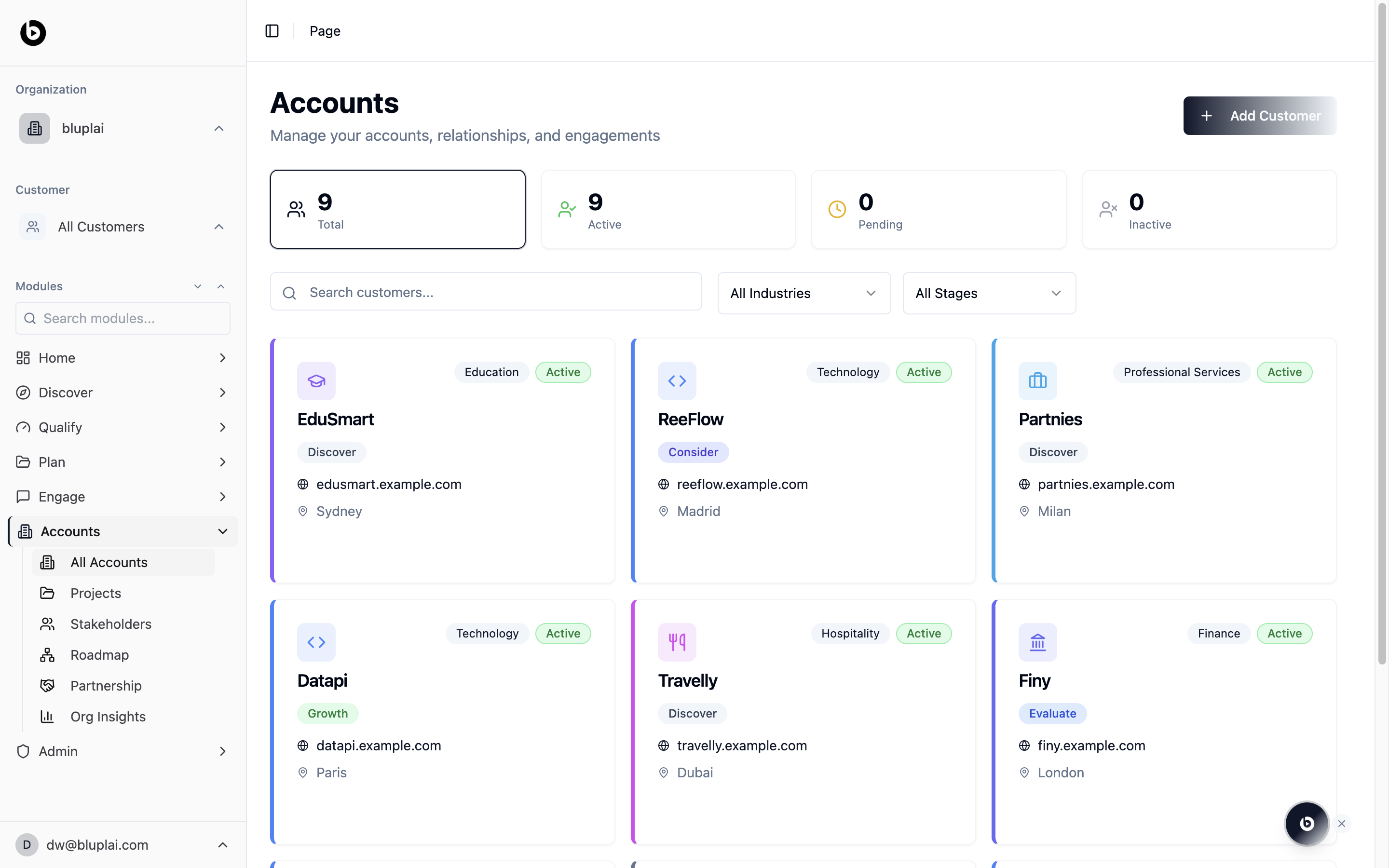
All accounts is the portfolio home for every account in your workspace. The page opens on a grid of account cards, each tagged with an industry, a lifecycle stage (Discover, Consider, Evaluate, Growth), and a status. Four counters at the top summarize the portfolio: total, active, pending, and inactive.When to use it
- Scan the full portfolio when preparing an executive review or QBR.
- Filter the list by industry to build a vertical-specific account plan.
- Filter by stage to see which accounts are still in Discover versus already in Growth.
- Find a specific account quickly with the search box before jumping into their workspace.
- Add a new account with the New account button when a deal closes or a new engagement begins.
What you’ll see
- A header titled Accounts with the subtitle “Manage your accounts, relationships, and engagements” and a New account button on the right.
- Four summary tiles: Total, Active, Pending, and Inactive, each with a live count.
- A search input labelled “Search accounts…” plus two dropdowns: All Industries and All Stages.
- A card grid where each account card shows an industry tag, an active/inactive status, the account name, a stage pill, the primary domain, and a city.
- A coloured accent bar on the left of each card to help you scan by account.
Adding an account
Why you’d add one
An account is the root record in Accounts — everything else (projects, stakeholders, roadmap items, partnership context) hangs off it. Adding one sets up the workspace that collects engagement data over time, so the sooner you add an account the sooner context starts accumulating against their record.How to add one
1
Open the dialog
From
/accounts, click New account in the top right.2
Fill in the details
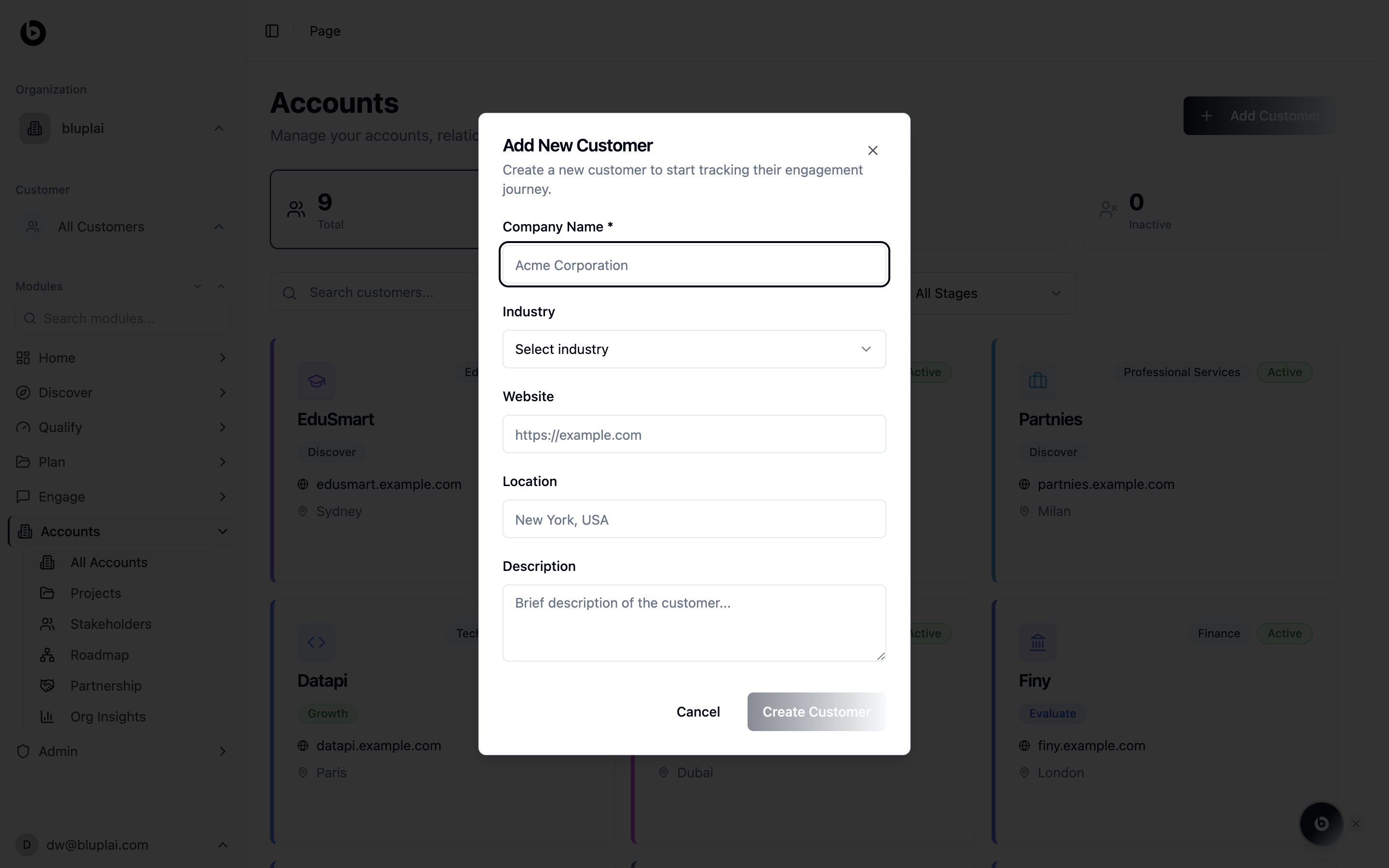
- Company Name (required) — the account’s legal or trading name.
- Industry — pick from the dropdown so portfolio filters and reporting work.
- Website — the account’s primary domain, used as a display hint on the card.
- Location — the city or region you treat as their home base.
- Description — a short line of context so anyone opening the record knows who they are.
3
Save
Click Create account. The new account appears as a card in the grid.
What happens after
Once the record exists, you can attach projects, stakeholders, roadmap items, and partnership details to it. The account also starts counting toward the Total and Active tiles at the top of the page.Next
Projects
Open the engagements running inside each account workspace.
Stakeholders
Review the people you’re working with across these accounts.