

Why you’re here
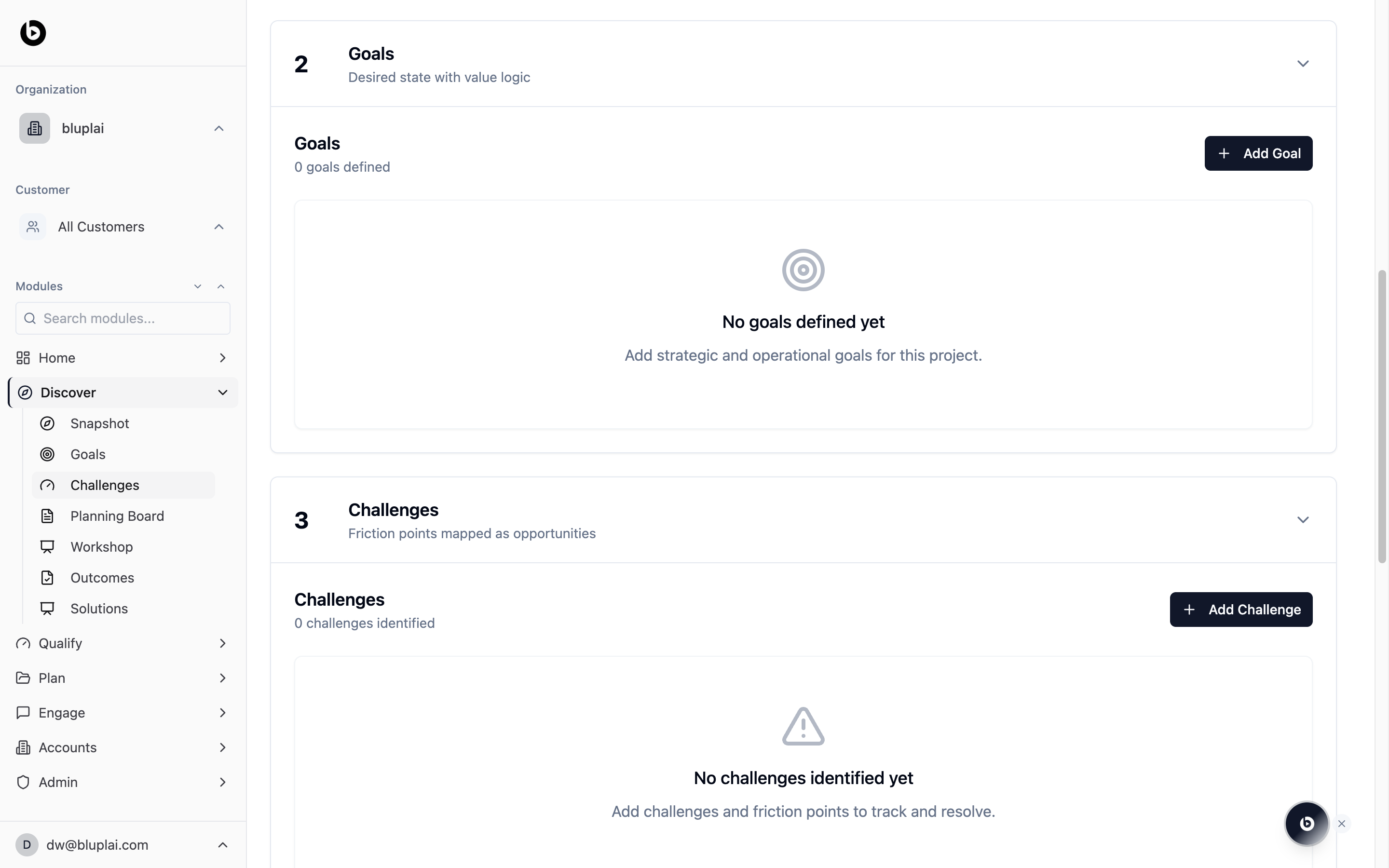
The Challenges section sits below Goals on the Discover page and captures what’s in the way. Every friction point, pain, blocker, or risk the customer raises lives here — framed as an opportunity rather than a complaint. Logged challenges travel forward into Qualify (where they become validated problems) and Plan (where they map to initiatives and actions).What you’ll see
The section header reads “3 Challenges — Friction points mapped as opportunities.” Inside, a sub-header shows Challenges and a counter (for example, “0 challenges identified”) with a black + Add Challenge button on the right. When no challenges have been logged, the empty state displays a warning triangle icon, the text “No challenges identified yet,” and a prompt: “Add challenges and friction points to track and resolve.” Click + Add Challenge to log one — name the friction point, note the goal it blocks, and capture any early thoughts on how to resolve it.Creating a challenge
Why you’d create one
A challenge captures a friction point, pain, or risk standing between the customer and their goals. Logging it here makes it a tracked record that travels into Qualify → Value case (so the problem is sized against the outcome it blocks) and Plan → Risks (so delivery work accounts for it).How to create one
1
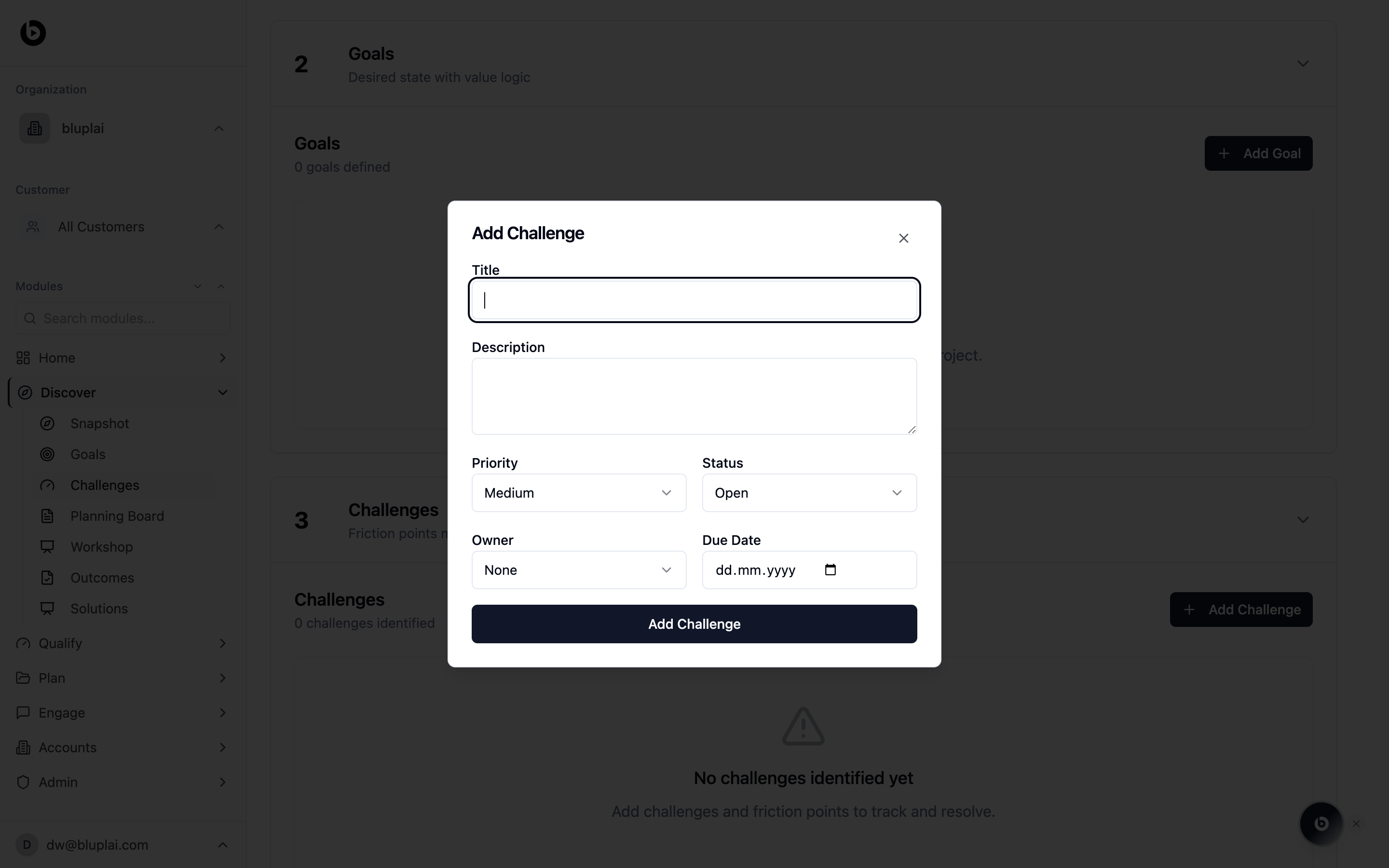
Open the Add Challenge dialog
From
/discovery?section=challenges, click + Add Challenge in the top right of the Challenges sub-header.2
Fill in the details
string
required
Short name for the challenge — the friction point framed as an opportunity.
string
Longer explanation of the pain, what it blocks, and any early thoughts on how to resolve it.
select
default:"Medium"
How urgent the challenge is relative to others. Defaults to Medium.
select
default:"Open"
Current state of the challenge. Defaults to Open.
select
default:"None"
Person accountable for resolving the challenge. Defaults to None.
date
Target date to have the challenge resolved or decided.
3
Save
Click Add Challenge. The new challenge appears in the Challenges section with its counter incremented.
What happens after
A saved challenge feeds Qualify → Value case as a validated problem attached to the goal it blocks, and it shows up in Plan → Risks so the team can track mitigation alongside the initiatives that resolve it.When to use it
- During a discovery call when a stakeholder describes something that’s not working today.
- After reviewing call notes or AI-extracted insights, logging each pain point so it doesn’t get lost between stages.
- Pairing a new challenge to an existing goal so the relationship between “what they want” and “what’s in the way” is explicit.
- Before moving to Qualify, reviewing the challenge list with the customer to confirm priority.
Next
Planning board
Drop raw notes and half-formed ideas onto the shared whiteboard.
Solutions
Map each challenge to a proposed solution and score the fit.