

Why you’re here
Workflows is where you map the customer’s processes — onboarding, support, change approval, whatever sits in scope for the project. Once a flow is documented in the workspace, the Digital Assessment can score it and your team (and theirs) can point at specific steps when proposing improvements. The customer confirms and comments inline instead of redlining a slide deck a week later.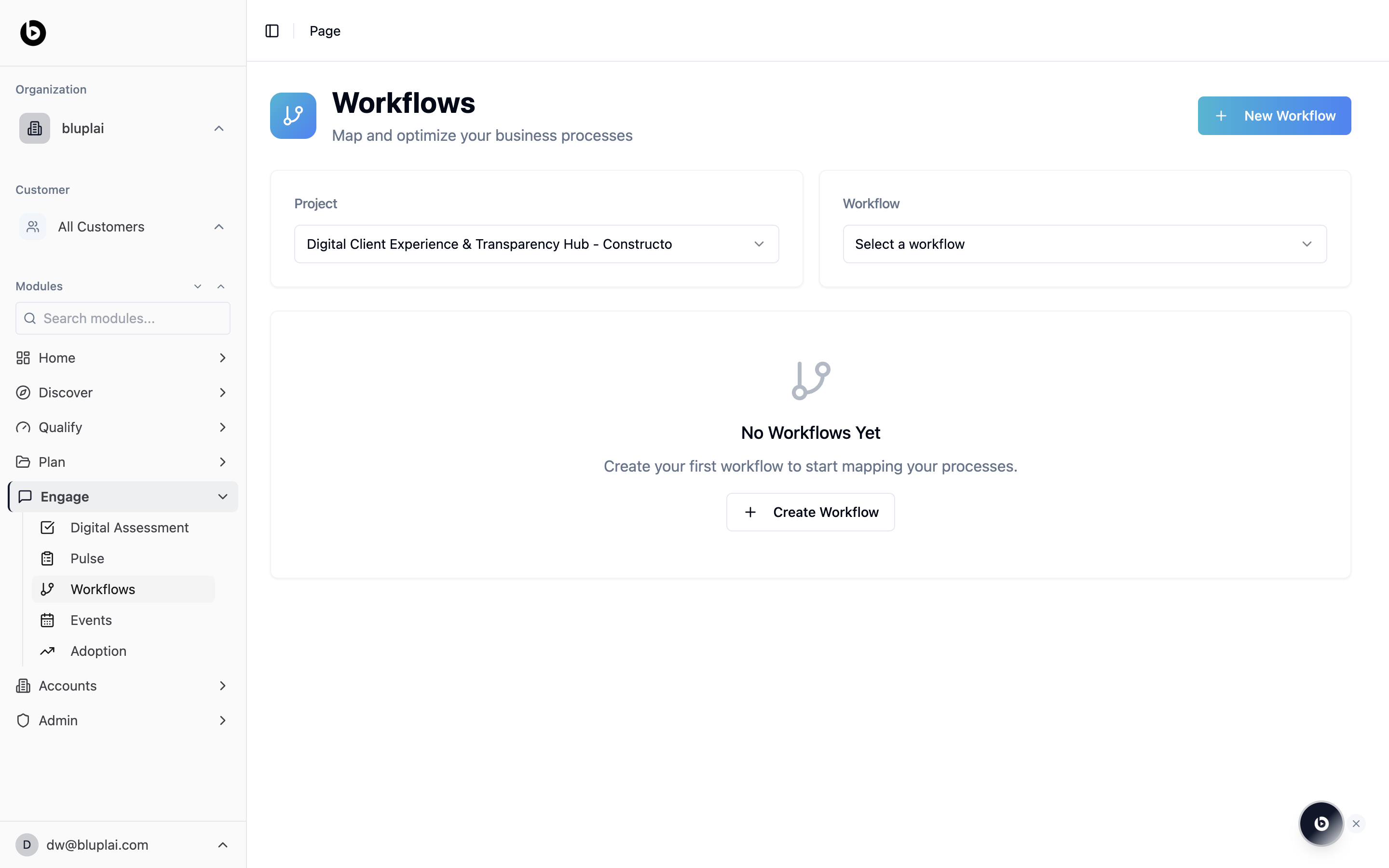
What it is
Workflows is where you map and optimize the customer’s business processes. You scope the view with two selectors at the top — Project and Workflow — then build out the steps for each flow. The page tagline reads: “Map and optimize your business processes.”When to use it
- Documenting a process you uncovered during a Digital Assessment
- Comparing the current-state flow against the target state before a change initiative
- Breaking down a long process into named workflows you can reuse across projects
- Preparing a walkthrough artifact for a stakeholder review
What you’ll see
At the top, the Project selector binds the page to a specific project, and the Workflow selector lets you jump between flows already created for that project. The New Workflow button in the top right creates a new flow from scratch. When nothing has been mapped yet, the page shows an empty state: “No Workflows Yet — Create your first workflow to start mapping your processes,” with a Create Workflow button in the center of the page.Creating a workflow
Why you’d create one
A workflow maps one of the customer’s processes — what steps happen, in what order, and who owns each step. Capturing the flow in the workspace gives you and the customer a shared object to point at when proposing changes, and it gives Digital Assessment something to score. Build one per process so you can swap between them as the engagement widens.How to create one
1
Open the dialog
From
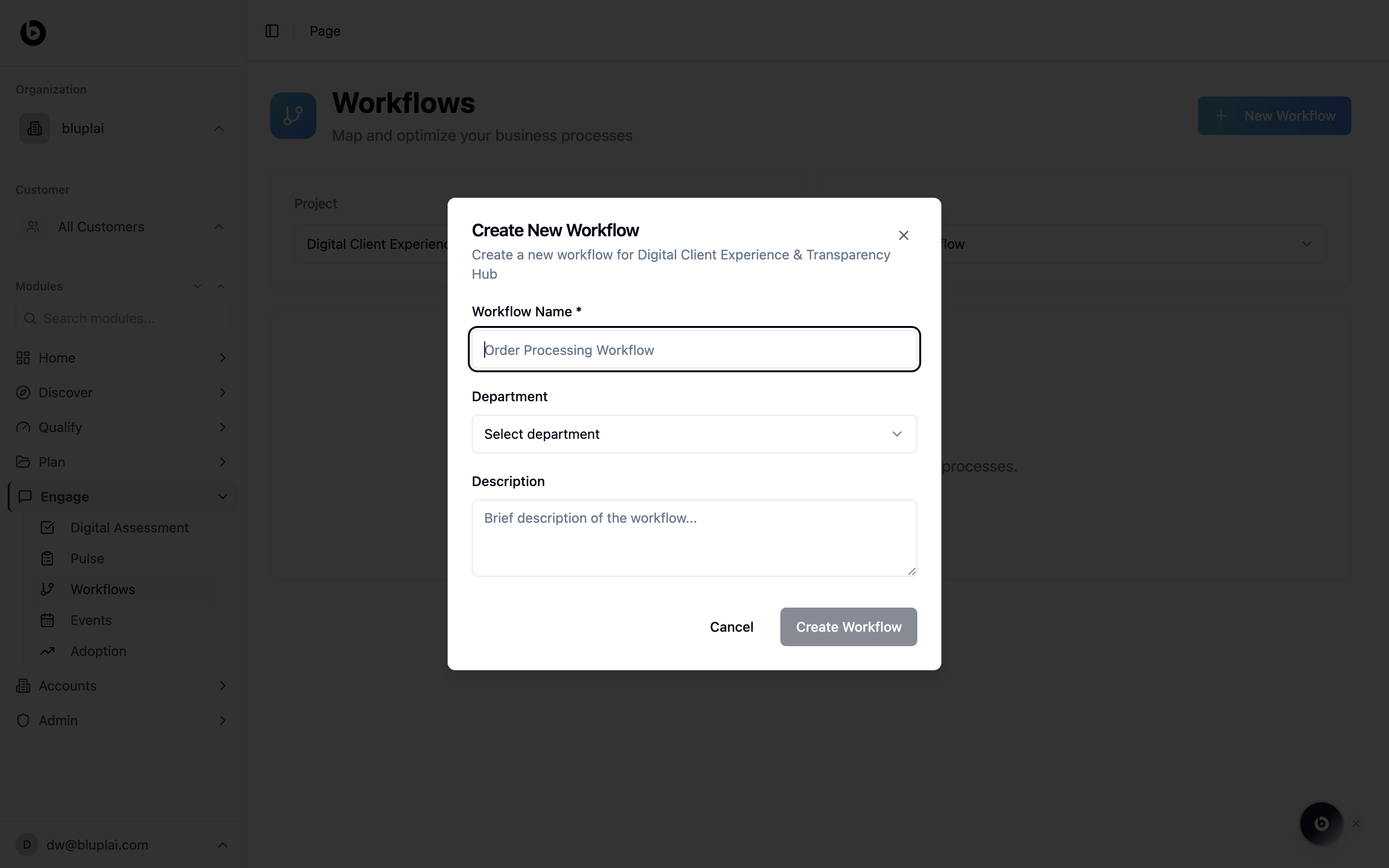
/engage/workflows, pick the project in the Project selector, then click New Workflow in the top right. The dialog is titled “Create New Workflow” and names the project you’re adding it to.2
Fill in the details
- Workflow Name — the name of the process (for example, Order Processing Workflow). Required.
- Department — pick the team that owns the process from the dropdown.
- Description — a short line describing what the workflow covers.
3
Save
Click Create Workflow. The new flow appears in the Workflow selector and is ready for you to map out its steps.
What happens after
The workflow becomes selectable on this page and surfaces inside Digital Assessment’s Workflows tab for the same project, so anything you capture here feeds the maturity score.Next
Digital assessment
Workflows feed into the project’s maturity assessment.
Adoption
Track whether the optimized workflows are being used in practice.