

Why you’re here
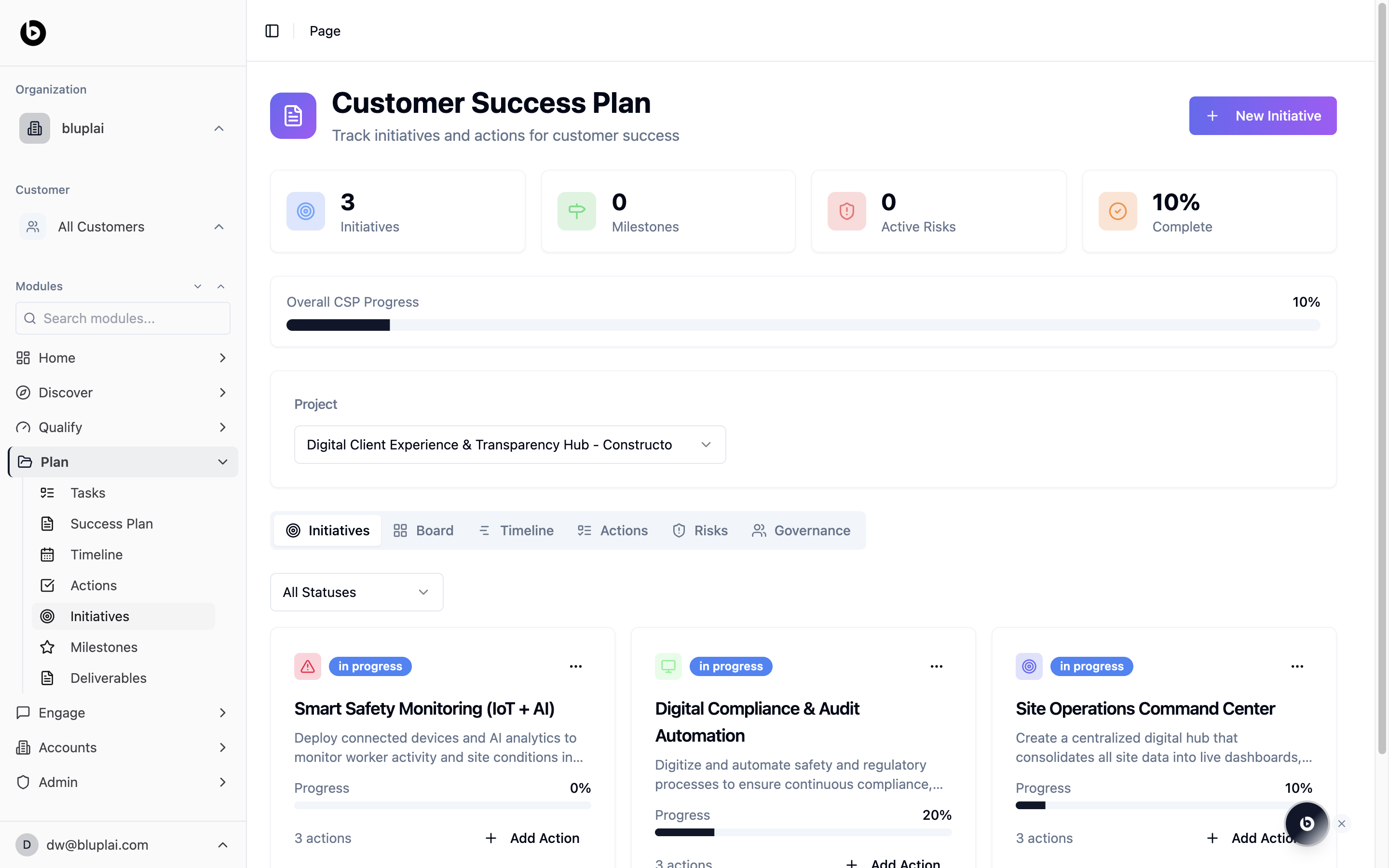
The default CSP view. Workstreams with progress, action counts, and the path from idea to delivered value. This is the spine of the success plan — everything else (timeline, actions, board) is a different lens on the same initiatives.What it is
Initiatives is the default tab of the Customer Success Plan at/csp?tab=initiatives. An initiative is a discrete workstream inside a project — for example, a monitoring rollout or a compliance automation program. Each initiative owns its own actions (things to do) and milestones (checkpoints), and has its own progress.
When to use it
- Break a project down into a handful of named workstreams.
- Review progress per workstream before a steering call.
- Add a new initiative when scope expands.
- Jump from an initiative card straight into adding an action.
What you’ll see
- The shared CSP header: Initiatives, Milestones, Active Risks, and Complete counters, Overall CSP Progress bar, and Project selector.
- The tab bar with Initiatives selected.
- An All Statuses filter above the grid.
- Initiative cards, each showing a status pill (for example, in progress), the initiative name, a short description, a Progress bar with a percentage, a count of actions attached, and an Add Action link.
- A New Initiative button in the top right.
Creating an initiative
Why you’d create one
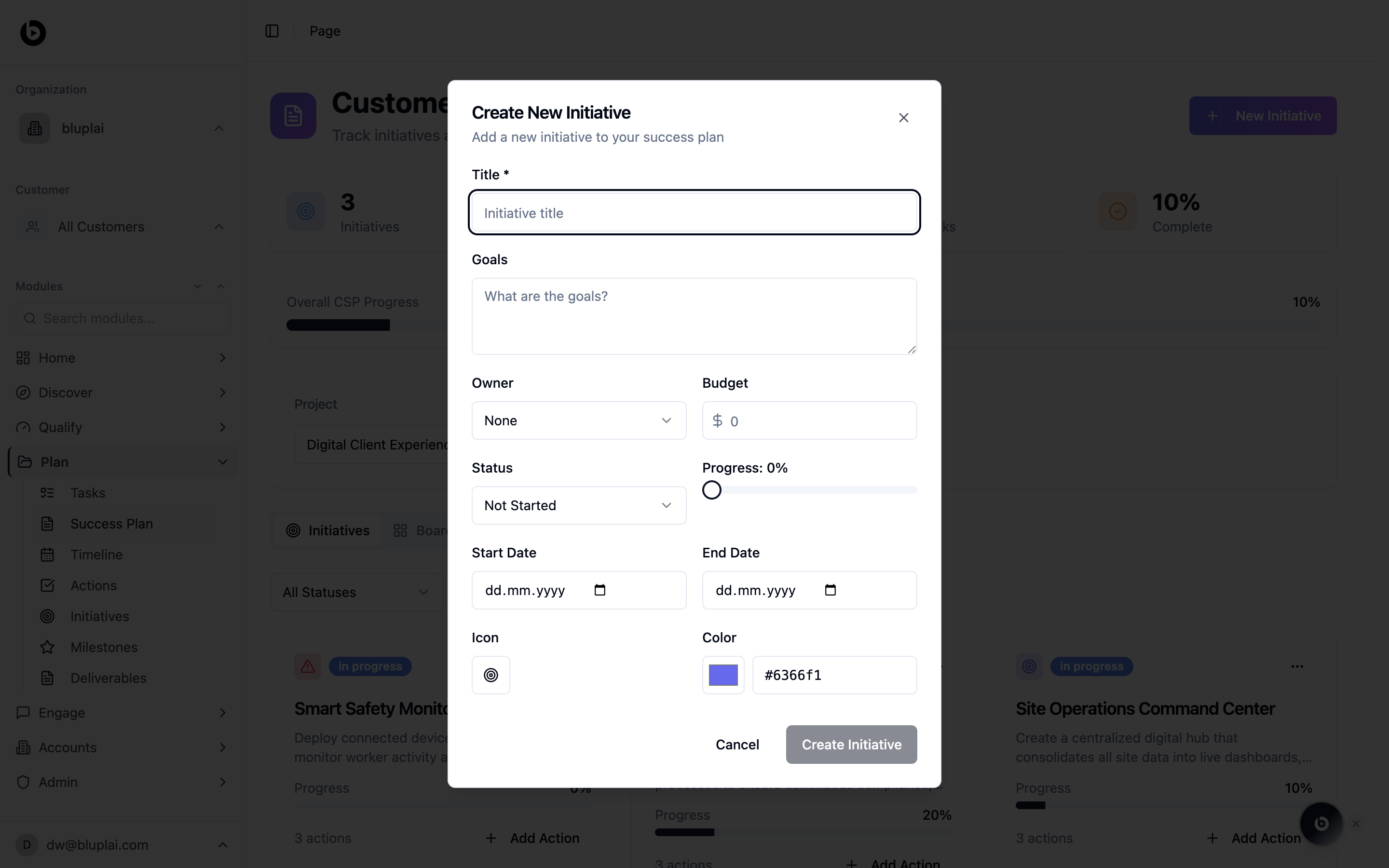
An initiative is a workstream — a defined bundle of work inside a project with its own outcomes, actions, and owners. Initiatives are the spine of the Customer Success Plan, so creating one is how you turn a new scope item into something trackable. Everything downstream — actions, milestones, timeline entries — hangs off it.How to create one
1
Open the dialog
From
/csp?tab=initiatives, click + New Initiative in the top right.2
Fill in the details
- Title (required) — the name of the workstream.
- Goals — what success looks like for this initiative.
- Owner — person accountable for the initiative. Defaults to None.
- Budget — optional budget allocated to the initiative, in dollars.
- Status — Not Started, In Progress, Completed, and so on. Defaults to Not Started.
- Progress — percentage complete. Defaults to 0%.
- Start Date — when work on the initiative begins.
- End Date — when the initiative is expected to complete.
- Icon — optional icon to identify the initiative visually on cards and the board.
- Color — hex color used on the card and board views. Defaults to
#6366f1.
3
Save
Click Create Initiative. The new initiative appears as a card in the Initiatives grid.
What happens after
The initiative shows up on the Initiatives tab, the Board, and the Timeline for the selected project. From its card you can start adding actions, which become the next unit of execution underneath it.How it’s calculated
An initiative’s status is auto-derived from the completion rates of its underlying actions — you don’t set it manually. As actions move through their own statuses, the initiative’s status follows. The Kanban board uses a fixed priority map to sort initiatives across columns:Because status is derived, the way to change an initiative’s status is to change the status of the actions underneath it.
Next
Actions
Open every action inside these initiatives in one list.
Timeline
Lay initiatives out on the calendar grid.