

Why you’re here
Pulse is where the customer’s voice lives inside the workspace. Interviews, surveys, and satisfaction scores all sit on the same page — visible to your team, your partners, and the customer themselves. Instead of chasing responses over email or piecing sentiment together from scattered decks, you capture it once and everyone sees it. When you prep for a QBR, the evidence is already here.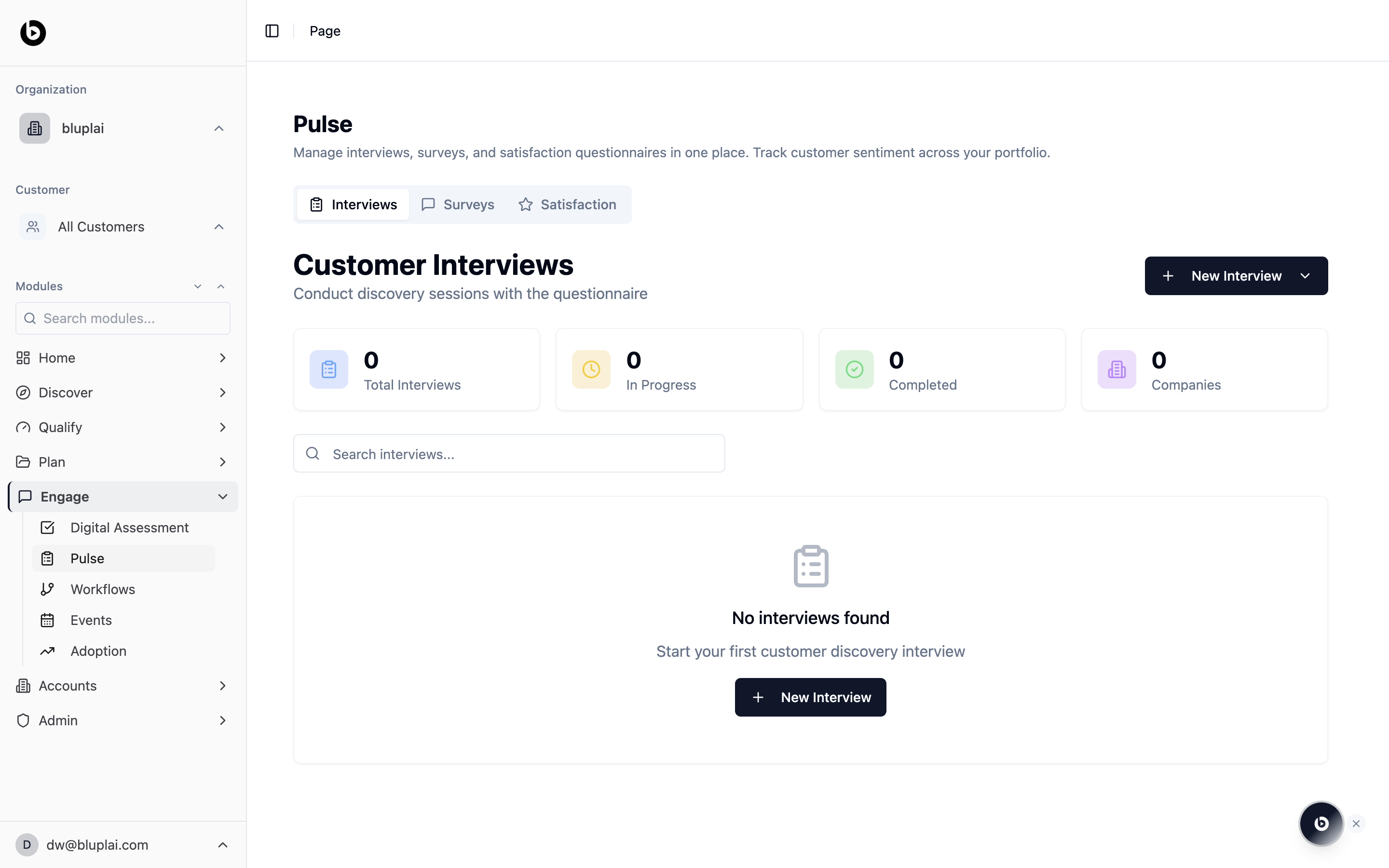
What you’ll see
Three tabs sit under the page title: Interviews, Surveys, and Satisfaction. The header reads “Manage interviews, surveys, and satisfaction questionnaires in one place. Track customer sentiment across your portfolio.” Each tab has its own counters, its own create action, and its own list underneath.Tabs
Interviews
Pulse Interviews are interview-led, not self-serve. Someone from your team runs the conversation (live or over a call), opens the questionnaire, and captures answers inline as the stakeholder talks. That’s the design choice — it’s for the discovery conversations where you want structured notes, not the anonymous feedback you’d collect through a Survey.
Creating a discovery interview
Why you’d create one
A discovery interview is a structured conversation with a stakeholder — logged in the workspace rather than scattered across notes. Creating one gives you (and the customer) a shared record of what was asked and what came back, and it’s the raw material that feeds every downstream review. Use Standard for the common questionnaire and Custom when you want your own set of questions.How to create one
1
Open the menu
From
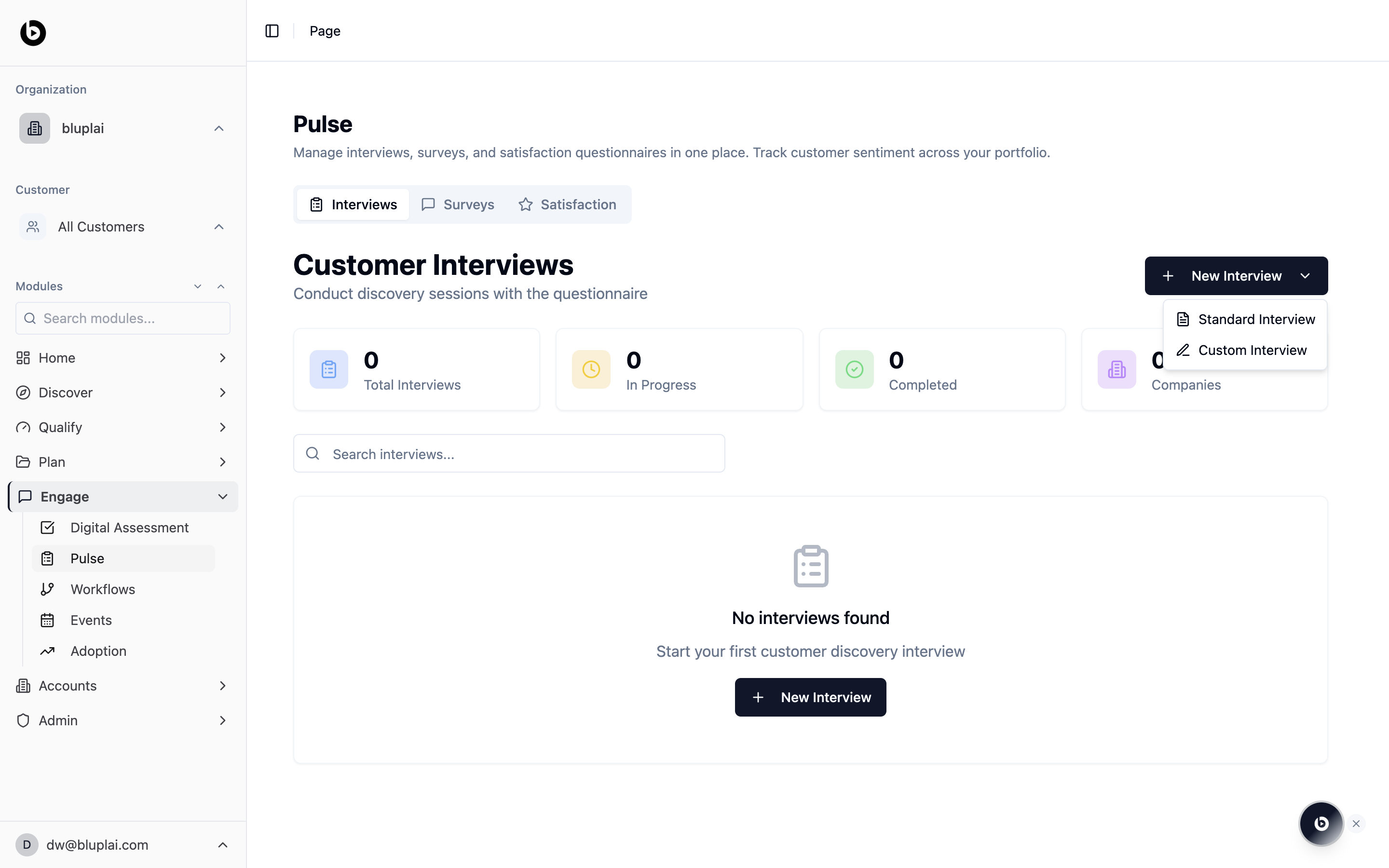
/engage/pulse on the Interviews tab, click New Interview in the top right. A menu opens with two choices — Standard Interview or Custom Interview.2
Pick the format
- Standard Interview — uses the built-in discovery questionnaire so answers stay consistent across accounts.
- Custom Interview — lets you build your own question set for the conversation.
3
Save
Work through the dialog for the format you picked and save. The new interview appears in the list and the Total Interviews counter ticks up.
What happens after
The interview lands in the Interviews list with its status (In Progress or Completed) and is counted against the company on the tab. Responses feed back into Digital Assessment evidence when you prep for a QBR.Surveys
Creating a survey
Why you’d create one
A survey is how you collect structured feedback from a group without chasing replies. Creating one lets you package a set of questions under a theme, send it, and track responses in the workspace alongside everything else. It’s the tool you reach for when you need signal from more than one or two people.How to create one
1
Open the dialog
From
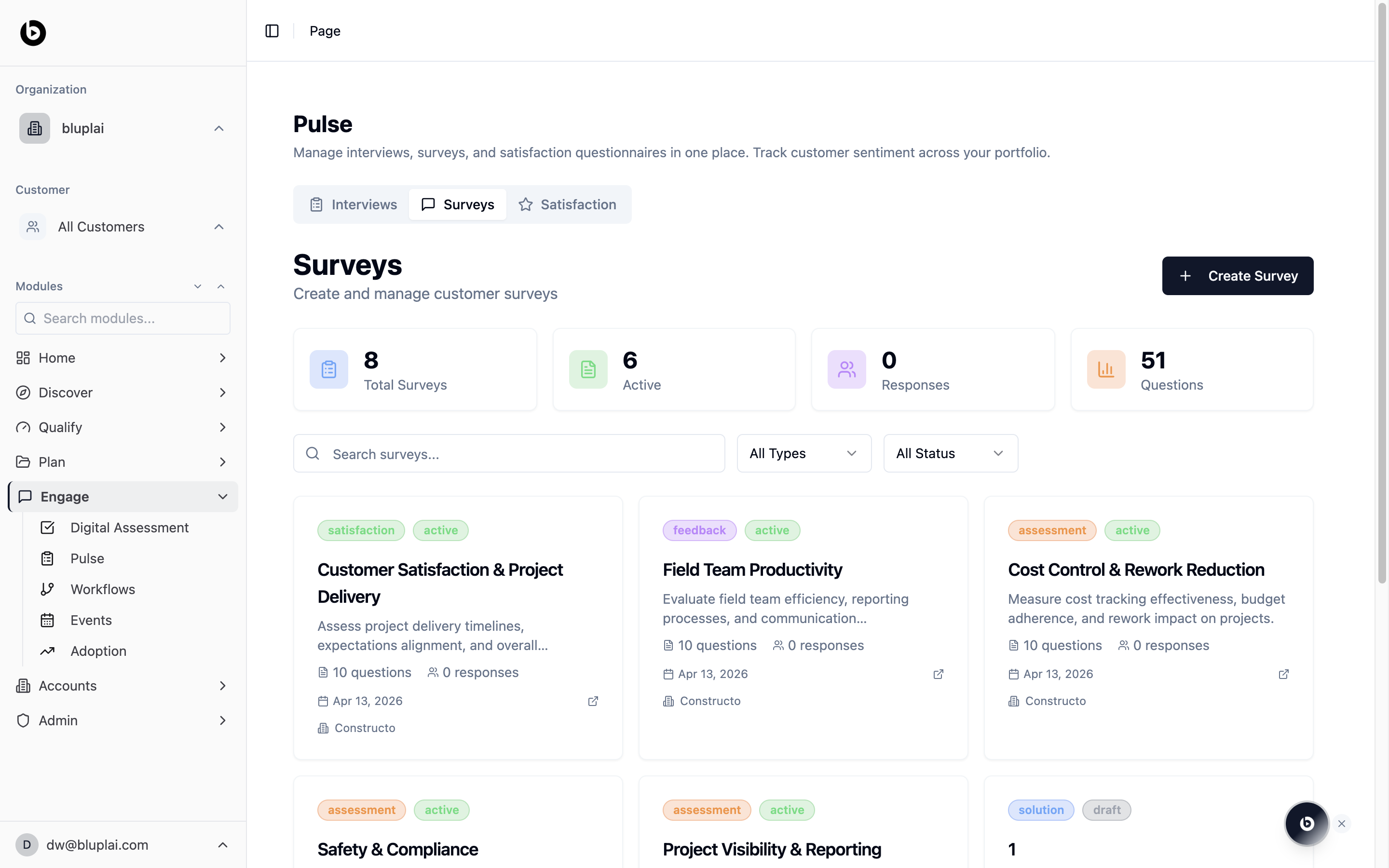
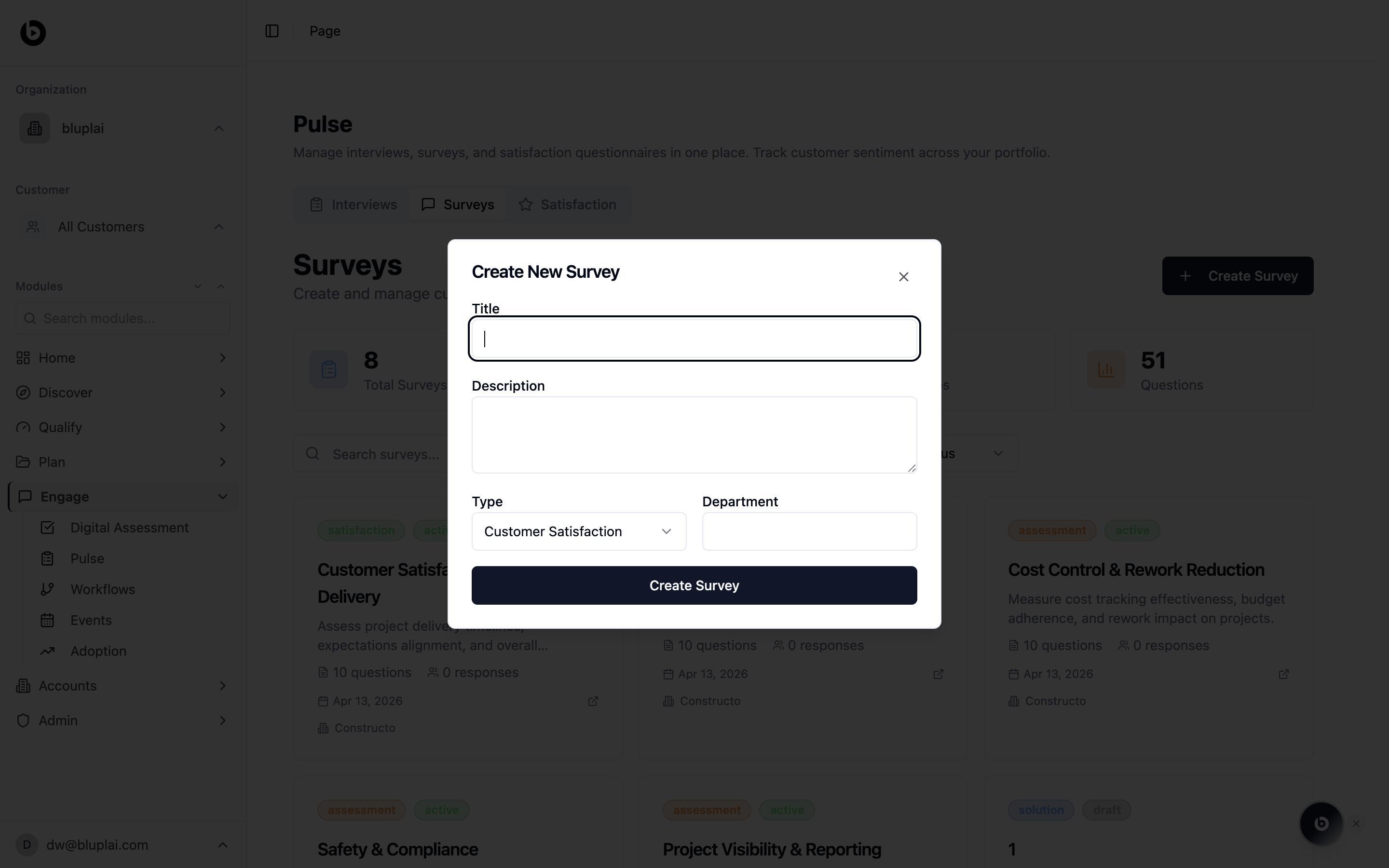
/engage/pulse on the Surveys tab, click Create Survey in the top right. The dialog titled “Create New Survey” opens.2
Fill in the details
- Title — the name of the survey (for example, Post-launch feedback).
- Description — what the survey covers and who it’s for.
- Type — pick the theme from the dropdown (for example, Customer Satisfaction).
- Department — the team the survey is aimed at or owned by.
3
Save
Click Create Survey. The survey card appears in the grid, ready for you to add questions and send it out.
What happens after
The survey lands in the Surveys grid with its theme tag and status, and the Total Surveys and Questions counters update. Responses flow back into the same card as they come in.Satisfaction
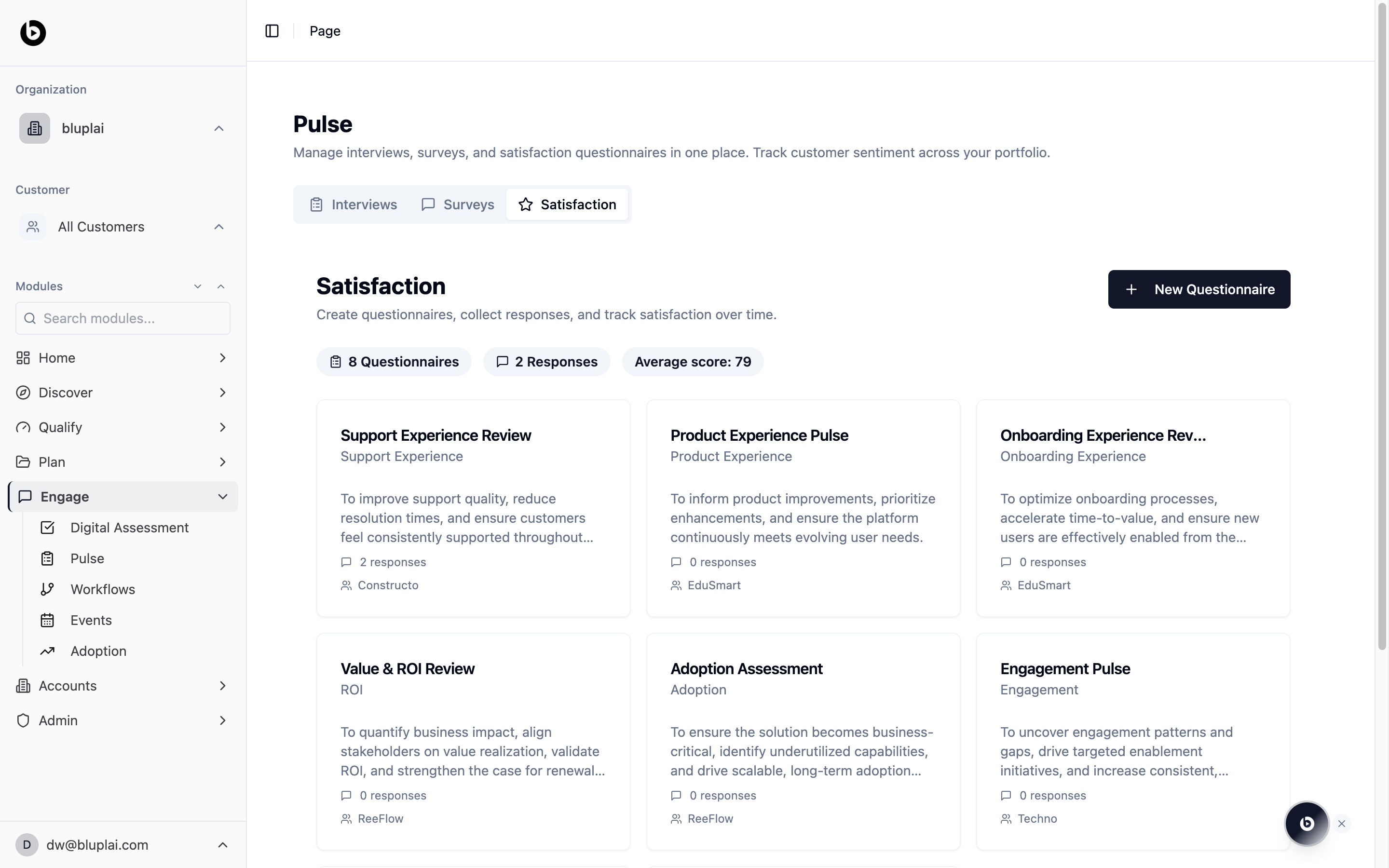
Creating a satisfaction questionnaire
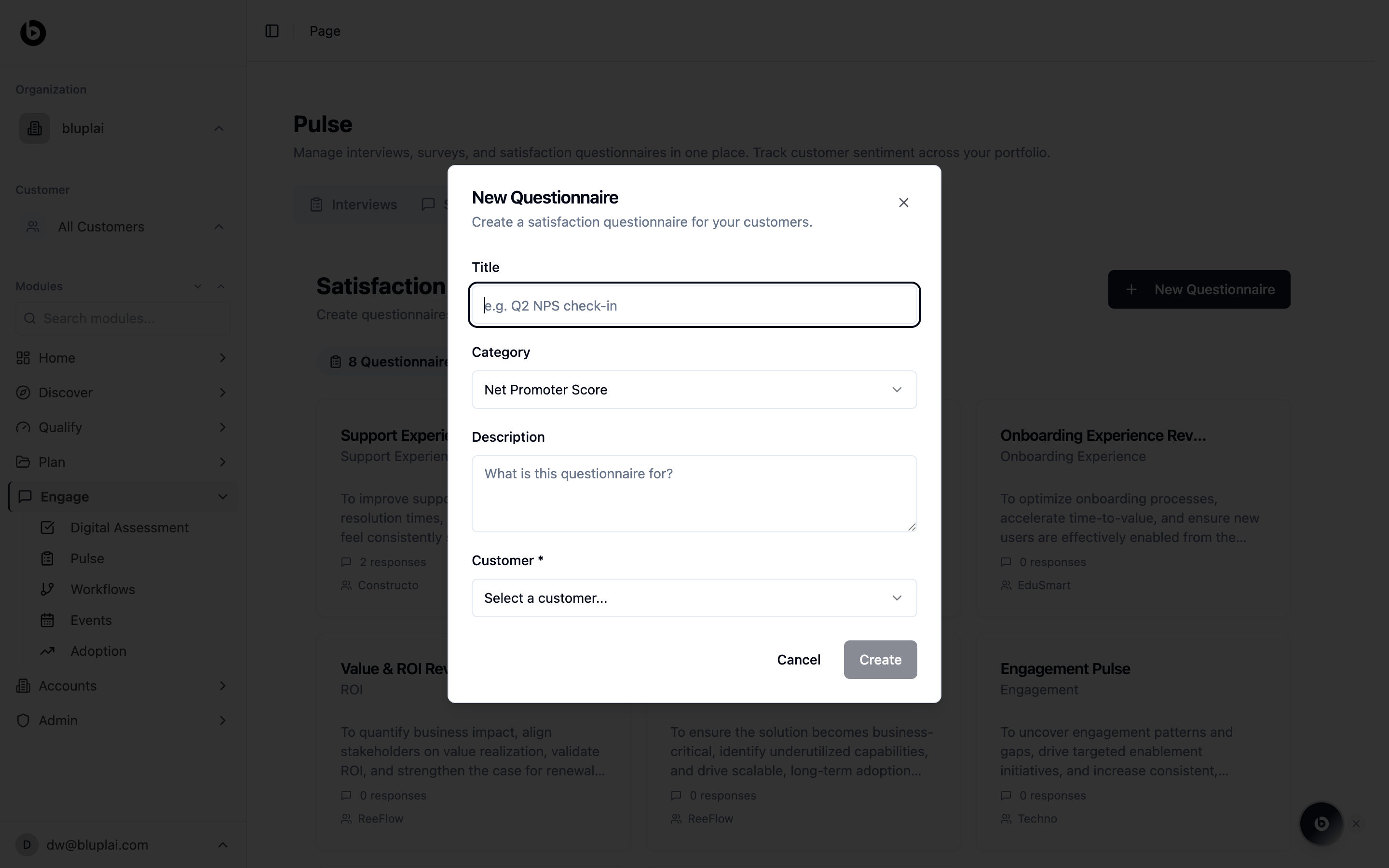
Why you’d create one
A satisfaction questionnaire is how you capture CSAT or NPS after a milestone and trend sentiment over time. Creating one scoped to a specific account means each response rolls into the right history, so you can compare quarter over quarter instead of guessing at the mood. It’s the signal that anchors renewal and QBR conversations.How to create one
1
Open the dialog
From
/engage/pulse on the Satisfaction tab, click New Questionnaire in the top right. The dialog titled “New Questionnaire” opens with the sub-line “Create a satisfaction questionnaire for your accounts.”2
Fill in the details
- Title — a short name (for example, Q2 NPS check-in).
- Category — pick the questionnaire type from the dropdown (for example, Net Promoter Score).
- Description — a line on what this questionnaire is for.
- Account — required. Pick the account the questionnaire belongs to.
3
Save
Click Create. The questionnaire card appears in the Satisfaction grid under the account you chose.
What happens after
The questionnaire is attached to the account and counts towards the Questionnaires total. As responses come in, the Average score at the top of the tab trends with them.How it’s calculated
All question types map onto a unified 0–100 scoring scale so a single response can mix formats and still produce one overall score.
The Overall survey score for a single response is the average of all scored questions in that response. Free-text answers are skipped.
The NPS Score shown on NPS questionnaires uses the classic formula:
The Average score tile at the top of the Satisfaction tab is the mean of overall survey scores across responses — so one questionnaire can blend NPS, rating, and multiple-choice questions without skewing the number.
Counters update live as interviews, surveys, and questionnaires move through statuses, so In Progress and Completed tiles double as a workload view for your CS team.
When to use it
- Running a structured discovery interview with a stakeholder and logging the responses in the workspace
- Sending a survey to a broader group and tracking completion without chasing replies
- Capturing CSAT after a milestone so you can trend sentiment instead of guessing at it
- Reviewing interview and survey coverage across companies before a strategy review or QBR
Next
Events
Schedule the meeting where the interview or survey review happens.
Digital assessment
Feed interview findings into the project’s maturity score.