> ## Documentation Index
> Fetch the complete documentation index at: https://docs.bluplai.com/llms.txt
> Use this file to discover all available pages before exploring further.
# Technical vision
> Describe the architecture, roadmap, and infrastructure the solution will live in — so the technical story matches the business case.
 ## Why you're here
A qualified deal needs a technical story, not just a business one. Technical Vision is where you document the architecture, tech stack, and roadmap that make the outcomes achievable. Keeping it in the shared workspace means Sales, SEs, and the customer's technical team all see the same picture.
## What you'll see
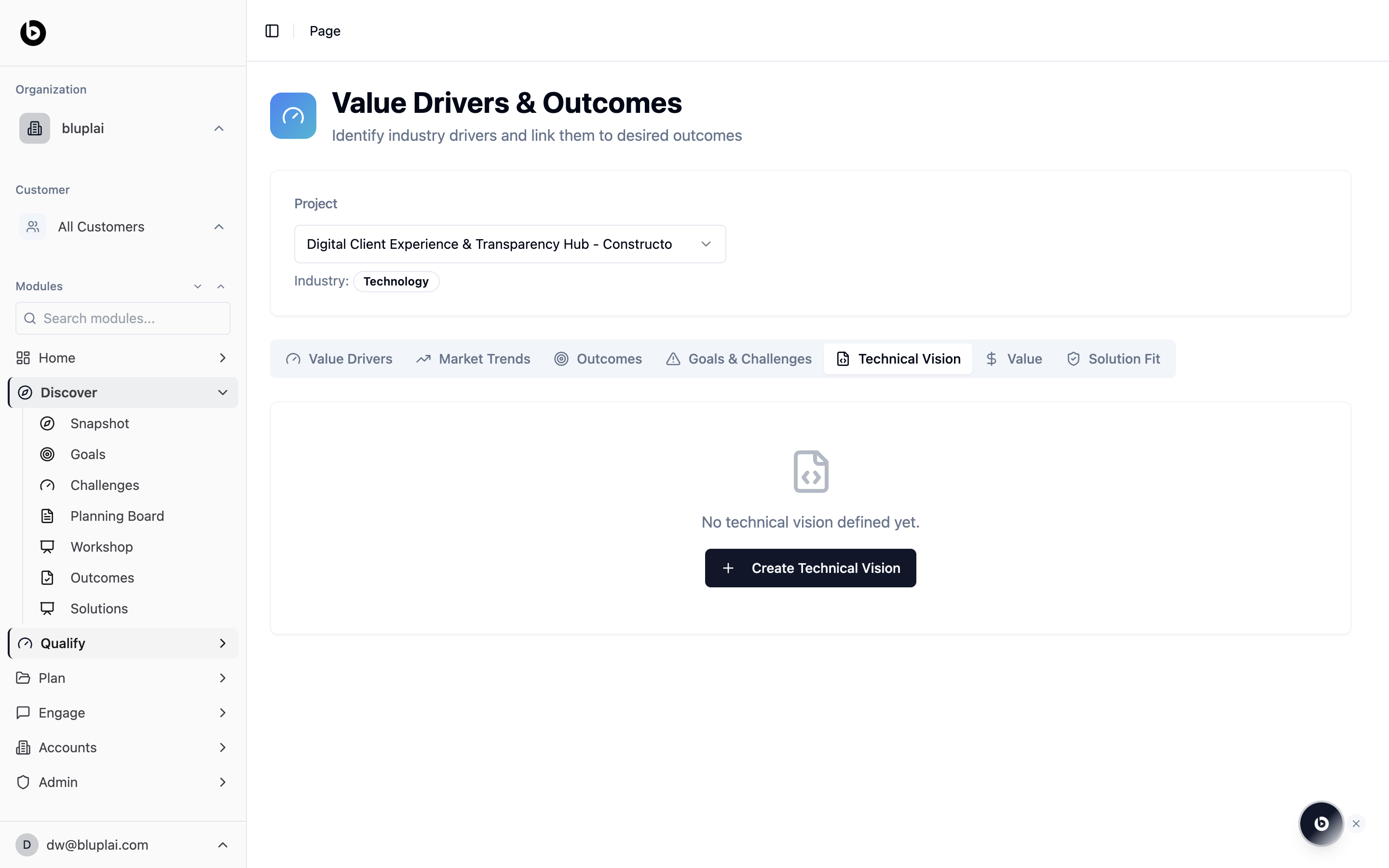
The **Technical Vision** tab opens with a centred empty state:
* A "No technical vision defined yet." message
* A single **Create Technical Vision** CTA
Once created, this is where you capture the architecture overview, key infrastructure decisions, roadmap milestones, and any technical constraints that shape how the solution gets delivered.
## Creating a Technical Vision
## Why you're here
A qualified deal needs a technical story, not just a business one. Technical Vision is where you document the architecture, tech stack, and roadmap that make the outcomes achievable. Keeping it in the shared workspace means Sales, SEs, and the customer's technical team all see the same picture.
## What you'll see
The **Technical Vision** tab opens with a centred empty state:
* A "No technical vision defined yet." message
* A single **Create Technical Vision** CTA
Once created, this is where you capture the architecture overview, key infrastructure decisions, roadmap milestones, and any technical constraints that shape how the solution gets delivered.
## Creating a Technical Vision
 ### Why you'd create one
A qualified deal needs a technical story alongside the business case. The Technical Vision captures the architecture direction, guiding principles, and success metrics so the technical narrative is as concrete as the ROI. It becomes the reference point your SEs, the customer's architects, and downstream Plan and Engage work can all share.
### How to create one
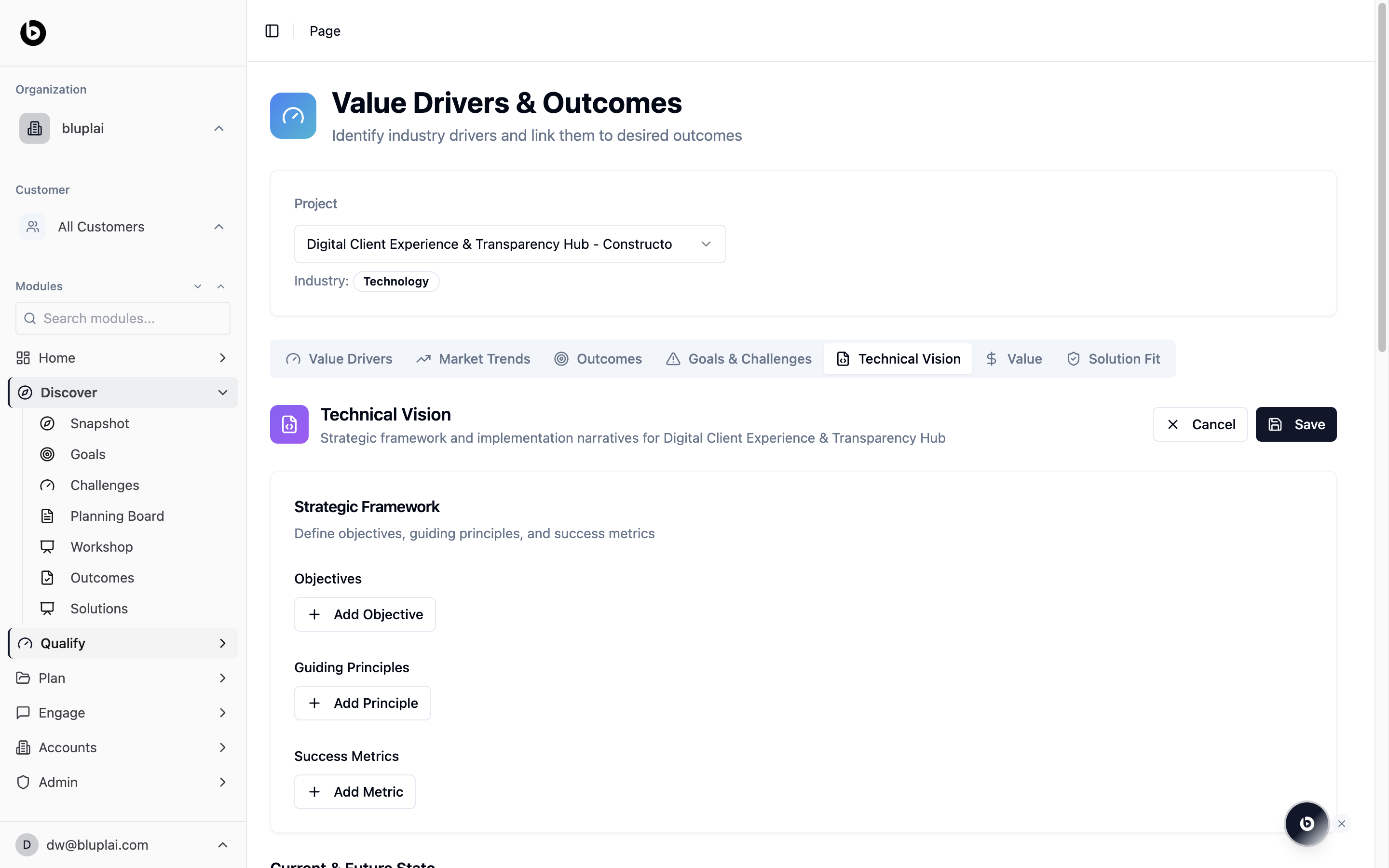
From `/drivers?tab=technical-vision`, click **Create Technical Vision** on the empty-state card. The tab switches into an editable view with **Cancel** and **Save** in the top right.
Under **Strategic Framework**, define the direction the technical work will follow:
* **Objectives** — click **Add Objective** for each technical objective the solution is expected to hit. Use these to state what the architecture must achieve, not how.
* **Guiding Principles** — click **Add Principle** to capture the non-negotiables (security posture, cloud choice, data boundaries, standards) that shape every decision downstream.
* **Success Metrics** — click **Add Metric** to record how you'll know the technical vision is delivering (for example, uptime, latency, deployment frequency, adoption milestones).
Scroll down to capture the current and future state sections that sit below the Strategic Framework, describing where the customer is today and where the architecture needs to land.
Click **Save** in the top right. The Technical Vision tab reloads with the populated strategic framework and any sections you filled in.
### What happens after
The Technical Vision becomes the architecture section of the Customer Success Plan and the reference point for Engage — specifically the Digital Assessment's tech stack, team capability, and adoption views. Plan uses the objectives and principles to shape implementation structure; Engage uses them to assess the gap between the customer's current stack and the target.
## When to use it
* Before an SE-led technical deep-dive, to pre-align on the target architecture
* When a security or platform review is coming and stakeholders need the shape of the solution in one place
* Locking the tech stack and integration boundaries before Plan and Engage
* When a technical decision changes and the whole team needs to see the update
## Next
Score how well your capabilities match the vision.
Tie the technical vision to ROI and benefits.
### Why you'd create one
A qualified deal needs a technical story alongside the business case. The Technical Vision captures the architecture direction, guiding principles, and success metrics so the technical narrative is as concrete as the ROI. It becomes the reference point your SEs, the customer's architects, and downstream Plan and Engage work can all share.
### How to create one
From `/drivers?tab=technical-vision`, click **Create Technical Vision** on the empty-state card. The tab switches into an editable view with **Cancel** and **Save** in the top right.
Under **Strategic Framework**, define the direction the technical work will follow:
* **Objectives** — click **Add Objective** for each technical objective the solution is expected to hit. Use these to state what the architecture must achieve, not how.
* **Guiding Principles** — click **Add Principle** to capture the non-negotiables (security posture, cloud choice, data boundaries, standards) that shape every decision downstream.
* **Success Metrics** — click **Add Metric** to record how you'll know the technical vision is delivering (for example, uptime, latency, deployment frequency, adoption milestones).
Scroll down to capture the current and future state sections that sit below the Strategic Framework, describing where the customer is today and where the architecture needs to land.
Click **Save** in the top right. The Technical Vision tab reloads with the populated strategic framework and any sections you filled in.
### What happens after
The Technical Vision becomes the architecture section of the Customer Success Plan and the reference point for Engage — specifically the Digital Assessment's tech stack, team capability, and adoption views. Plan uses the objectives and principles to shape implementation structure; Engage uses them to assess the gap between the customer's current stack and the target.
## When to use it
* Before an SE-led technical deep-dive, to pre-align on the target architecture
* When a security or platform review is coming and stakeholders need the shape of the solution in one place
* Locking the tech stack and integration boundaries before Plan and Engage
* When a technical decision changes and the whole team needs to see the update
## Next
Score how well your capabilities match the vision.
Tie the technical vision to ROI and benefits.