> ## Documentation Index
> Fetch the complete documentation index at: https://docs.bluplai.com/llms.txt
> Use this file to discover all available pages before exploring further.
# Outcomes
> The shortlist of qualified outcomes tied to your drivers — the measurable results the customer expects you to deliver.
 ## Why you're here
Outcomes are how drivers become real. Each outcome is a measurable result the customer expects, linked back to the driver that motivates it. This is the same Outcomes view you use in Discover, but filtered to the ones you've *qualified* — the shortlist you're willing to stand behind in the business case.
## What you'll see
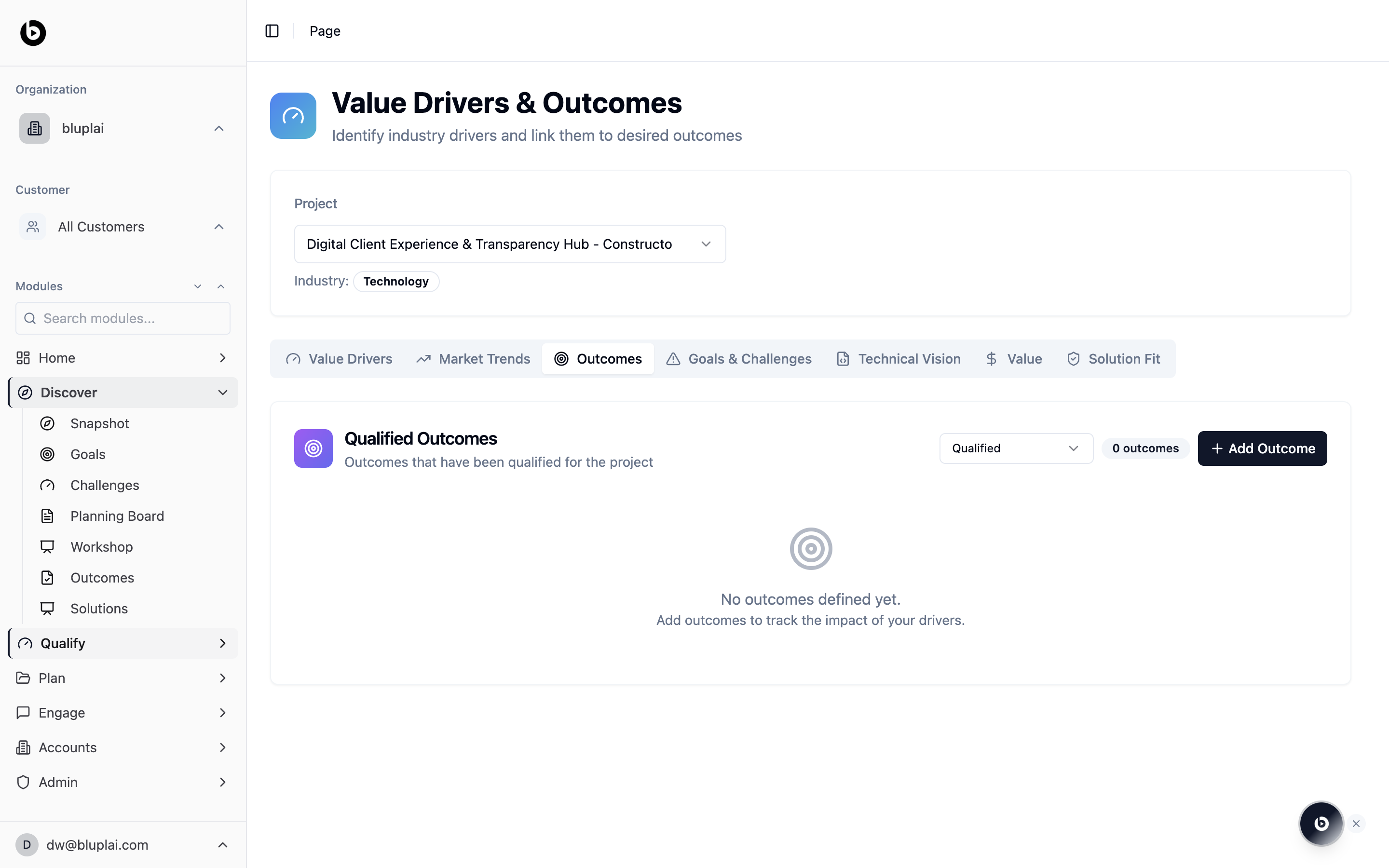
The **Outcomes** tab shows a **Qualified Outcomes** card described as "Outcomes that have been qualified for the project". Key controls:
* A status filter in the top right, defaulted to **Qualified**, so only promoted outcomes appear here
* An outcome count and an **Add Outcome** button for capturing new ones
* An empty state — "No outcomes defined yet. Add outcomes to track the impact of your drivers." — until you qualify an outcome
Because the filter is set to Qualified, outcomes still in earlier stages live on the Discover side of the workspace until they're promoted.
## Adding a qualified outcome
## Why you're here
Outcomes are how drivers become real. Each outcome is a measurable result the customer expects, linked back to the driver that motivates it. This is the same Outcomes view you use in Discover, but filtered to the ones you've *qualified* — the shortlist you're willing to stand behind in the business case.
## What you'll see
The **Outcomes** tab shows a **Qualified Outcomes** card described as "Outcomes that have been qualified for the project". Key controls:
* A status filter in the top right, defaulted to **Qualified**, so only promoted outcomes appear here
* An outcome count and an **Add Outcome** button for capturing new ones
* An empty state — "No outcomes defined yet. Add outcomes to track the impact of your drivers." — until you qualify an outcome
Because the filter is set to Qualified, outcomes still in earlier stages live on the Discover side of the workspace until they're promoted.
## Adding a qualified outcome
 ### Why you'd create one
Qualifying an outcome is what turns a rough Discover idea into something you're willing to stand behind. A qualified outcome is measurable, owned, tied to a driver, and specific enough to model value against. Capturing it here moves it out of notes and into the shared record that feeds the ROI model and the success plan.
### How to create one
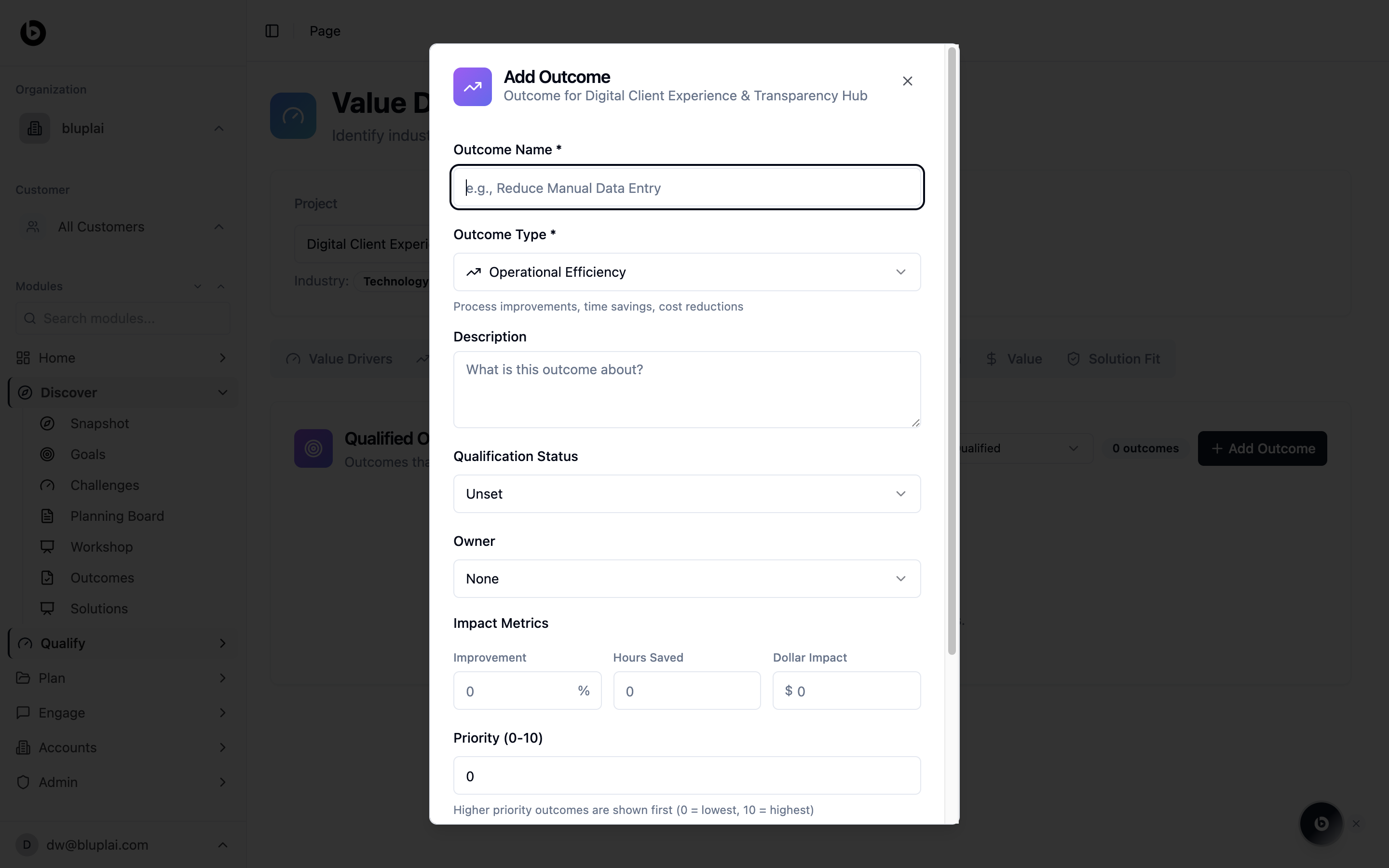
From `/drivers?tab=outcomes`, click **Add Outcome** in the top right. You can also use this flow to promote a Discover Outcome by re-entering it with the qualification fields filled in. The **Add Outcome** dialog opens.
* **Outcome Name** — a short, specific name (for example, *Reduce Manual Data Entry*). Required.
* **Outcome Type** — choose the category that matches (the default **Operational Efficiency** covers process improvements, time savings, and cost reductions). Required.
* **Description** — explain what the outcome is about and what "done" looks like.
* **Qualification Status** — set to **Unset** by default; move it forward as the outcome is validated with the customer.
* **Owner** — pick the teammate who owns the outcome; leave as **None** if it's still unassigned.
* **Impact Metrics** — capture the measurable impact across **Improvement** (percent), **Hours Saved**, and **Dollar Impact**. These feed the Value model later.
* **Priority (0–10)** — rank the outcome against others. Higher priority outcomes are shown first (`0` = lowest, `10` = highest).
Submit the dialog. The outcome appears in the Qualified Outcomes list once its status is set to Qualified; otherwise it stays visible when the filter is changed.
### What happens after
Qualified outcomes are the shortlist that feeds the Value tab's ROI model and drop straight into the Customer Success Plan in Plan. In Engage, they become the outcomes Customer Success tracks during adoption, so what you qualified here is what the customer is measured against later.
## When to use it
* Promoting a draft outcome from Discover once the customer has confirmed it
* Building the shortlist that feeds the Value analysis and ROI model
* Preparing for a qualification review where only committed outcomes belong
* Handing off to Customer Success — qualified outcomes become the success plan
## Next
Model the ROI behind the outcomes you've qualified.
Align the technical direction with these outcomes.
### Why you'd create one
Qualifying an outcome is what turns a rough Discover idea into something you're willing to stand behind. A qualified outcome is measurable, owned, tied to a driver, and specific enough to model value against. Capturing it here moves it out of notes and into the shared record that feeds the ROI model and the success plan.
### How to create one
From `/drivers?tab=outcomes`, click **Add Outcome** in the top right. You can also use this flow to promote a Discover Outcome by re-entering it with the qualification fields filled in. The **Add Outcome** dialog opens.
* **Outcome Name** — a short, specific name (for example, *Reduce Manual Data Entry*). Required.
* **Outcome Type** — choose the category that matches (the default **Operational Efficiency** covers process improvements, time savings, and cost reductions). Required.
* **Description** — explain what the outcome is about and what "done" looks like.
* **Qualification Status** — set to **Unset** by default; move it forward as the outcome is validated with the customer.
* **Owner** — pick the teammate who owns the outcome; leave as **None** if it's still unassigned.
* **Impact Metrics** — capture the measurable impact across **Improvement** (percent), **Hours Saved**, and **Dollar Impact**. These feed the Value model later.
* **Priority (0–10)** — rank the outcome against others. Higher priority outcomes are shown first (`0` = lowest, `10` = highest).
Submit the dialog. The outcome appears in the Qualified Outcomes list once its status is set to Qualified; otherwise it stays visible when the filter is changed.
### What happens after
Qualified outcomes are the shortlist that feeds the Value tab's ROI model and drop straight into the Customer Success Plan in Plan. In Engage, they become the outcomes Customer Success tracks during adoption, so what you qualified here is what the customer is measured against later.
## When to use it
* Promoting a draft outcome from Discover once the customer has confirmed it
* Building the shortlist that feeds the Value analysis and ROI model
* Preparing for a qualification review where only committed outcomes belong
* Handing off to Customer Success — qualified outcomes become the success plan
## Next
Model the ROI behind the outcomes you've qualified.
Align the technical direction with these outcomes.