> ## Documentation Index
> Fetch the complete documentation index at: https://docs.bluplai.com/llms.txt
> Use this file to discover all available pages before exploring further.
# My tasks
> Your personal cross-project task list — everything assigned to you, grouped by project, with status, priority, and due dates.
 ## Why you're here
My Tasks under Home is the "what do I owe this week?" view. It's the same page as Plan → Tasks, but framed for the individual contributor rather than the project lead — the focus is your personal work across every account, not one project's task backlog. Open it first thing in the morning, after a customer call that generated new action items, or when you're triaging before the weekend.
## What you'll see
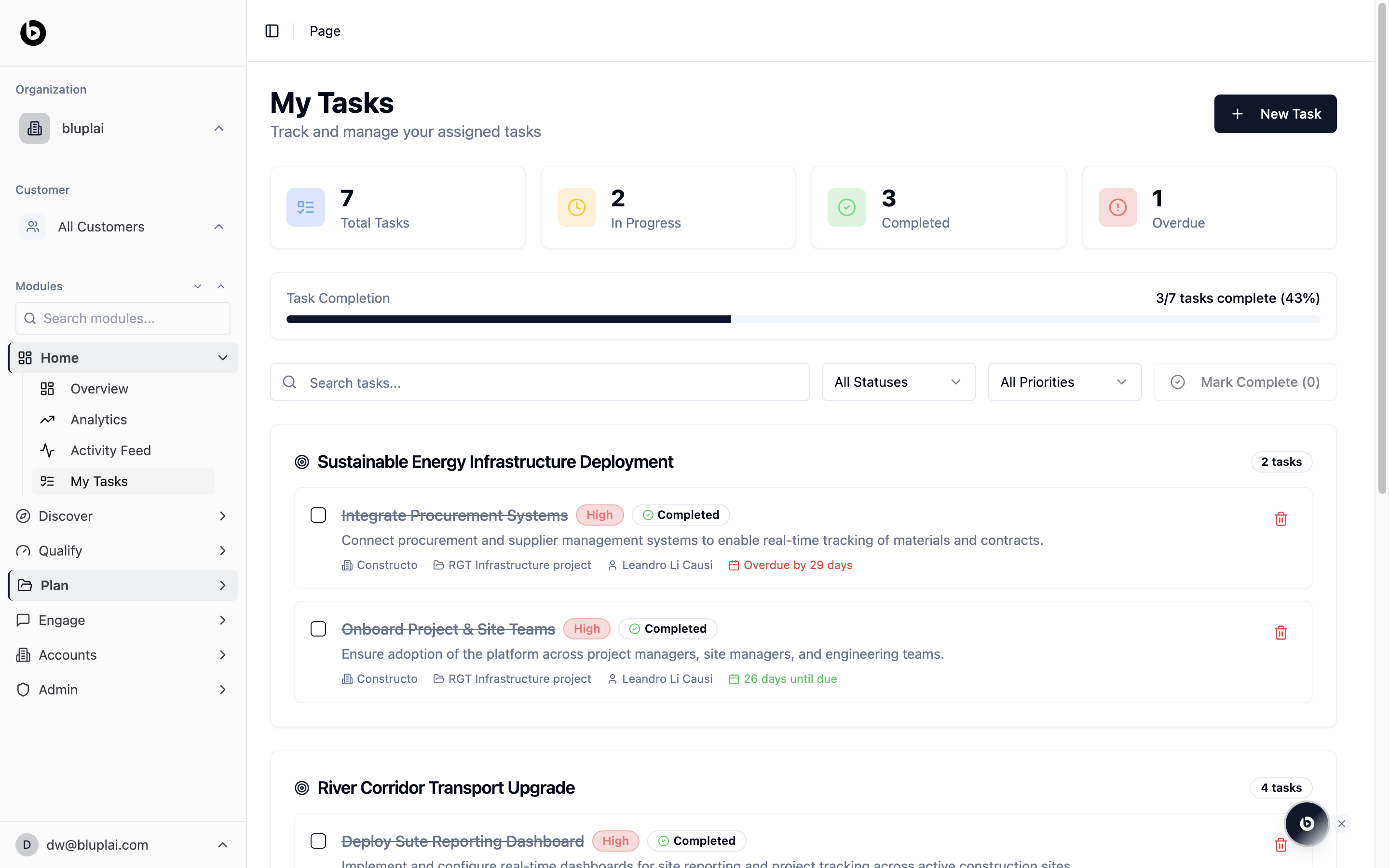
* Four counters at the top: Total Tasks, In Progress, Completed, and Overdue.
* A Task Completion progress bar showing how many tasks are done out of the total, with a percentage.
* A search box and two dropdowns (All Statuses, All Priorities), plus a Mark Complete action that counts selected items.
* Tasks grouped under their parent project heading with a per-project count on the right.
* Each task row shows a checkbox, title, priority pill, status pill, description, the account it belongs to, the source project, the assignee, and a due-date indicator — overdue items show the day count in red.
* A New Task button in the top right.
The Home entry point lands you on your own tasks only. If you need the project-lead angle — reassigning work, surfacing unassigned tasks, or reviewing a whole project's list — use Plan → Tasks instead.
## When to use it
* Start the week with one list of everything you owe across every account.
* Clear overdue work before a status call instead of hunting across projects.
* Bulk-complete a batch of items after a working session with the Mark Complete action.
* Jump from a task into its parent project to open the Customer Success Plan in context.
## Next
See the log of changes your completed tasks generated.
Return to the portfolio dashboard for context across accounts.
## Why you're here
My Tasks under Home is the "what do I owe this week?" view. It's the same page as Plan → Tasks, but framed for the individual contributor rather than the project lead — the focus is your personal work across every account, not one project's task backlog. Open it first thing in the morning, after a customer call that generated new action items, or when you're triaging before the weekend.
## What you'll see
* Four counters at the top: Total Tasks, In Progress, Completed, and Overdue.
* A Task Completion progress bar showing how many tasks are done out of the total, with a percentage.
* A search box and two dropdowns (All Statuses, All Priorities), plus a Mark Complete action that counts selected items.
* Tasks grouped under their parent project heading with a per-project count on the right.
* Each task row shows a checkbox, title, priority pill, status pill, description, the account it belongs to, the source project, the assignee, and a due-date indicator — overdue items show the day count in red.
* A New Task button in the top right.
The Home entry point lands you on your own tasks only. If you need the project-lead angle — reassigning work, surfacing unassigned tasks, or reviewing a whole project's list — use Plan → Tasks instead.
## When to use it
* Start the week with one list of everything you owe across every account.
* Clear overdue work before a status call instead of hunting across projects.
* Bulk-complete a batch of items after a working session with the Mark Complete action.
* Jump from a task into its parent project to open the Customer Success Plan in context.
## Next
See the log of changes your completed tasks generated.
Return to the portfolio dashboard for context across accounts.