> ## Documentation Index
> Fetch the complete documentation index at: https://docs.bluplai.com/llms.txt
> Use this file to discover all available pages before exploring further.
# Solutions
> Assess how well proposed solutions fit the customer — capabilities, risks, fit score, and adoption readiness — before you commit to a direction.
 ## Why you're here
The Solution Fit tab on the Value Drivers & Outcomes page is where you assess how well a proposed solution actually fits the customer. During Discover, this is where recommendations, capabilities, and risks get written down and scored — so by the time you hit Qualify, there's a documented fit assessment instead of a gut feeling. It turns "I think this is a match" into something both sides can look at together.
## What you'll see
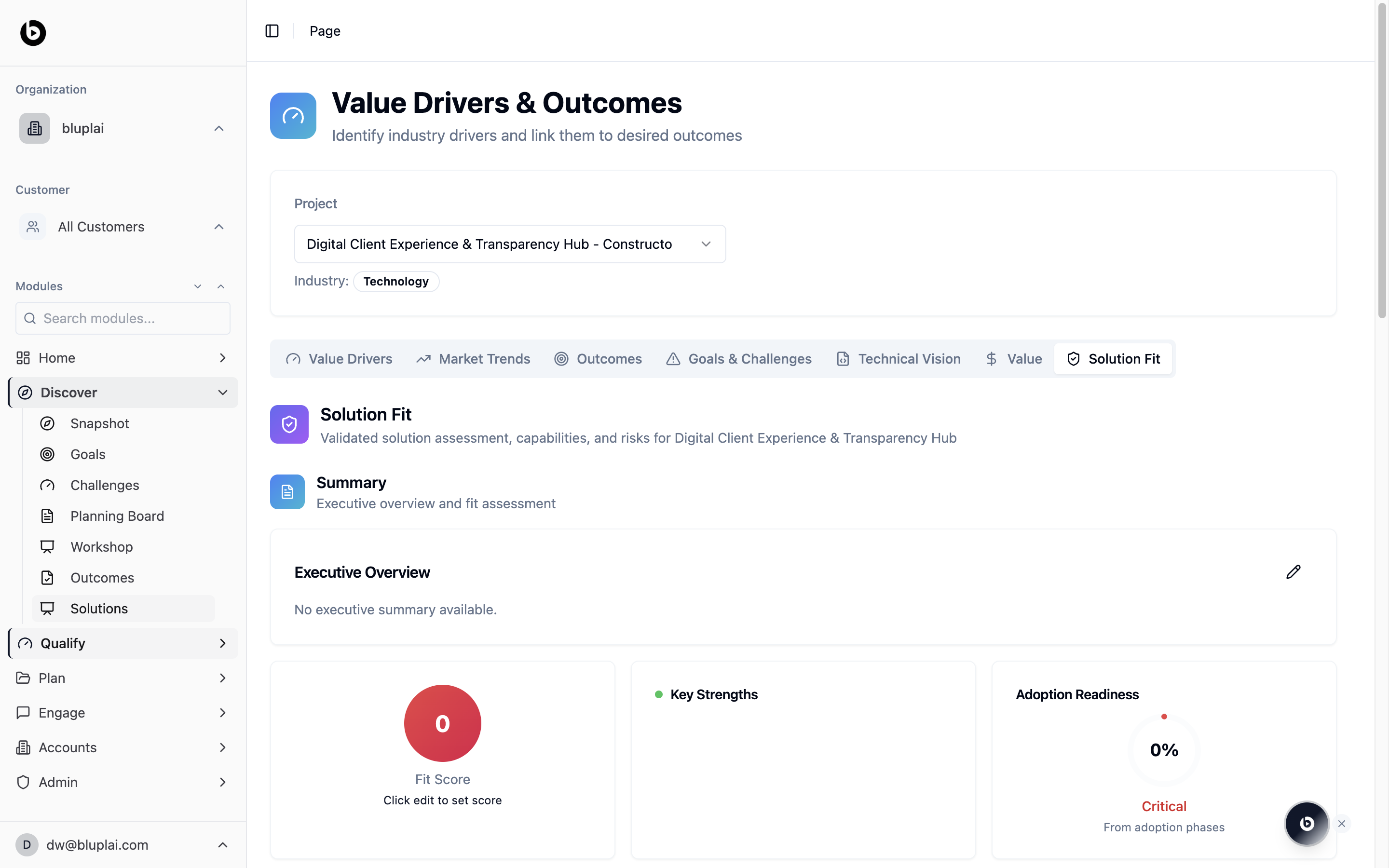
The page header reads **Value Drivers & Outcomes — Identify industry drivers and link them to desired outcomes.** A project selector sits below it with an **Industry** badge.
The tab bar spans the page: **Value Drivers**, **Market Trends**, **Outcomes**, **Goals & Challenges**, **Technical Vision**, **Value**, and **Solution Fit** (active here).
The **Solution Fit** panel is subtitled "Validated solution assessment, capabilities, and risks for \." Below that sits the **Summary** block with an Executive Overview card — empty by default, with the text "No executive summary available" and a pencil edit icon.
Three scoring tiles follow:
* **Fit Score** — a large circular gauge (0 by default), with the helper text "Click edit to set score."
* **Key Strengths** — a list area for capability highlights.
* **Adoption Readiness** — a percentage gauge (0% by default) with a severity label (**Critical** in the empty state) and the footnote "From adoption phases."
Use the pencil icons to fill in the executive overview, set the fit score, and capture strengths as the assessment firms up.
## When to use it
* Drafting the first-pass fit assessment after a discovery call so the team has a shared view.
* Updating the fit score as new information comes in from workshops or technical deep-dives.
* Reviewing the solution fit with the customer before moving into Qualify.
* Flagging adoption readiness concerns early so they become a planned workstream, not a late-stage surprise.
## Next
Check which outcomes the proposed solution should deliver.
Revisit the challenges the solution needs to resolve.
## Why you're here
The Solution Fit tab on the Value Drivers & Outcomes page is where you assess how well a proposed solution actually fits the customer. During Discover, this is where recommendations, capabilities, and risks get written down and scored — so by the time you hit Qualify, there's a documented fit assessment instead of a gut feeling. It turns "I think this is a match" into something both sides can look at together.
## What you'll see
The page header reads **Value Drivers & Outcomes — Identify industry drivers and link them to desired outcomes.** A project selector sits below it with an **Industry** badge.
The tab bar spans the page: **Value Drivers**, **Market Trends**, **Outcomes**, **Goals & Challenges**, **Technical Vision**, **Value**, and **Solution Fit** (active here).
The **Solution Fit** panel is subtitled "Validated solution assessment, capabilities, and risks for \." Below that sits the **Summary** block with an Executive Overview card — empty by default, with the text "No executive summary available" and a pencil edit icon.
Three scoring tiles follow:
* **Fit Score** — a large circular gauge (0 by default), with the helper text "Click edit to set score."
* **Key Strengths** — a list area for capability highlights.
* **Adoption Readiness** — a percentage gauge (0% by default) with a severity label (**Critical** in the empty state) and the footnote "From adoption phases."
Use the pencil icons to fill in the executive overview, set the fit score, and capture strengths as the assessment firms up.
## When to use it
* Drafting the first-pass fit assessment after a discovery call so the team has a shared view.
* Updating the fit score as new information comes in from workshops or technical deep-dives.
* Reviewing the solution fit with the customer before moving into Qualify.
* Flagging adoption readiness concerns early so they become a planned workstream, not a late-stage surprise.
## Next
Check which outcomes the proposed solution should deliver.
Revisit the challenges the solution needs to resolve.