> ## Documentation Index
> Fetch the complete documentation index at: https://docs.bluplai.com/llms.txt
> Use this file to discover all available pages before exploring further.
# Snapshot
> Capture the current state of the account — business context, org, technology, processes, and active initiatives — in one profile.
 ## Why you're here
Discover captures and structures everything from day one, and Snapshot is where that starts. It's the shared profile of business context, org shape, technology, processes, and active initiatives that you build up from the first conversation forward. During a live discovery call, you can share your screen and capture business context, goals, and challenges with the customer in the room, then let the AI assistant organize the notes into the right sections afterwards — saving 10–15 minutes per call on note organization and reducing duplication across tools. Everything you capture here travels forward into Qualify and Plan, so later stages start with facts instead of guesses.
*Discovery becomes structured — not scattered. You don't just capture problems, you start shaping solutions early.*
## What you'll see
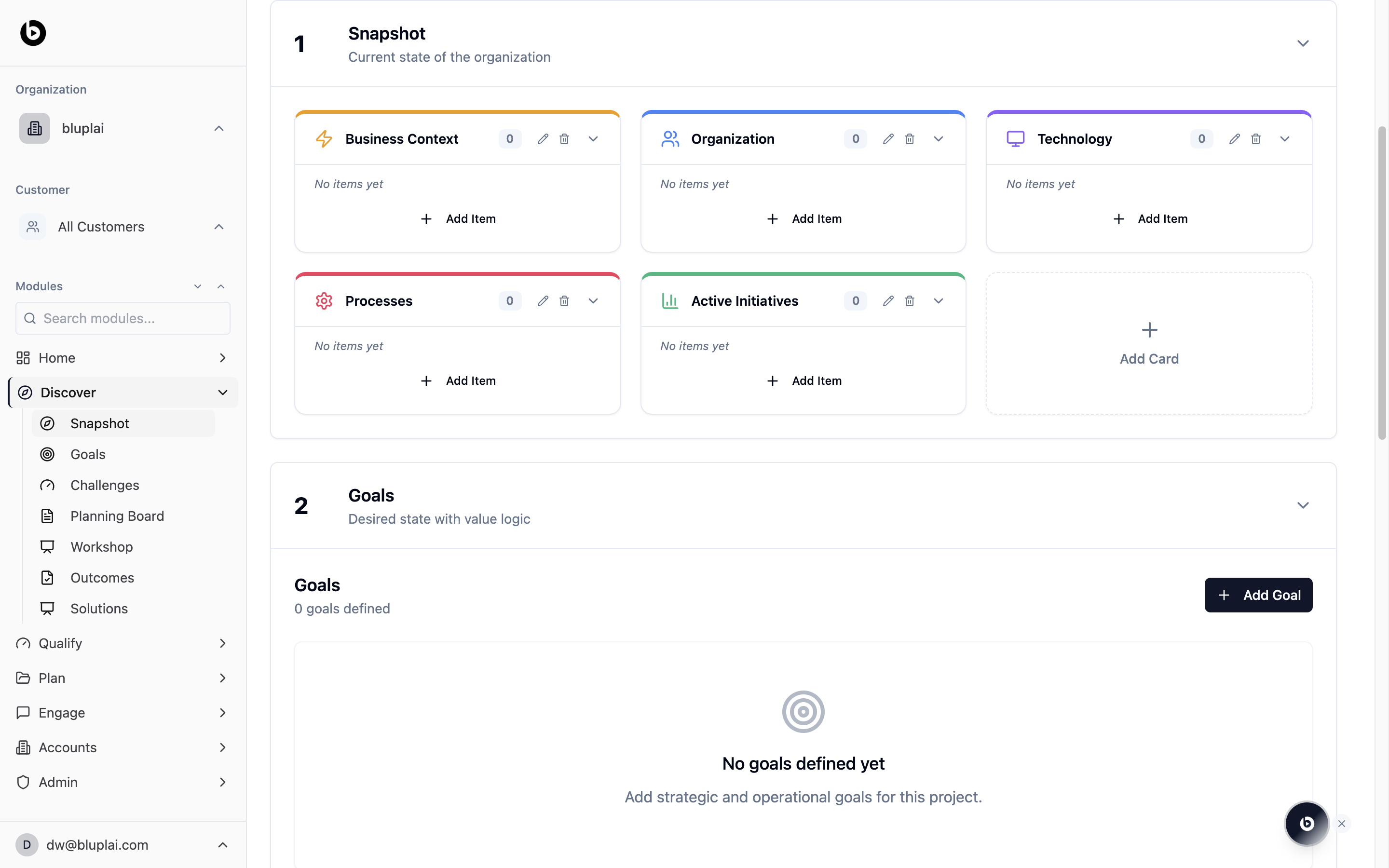
The section header reads "1 Snapshot — Current state of the organization." Underneath sits a grid of five colored cards:
* **Business Context** — yellow accent, lightning-bolt icon.
* **Organization** — blue accent, people icon.
* **Technology** — purple accent, monitor icon.
* **Processes** — red accent, cube icon.
* **Active Initiatives** — green accent, chart icon.
Each card shows a count on the right, pencil and trash icons for rename and delete, and a collapse chevron. When the card is empty it reads "No items yet" with a **+ Add Item** button. A sixth tile marked **+ Add Card** lets you create additional snapshot categories beyond the defaults.
Most Discover snapshots start empty. Use **+ Add Item** on each card to capture a single fact — one sentence or one data point per item — so you build up the profile without turning it into a long narrative.
## Adding a snapshot item
## Why you're here
Discover captures and structures everything from day one, and Snapshot is where that starts. It's the shared profile of business context, org shape, technology, processes, and active initiatives that you build up from the first conversation forward. During a live discovery call, you can share your screen and capture business context, goals, and challenges with the customer in the room, then let the AI assistant organize the notes into the right sections afterwards — saving 10–15 minutes per call on note organization and reducing duplication across tools. Everything you capture here travels forward into Qualify and Plan, so later stages start with facts instead of guesses.
*Discovery becomes structured — not scattered. You don't just capture problems, you start shaping solutions early.*
## What you'll see
The section header reads "1 Snapshot — Current state of the organization." Underneath sits a grid of five colored cards:
* **Business Context** — yellow accent, lightning-bolt icon.
* **Organization** — blue accent, people icon.
* **Technology** — purple accent, monitor icon.
* **Processes** — red accent, cube icon.
* **Active Initiatives** — green accent, chart icon.
Each card shows a count on the right, pencil and trash icons for rename and delete, and a collapse chevron. When the card is empty it reads "No items yet" with a **+ Add Item** button. A sixth tile marked **+ Add Card** lets you create additional snapshot categories beyond the defaults.
Most Discover snapshots start empty. Use **+ Add Item** on each card to capture a single fact — one sentence or one data point per item — so you build up the profile without turning it into a long narrative.
## Adding a snapshot item
 ### Why you'd add one
A snapshot item is a single fact about the current state of the account — their industry, revenue, tech stack, org size, or an active initiative. Each item you add builds up the shared profile that Qualify uses to frame the opportunity and Plan uses to scope delivery work.
### How to add one
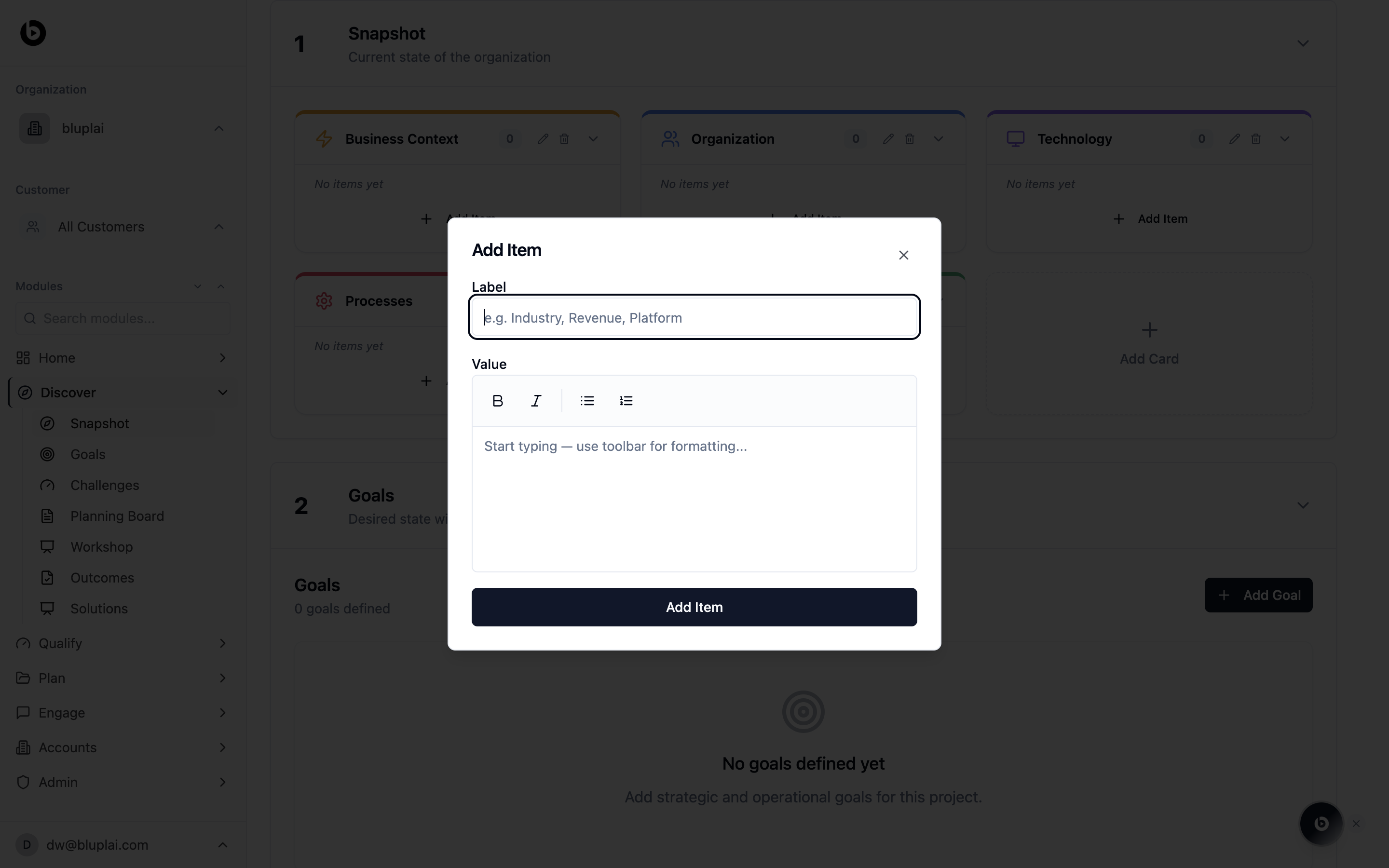
From `/discovery?section=snapshot`, click **+ Add Item** on the snapshot card you want to extend (Business Context, Organization, Technology, Processes, or Active Initiatives). The item is saved to that card.
Short name for the fact — for example "Industry", "Revenue", or "Platform".
The fact itself. A formatting toolbar supports bold, italic, bulleted lists, and numbered lists for when the value needs more than plain text.
Click **Add Item**. The new item appears under the card you opened it from, and the card's counter increments.
### What happens after
Snapshot items travel with the account profile into Qualify, where they shape how the opportunity is framed and sized, and into Plan, where they inform scope and feasibility for initiatives.
## When to use it
* Kicking off a new account engagement and filling in what you already know from pre-call research.
* After a discovery call, logging new facts about the buyer's tech stack, team structure, or existing initiatives.
* Cleaning up the profile before handing off from sales to CS so the next person has full context.
* Adding a new snapshot category (via **+ Add Card**) when the customer's business doesn't fit the default five.
## Next
Move from current state to desired state — log the outcomes the customer wants.
Capture the friction points standing in the way of those goals.
### Why you'd add one
A snapshot item is a single fact about the current state of the account — their industry, revenue, tech stack, org size, or an active initiative. Each item you add builds up the shared profile that Qualify uses to frame the opportunity and Plan uses to scope delivery work.
### How to add one
From `/discovery?section=snapshot`, click **+ Add Item** on the snapshot card you want to extend (Business Context, Organization, Technology, Processes, or Active Initiatives). The item is saved to that card.
Short name for the fact — for example "Industry", "Revenue", or "Platform".
The fact itself. A formatting toolbar supports bold, italic, bulleted lists, and numbered lists for when the value needs more than plain text.
Click **Add Item**. The new item appears under the card you opened it from, and the card's counter increments.
### What happens after
Snapshot items travel with the account profile into Qualify, where they shape how the opportunity is framed and sized, and into Plan, where they inform scope and feasibility for initiatives.
## When to use it
* Kicking off a new account engagement and filling in what you already know from pre-call research.
* After a discovery call, logging new facts about the buyer's tech stack, team structure, or existing initiatives.
* Cleaning up the profile before handing off from sales to CS so the next person has full context.
* Adding a new snapshot category (via **+ Add Card**) when the customer's business doesn't fit the default five.
## Next
Move from current state to desired state — log the outcomes the customer wants.
Capture the friction points standing in the way of those goals.