> ## Documentation Index
> Fetch the complete documentation index at: https://docs.bluplai.com/llms.txt
> Use this file to discover all available pages before exploring further.
# Goals
> Log the strategic and operational goals the customer wants to reach, with the value logic behind each one.
 ## Why you're here
The Goals section sits below Snapshot on the Discover page and captures what the customer actually wants to achieve. It's the "desired state" counterpart to the current-state Snapshot — OKRs, KPI targets, business outcomes, and the value logic that connects each goal to a measurable result. Goals logged here flow forward into Qualify (to size the opportunity) and Plan (to build the initiatives that deliver them).
## What you'll see
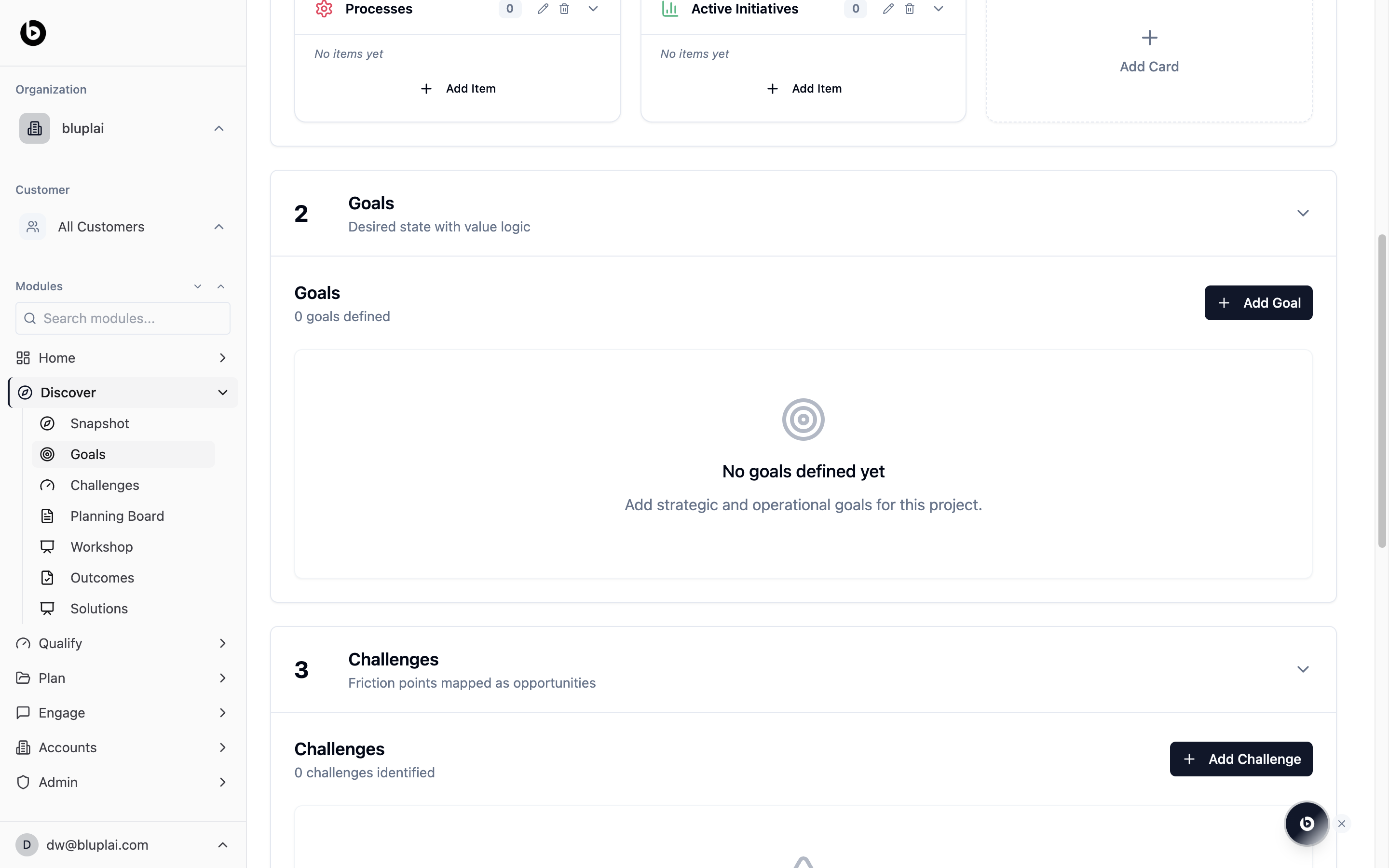
The section header reads "2 Goals — Desired state with value logic." Inside, a sub-header shows **Goals** and a counter (for example, "0 goals defined") with a black **+ Add Goal** button on the right.
When no goals have been logged, the empty state displays a target icon, the text "No goals defined yet," and a prompt: "Add strategic and operational goals for this project." Click **+ Add Goal** to log one — each goal is where you tie the customer's objective to the value it unlocks.
## Creating a goal
## Why you're here
The Goals section sits below Snapshot on the Discover page and captures what the customer actually wants to achieve. It's the "desired state" counterpart to the current-state Snapshot — OKRs, KPI targets, business outcomes, and the value logic that connects each goal to a measurable result. Goals logged here flow forward into Qualify (to size the opportunity) and Plan (to build the initiatives that deliver them).
## What you'll see
The section header reads "2 Goals — Desired state with value logic." Inside, a sub-header shows **Goals** and a counter (for example, "0 goals defined") with a black **+ Add Goal** button on the right.
When no goals have been logged, the empty state displays a target icon, the text "No goals defined yet," and a prompt: "Add strategic and operational goals for this project." Click **+ Add Goal** to log one — each goal is where you tie the customer's objective to the value it unlocks.
## Creating a goal
 ### Why you'd create one
A goal captures what the customer wants to achieve and is the structured entry point for value logic in the Discover flow. Each goal you log here feeds Qualify, where it becomes an Outcome with a value model, and Plan, where it drives the initiatives built to deliver it.
### How to create one
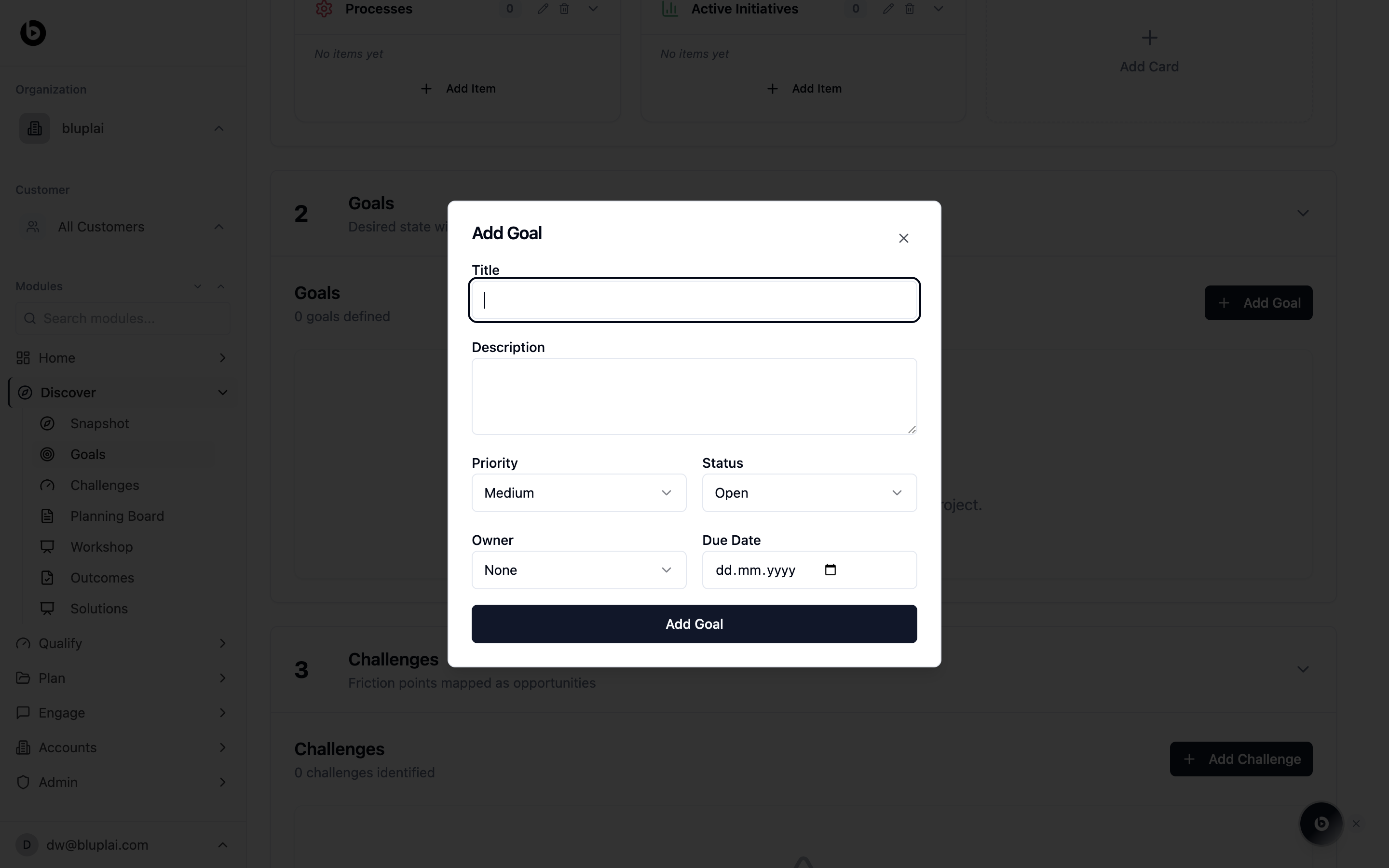
From `/discovery?section=goals`, click **+ Add Goal** in the top right of the Goals sub-header.
Short name for the goal — the desired state the customer wants to reach.
Longer explanation of the goal and the value logic behind it.
How important this goal is relative to others. Defaults to Medium.
Current state of the goal. Defaults to Open.
Person accountable for the goal. Defaults to None.
Target date for reaching the goal.
Click **Add Goal**. The new goal appears in the Goals section with its counter incremented.
### What happens after
A saved goal becomes an Outcome in Qualify, where it gets a value model with a target metric and baseline. It also surfaces in Plan → Initiatives so delivery work can be scoped against the goal it's meant to move.
## When to use it
* Right after a discovery call, converting the outcomes the stakeholder described into structured goals.
* Confirming goals with the customer before moving into Qualify so both sides are aligned on what "success" means.
* Adding a new goal partway through the engagement when a stakeholder surfaces an objective that wasn't on the original list.
* Reviewing the goal list before a QBR or steering meeting to check progress against the desired state.
## Next
Map the friction points blocking each goal.
Turn each goal into a tracked outcome with measurable impact.
### Why you'd create one
A goal captures what the customer wants to achieve and is the structured entry point for value logic in the Discover flow. Each goal you log here feeds Qualify, where it becomes an Outcome with a value model, and Plan, where it drives the initiatives built to deliver it.
### How to create one
From `/discovery?section=goals`, click **+ Add Goal** in the top right of the Goals sub-header.
Short name for the goal — the desired state the customer wants to reach.
Longer explanation of the goal and the value logic behind it.
How important this goal is relative to others. Defaults to Medium.
Current state of the goal. Defaults to Open.
Person accountable for the goal. Defaults to None.
Target date for reaching the goal.
Click **Add Goal**. The new goal appears in the Goals section with its counter incremented.
### What happens after
A saved goal becomes an Outcome in Qualify, where it gets a value model with a target metric and baseline. It also surfaces in Plan → Initiatives so delivery work can be scoped against the goal it's meant to move.
## When to use it
* Right after a discovery call, converting the outcomes the stakeholder described into structured goals.
* Confirming goals with the customer before moving into Qualify so both sides are aligned on what "success" means.
* Adding a new goal partway through the engagement when a stakeholder surfaces an objective that wasn't on the original list.
* Reviewing the goal list before a QBR or steering meeting to check progress against the desired state.
## Next
Map the friction points blocking each goal.
Turn each goal into a tracked outcome with measurable impact.