> ## Documentation Index
> Fetch the complete documentation index at: https://docs.bluplai.com/llms.txt
> Use this file to discover all available pages before exploring further.
# Roles
> Define the access archetypes your team works under — Administrator, Editor, Viewer, and any custom roles you build on top.
 ## Why you're here
Roles are how you keep the workspace shaped to the way your teams actually work. The three base roles cover most cases, and custom roles let you carve out access patterns for teams that need something narrower — for example, a CS team that works across every module except one.
## What you'll see
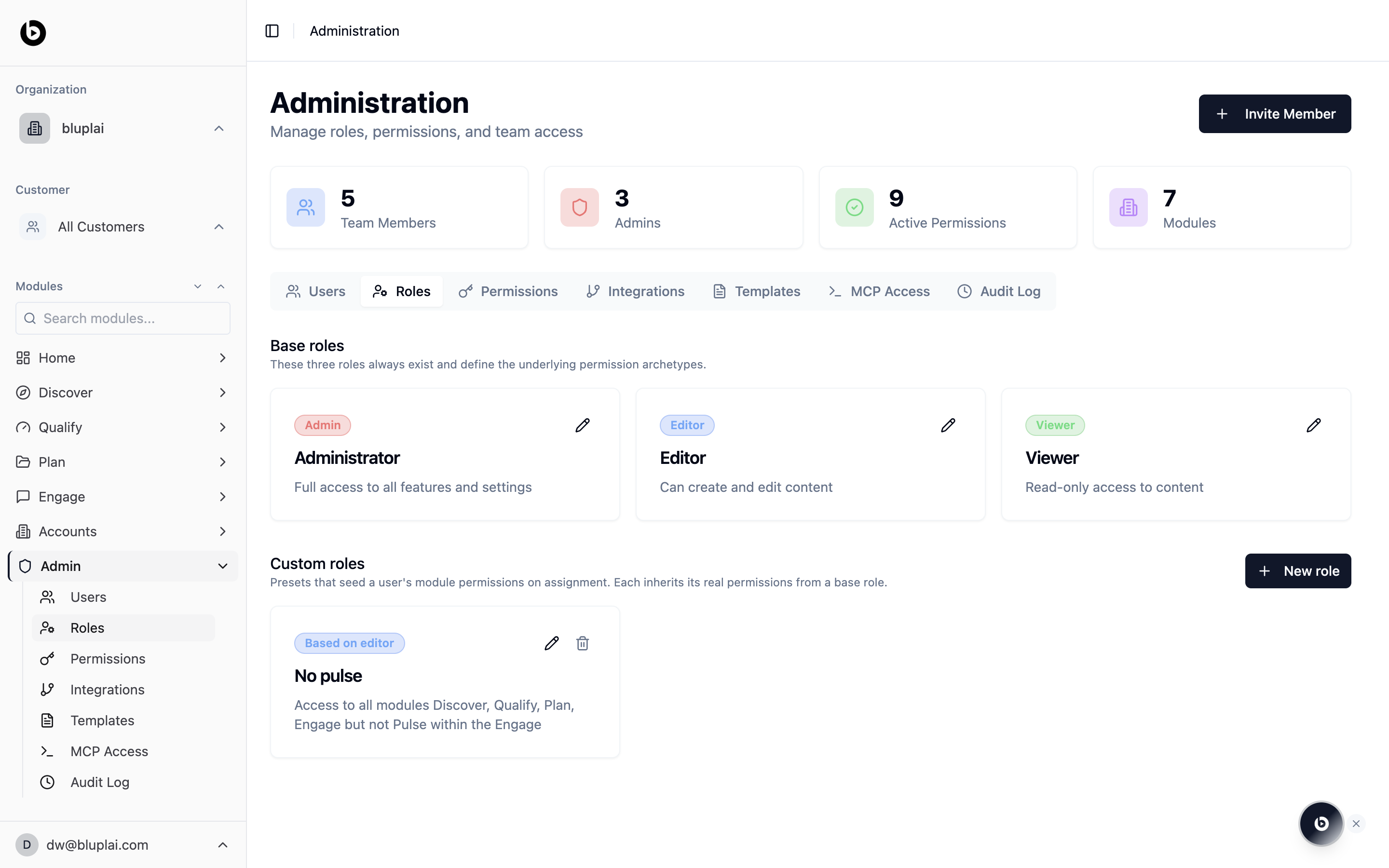
**Base roles** are always present and define the underlying permission archetypes:
* **Administrator** — full access to all features and settings
* **Editor** — can create and edit content
* **Viewer** — read-only access to content
**Custom roles** sit below. Each is based on one of the three base roles and inherits its real permissions, but seeds a different default set of module permissions when you assign it to someone. Use **New role** on the right to create one, and the pencil icon on any card to edit it. Custom roles can be deleted with the trash icon.
## When to use it
* You're setting up the workspace for the first time and want to confirm the base roles match your vocabulary
* A team needs a default that isn't quite Admin, Editor, or Viewer — build a custom role
* You're onboarding a new function (Marketing, Partners) and want their invites to land with the right defaults
* You want to retire a custom role that no one uses any more
## Creating a custom role
Custom roles are defined per module — set module-level permissions (Admin / Editor / Viewer / No access) on each module, then assign the role when you invite a new member or edit an existing one. The custom role appears in the Role dropdown of the [Invite Member dialog](/admin/users#inviting-a-member) and in the per-member role dropdown on the Users tab.
## Workspace roles and whiteboard roles
The base roles on this page describe internal workspace access. Whiteboards also distinguish guest seats, named visitors, and anonymous public visitors so external collaboration does not create a full team member.
* Internal roles appear as **Organization Owner**, **Team Admin**, **Team Editor**, and **Team Viewer** in the whiteboard permission model.
* Guest seats use **Guest Admin**, **Guest Editor**, or **Guest Viewer** for each assigned account.
* Board-only invitations use **Guest Editor**, **Guest Commenter**, or **Guest Viewer**.
* A person using an anonymous view-only link is a **Public Visitor**.
See [Whiteboard collaboration and sharing](/whiteboards/collaboration-and-sharing#the-11-whiteboard-roles) for the complete permission table and account boundaries.
## Next
Assign a role to each member of the workspace.
Override role defaults on a per-module or per-account basis.
## Why you're here
Roles are how you keep the workspace shaped to the way your teams actually work. The three base roles cover most cases, and custom roles let you carve out access patterns for teams that need something narrower — for example, a CS team that works across every module except one.
## What you'll see
**Base roles** are always present and define the underlying permission archetypes:
* **Administrator** — full access to all features and settings
* **Editor** — can create and edit content
* **Viewer** — read-only access to content
**Custom roles** sit below. Each is based on one of the three base roles and inherits its real permissions, but seeds a different default set of module permissions when you assign it to someone. Use **New role** on the right to create one, and the pencil icon on any card to edit it. Custom roles can be deleted with the trash icon.
## When to use it
* You're setting up the workspace for the first time and want to confirm the base roles match your vocabulary
* A team needs a default that isn't quite Admin, Editor, or Viewer — build a custom role
* You're onboarding a new function (Marketing, Partners) and want their invites to land with the right defaults
* You want to retire a custom role that no one uses any more
## Creating a custom role
Custom roles are defined per module — set module-level permissions (Admin / Editor / Viewer / No access) on each module, then assign the role when you invite a new member or edit an existing one. The custom role appears in the Role dropdown of the [Invite Member dialog](/admin/users#inviting-a-member) and in the per-member role dropdown on the Users tab.
## Workspace roles and whiteboard roles
The base roles on this page describe internal workspace access. Whiteboards also distinguish guest seats, named visitors, and anonymous public visitors so external collaboration does not create a full team member.
* Internal roles appear as **Organization Owner**, **Team Admin**, **Team Editor**, and **Team Viewer** in the whiteboard permission model.
* Guest seats use **Guest Admin**, **Guest Editor**, or **Guest Viewer** for each assigned account.
* Board-only invitations use **Guest Editor**, **Guest Commenter**, or **Guest Viewer**.
* A person using an anonymous view-only link is a **Public Visitor**.
See [Whiteboard collaboration and sharing](/whiteboards/collaboration-and-sharing#the-11-whiteboard-roles) for the complete permission table and account boundaries.
## Next
Assign a role to each member of the workspace.
Override role defaults on a per-module or per-account basis.