> ## Documentation Index
> Fetch the complete documentation index at: https://docs.bluplai.com/llms.txt
> Use this file to discover all available pages before exploring further.
# Permissions
> Control exactly which modules and accounts each member can reach.
 ## Why you're here
Roles set the default; Permissions is where you get specific. Bluplai is a shared workspace with your customer in it, so access control matters. This page is the single grid where you decide which modules every member can touch and which accounts they can see.
## What you'll see
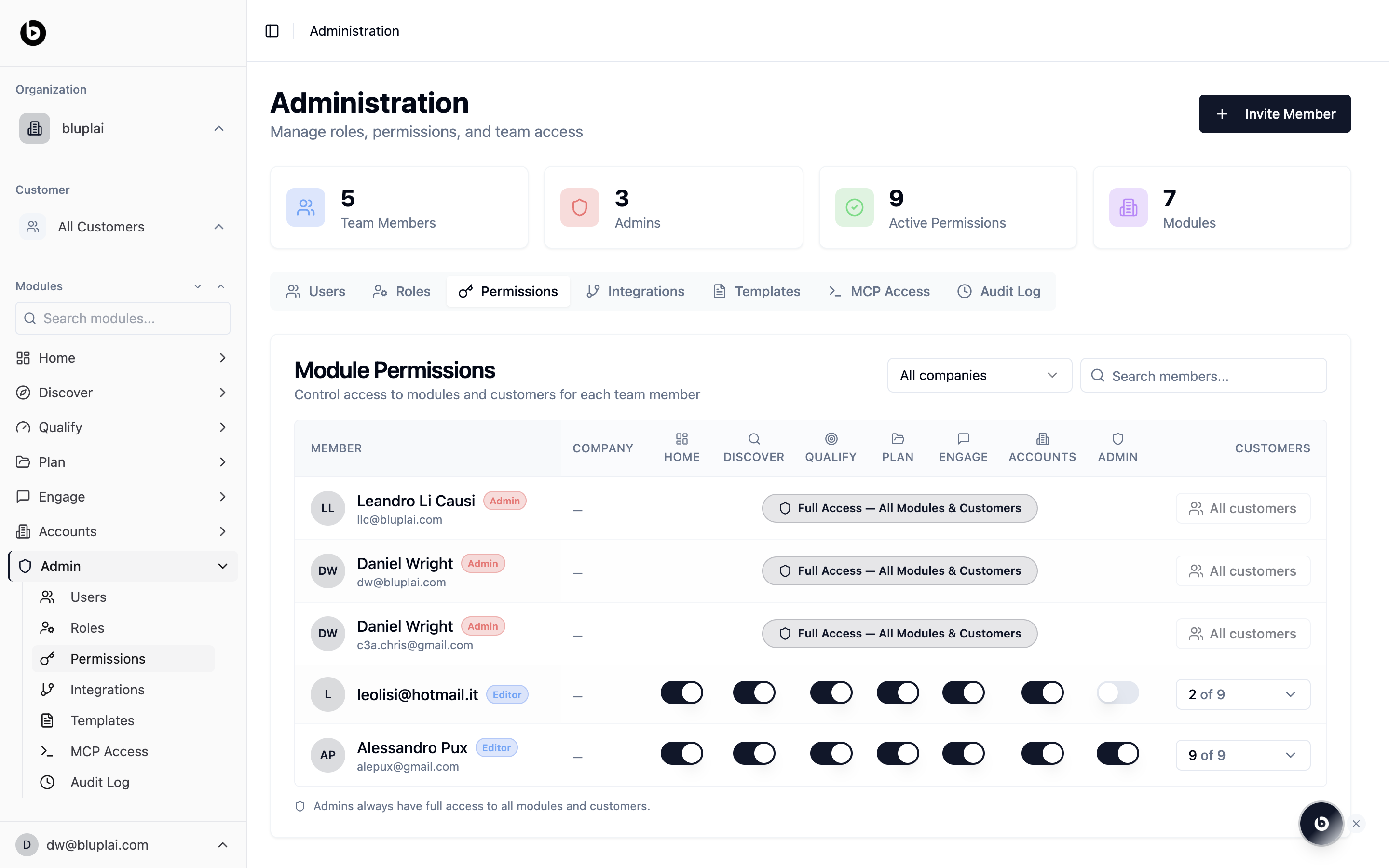
A matrix with one row per member and one column per module: Company, Home, Discover, Qualify, Plan, Engage, Accounts, and Admin. To the right, an **Accounts & projects** column shows how many of your accounts each member can access (for example, "2 of 9").
* **Admins** show a single pill that reads "Full Access — All Modules & Accounts". They always have everything; you can't toggle it off.
* **Editors and Viewers** show a toggle for every module and an account selector on the right. Flip a module on or off for that member, or narrow their account list from the dropdown.
Filter the matrix with the company dropdown at the top right, or search for a specific member with the search box.
## When to use it
* A rep should only see the accounts in their book
* A marketing hire needs Discover and Qualify but not Engage
* An external partner should be limited to one account workspace
* You're auditing who can reach the Admin module
## Adjusting permissions
Permissions aren't created here — they're adjusted. New members land on the matrix automatically with defaults from their role, and you refine the grid from there. To widen or narrow what a single person can reach, flip their module toggles in the row; to change the archetype everyone on a role inherits, start from [Roles](/admin/roles) instead.
## Whiteboard and guest access
Whiteboard access combines this organization-level permission with the board's account and Share settings:
* Whiteboards must be enabled for the person.
* A guest seat must have access to the board's exact account. Account boundaries override every board grant.
* **Guest access** on the board decides whether eligible guest seats can open it account-wide.
* Named Visitor Editor, Visitor Commenter, and Visitor Viewer grants apply only to explicitly invited boards.
* **Can create view-only links** is a separate guest permission. Guest Editor does not imply public-link permission.
Use [Guest access](/admin/client-access) for guest-seat roles and [Whiteboard collaboration and sharing](/whiteboards/collaboration-and-sharing) for the four-part Share window.
## Next
Change the starting point that Permissions builds on.
See who changed a permission, when, and for whom.
## Why you're here
Roles set the default; Permissions is where you get specific. Bluplai is a shared workspace with your customer in it, so access control matters. This page is the single grid where you decide which modules every member can touch and which accounts they can see.
## What you'll see
A matrix with one row per member and one column per module: Company, Home, Discover, Qualify, Plan, Engage, Accounts, and Admin. To the right, an **Accounts & projects** column shows how many of your accounts each member can access (for example, "2 of 9").
* **Admins** show a single pill that reads "Full Access — All Modules & Accounts". They always have everything; you can't toggle it off.
* **Editors and Viewers** show a toggle for every module and an account selector on the right. Flip a module on or off for that member, or narrow their account list from the dropdown.
Filter the matrix with the company dropdown at the top right, or search for a specific member with the search box.
## When to use it
* A rep should only see the accounts in their book
* A marketing hire needs Discover and Qualify but not Engage
* An external partner should be limited to one account workspace
* You're auditing who can reach the Admin module
## Adjusting permissions
Permissions aren't created here — they're adjusted. New members land on the matrix automatically with defaults from their role, and you refine the grid from there. To widen or narrow what a single person can reach, flip their module toggles in the row; to change the archetype everyone on a role inherits, start from [Roles](/admin/roles) instead.
## Whiteboard and guest access
Whiteboard access combines this organization-level permission with the board's account and Share settings:
* Whiteboards must be enabled for the person.
* A guest seat must have access to the board's exact account. Account boundaries override every board grant.
* **Guest access** on the board decides whether eligible guest seats can open it account-wide.
* Named Visitor Editor, Visitor Commenter, and Visitor Viewer grants apply only to explicitly invited boards.
* **Can create view-only links** is a separate guest permission. Guest Editor does not imply public-link permission.
Use [Guest access](/admin/client-access) for guest-seat roles and [Whiteboard collaboration and sharing](/whiteboards/collaboration-and-sharing) for the four-part Share window.
## Next
Change the starting point that Permissions builds on.
See who changed a permission, when, and for whom.