> ## Documentation Index
> Fetch the complete documentation index at: https://docs.bluplai.com/llms.txt
> Use this file to discover all available pages before exploring further.
# MCP access
> Generate a token so Claude Desktop, Claude Code, and any MCP-compatible client can read and write in your Bluplai workspace.
 ## Why you're here
MCP — Model Context Protocol — is how AI tools and agents talk to Bluplai. This tab is where you issue a personal token that lets Claude Desktop, the Claude Code CLI, or any MCP-compatible client act inside your workspace with your role and permissions. It's the same access control you already use, extended to your AI tools.
## What you'll see
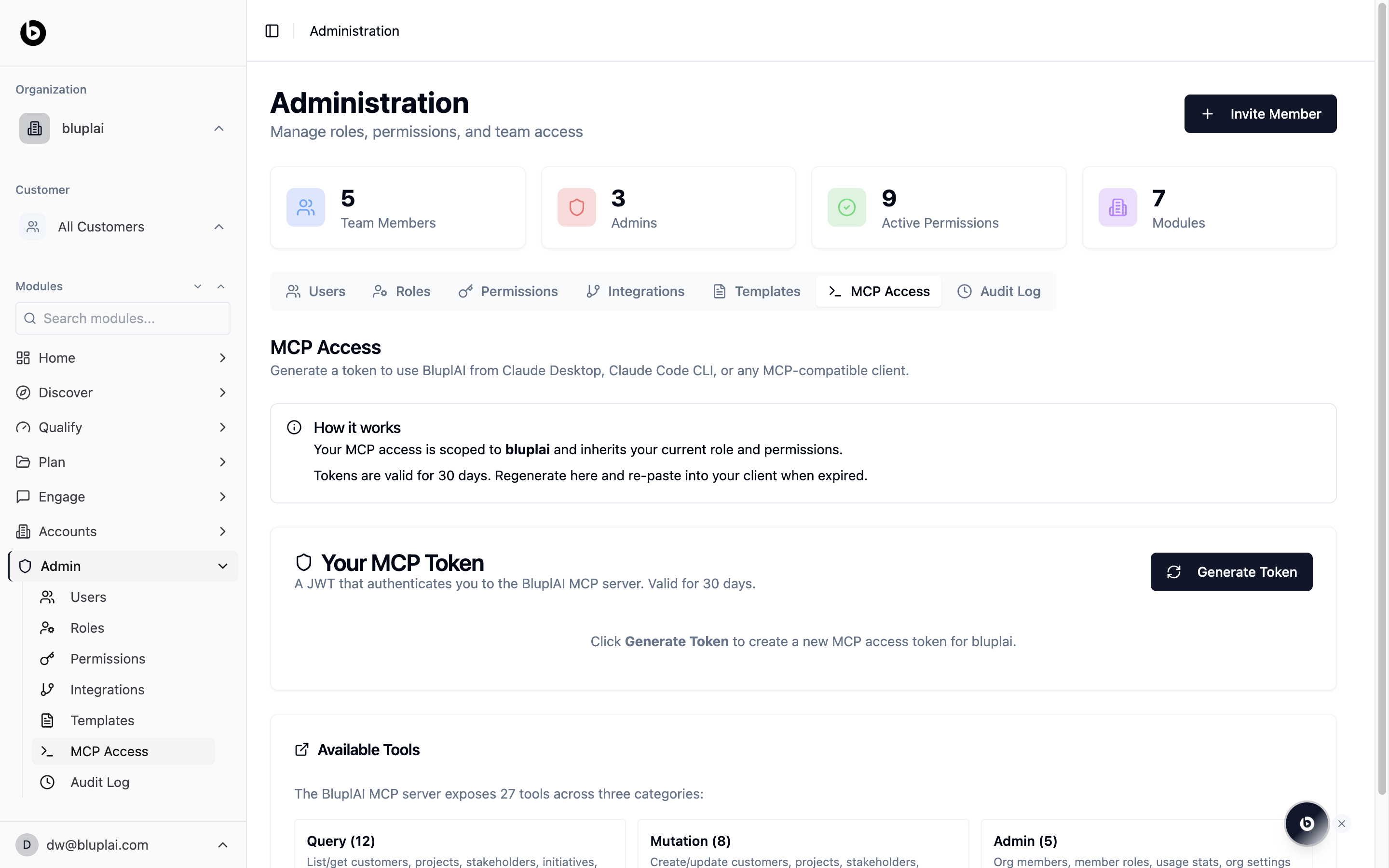
**How it works** explains the model in two lines: your MCP access is scoped to your organisation and inherits your current role and permissions. Tokens are valid for 30 days; regenerate and re-paste into your client when yours expires.
**Your MCP Token** is where you hit **Generate Token** to mint a fresh JWT. Until you generate one, the panel sits empty with a prompt to create your first token.
**Available Tools** lists the 27 tools the Bluplai MCP server exposes, grouped in three categories:
* **Query** — list and get accounts, projects, stakeholders, initiatives, and more
* **Mutation** — create and update the same entities
* **Admin** — org members, member roles, usage stats, org settings
Whatever your role can do in the UI, your token can do over MCP. Nothing more.
## When to use it
* You're connecting Claude Desktop or Claude Code to Bluplai for the first time
* You want an agent to pull account context before a call
* You want a script or workflow to write notes or updates back into the workspace
* Your 30-day token expired and you need a fresh one
## Generating an MCP token
## Why you're here
MCP — Model Context Protocol — is how AI tools and agents talk to Bluplai. This tab is where you issue a personal token that lets Claude Desktop, the Claude Code CLI, or any MCP-compatible client act inside your workspace with your role and permissions. It's the same access control you already use, extended to your AI tools.
## What you'll see
**How it works** explains the model in two lines: your MCP access is scoped to your organisation and inherits your current role and permissions. Tokens are valid for 30 days; regenerate and re-paste into your client when yours expires.
**Your MCP Token** is where you hit **Generate Token** to mint a fresh JWT. Until you generate one, the panel sits empty with a prompt to create your first token.
**Available Tools** lists the 27 tools the Bluplai MCP server exposes, grouped in three categories:
* **Query** — list and get accounts, projects, stakeholders, initiatives, and more
* **Mutation** — create and update the same entities
* **Admin** — org members, member roles, usage stats, org settings
Whatever your role can do in the UI, your token can do over MCP. Nothing more.
## When to use it
* You're connecting Claude Desktop or Claude Code to Bluplai for the first time
* You want an agent to pull account context before a call
* You want a script or workflow to write notes or updates back into the workspace
* Your 30-day token expired and you need a fresh one
## Generating an MCP token
 ### Why you'd generate one
An MCP token is how you hand an AI tool or agent — Claude Desktop, Claude Code, or any MCP-compatible client — the keys to read and write in your workspace on your behalf. It inherits your role and permissions exactly, so generating one doesn't widen access; it just extends what you can already do into the tools you use alongside Bluplai.
### How to generate one
From `/admin/mcp-access`, find the **Your MCP Token** panel.
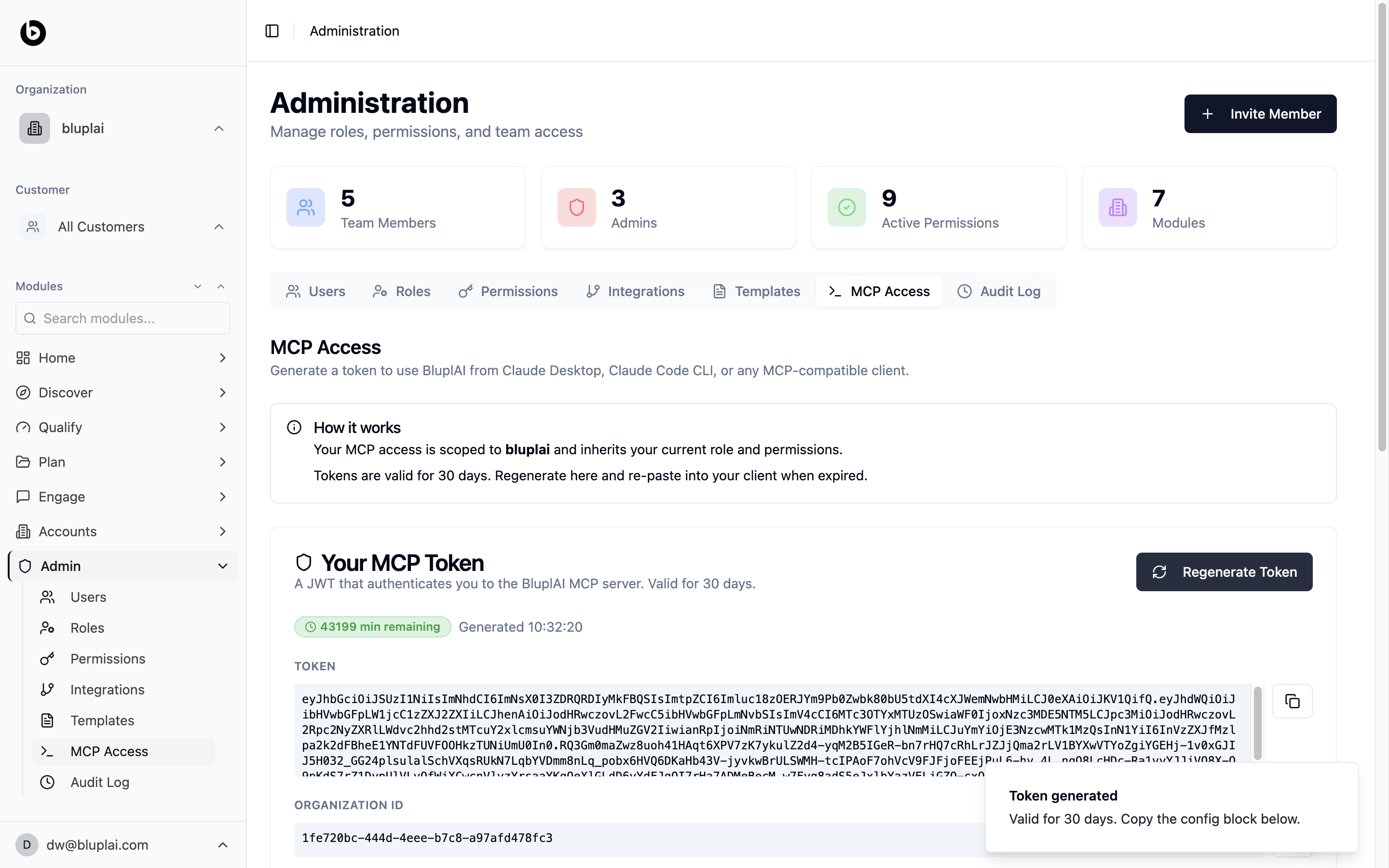
Click **Generate Token** (or **Regenerate Token** if one already exists). Bluplai mints a fresh JWT valid for 30 days, scoped to your organisation and your role.
Copy the **TOKEN** value and the **ORGANIZATION ID** from the panel. Paste both into your MCP client's config block — they're what the client uses to authenticate against the Bluplai MCP server.
### What happens after
Your client can now call the 27 MCP tools as you, with your permissions. The panel shows time remaining on the token; when it expires, come back and regenerate. Every action taken over MCP lands in the [audit log](/admin/audit-log) alongside UI actions.
## Next
Tokens inherit permissions — make sure yours are set correctly before generating one.
Every action taken over MCP lands in the audit log alongside UI actions.
### Why you'd generate one
An MCP token is how you hand an AI tool or agent — Claude Desktop, Claude Code, or any MCP-compatible client — the keys to read and write in your workspace on your behalf. It inherits your role and permissions exactly, so generating one doesn't widen access; it just extends what you can already do into the tools you use alongside Bluplai.
### How to generate one
From `/admin/mcp-access`, find the **Your MCP Token** panel.
Click **Generate Token** (or **Regenerate Token** if one already exists). Bluplai mints a fresh JWT valid for 30 days, scoped to your organisation and your role.
Copy the **TOKEN** value and the **ORGANIZATION ID** from the panel. Paste both into your MCP client's config block — they're what the client uses to authenticate against the Bluplai MCP server.
### What happens after
Your client can now call the 27 MCP tools as you, with your permissions. The panel shows time remaining on the token; when it expires, come back and regenerate. Every action taken over MCP lands in the [audit log](/admin/audit-log) alongside UI actions.
## Next
Tokens inherit permissions — make sure yours are set correctly before generating one.
Every action taken over MCP lands in the audit log alongside UI actions.